Leave comments on a frame or time range, send them to Voyager, and compare the next version.
Point to the exact moment or detail you want changed, then send your notes to the agent in the same chat.You need a video you can open in Voyager, such as the result from your first video. You can also revise it with an ordinary message: “Make the final title larger and keep everything else.”
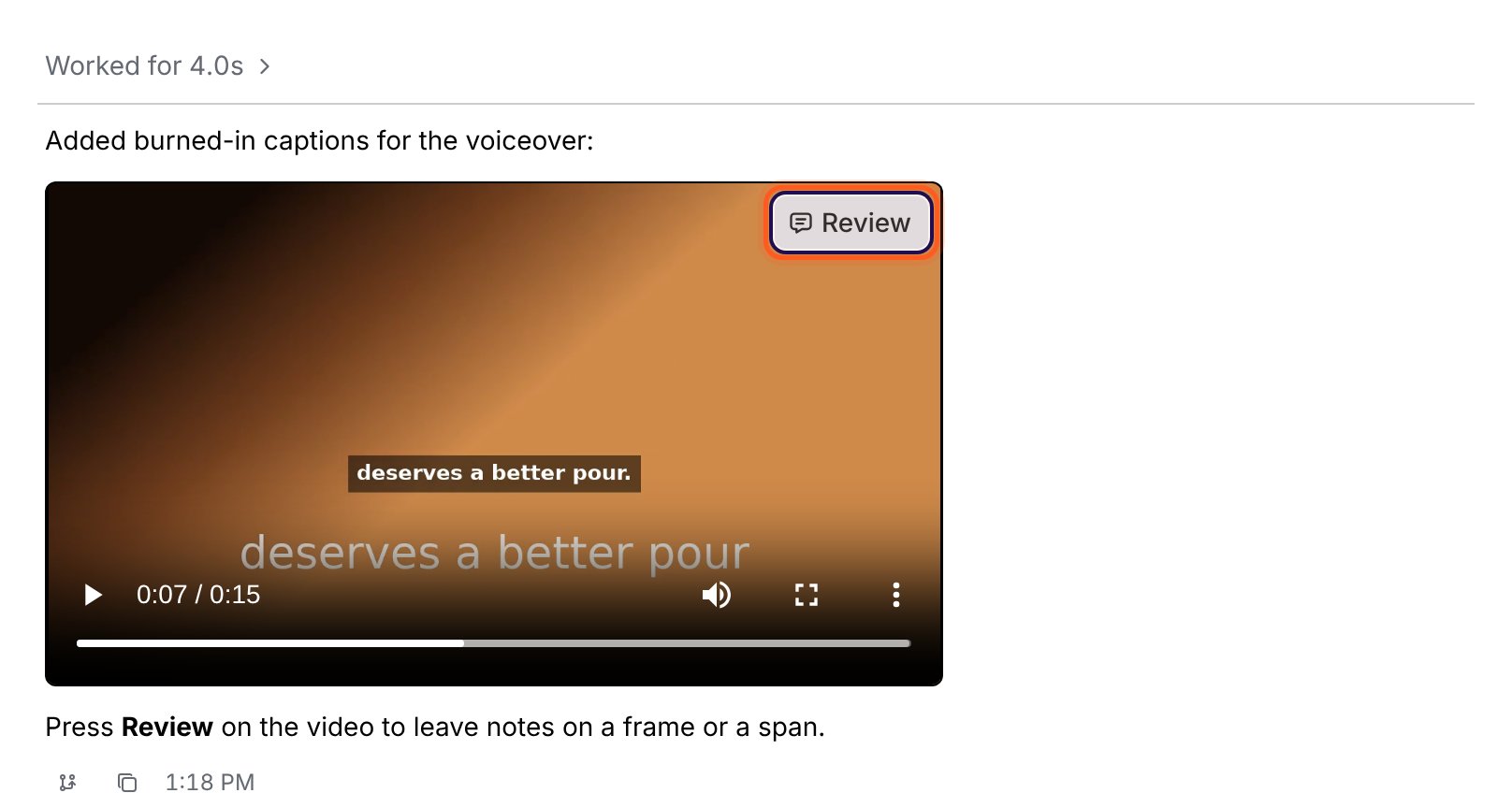
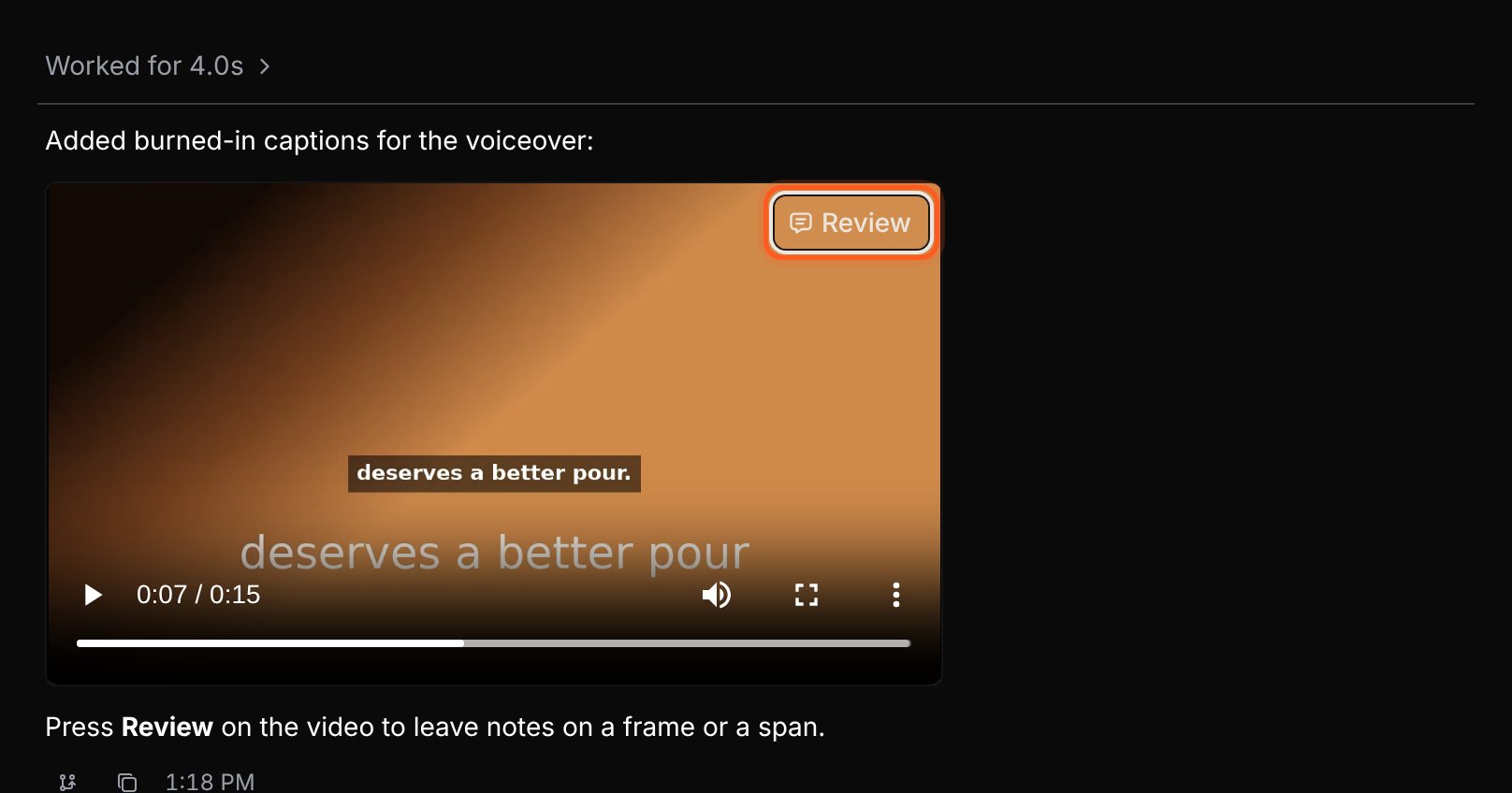
Hover over the video in the agent’s reply and click Review. You can also right-click it and choose Review video.
The Review button opens a player where comments can point to the picture and its timing.
2
Find the moment and mark it
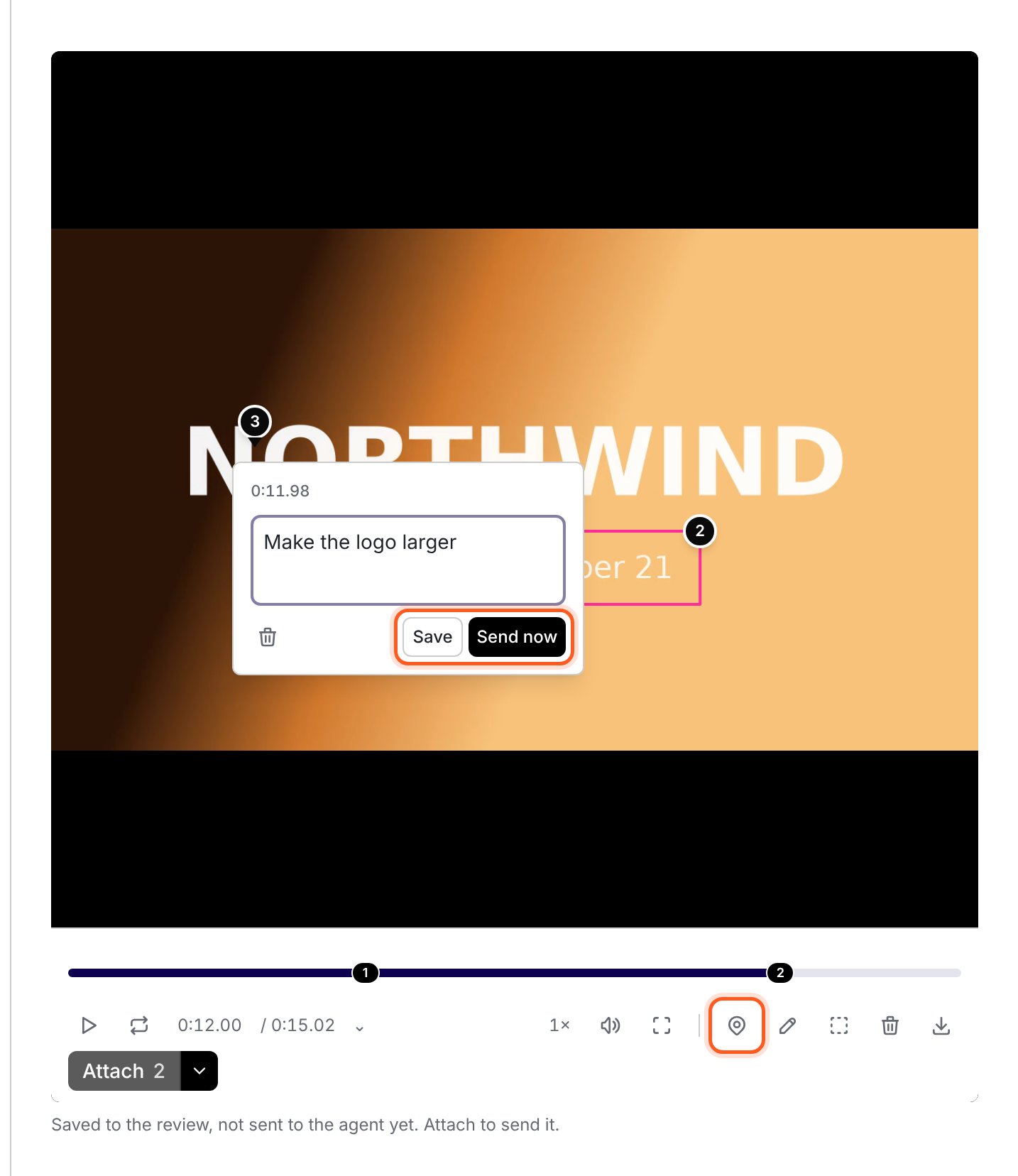
Play or pause with Space. Use the left and right arrow keys to move a frame at a time.Use the pin tool to point to a detail, the pen to draw, or the box tool to surround an area. Their shortcuts are P, D and B. Write a concrete note, such as “Make this title about a third larger, keeping it centered,” then click Save.
A mark and a specific note tell Voyager what to change in this frame.
3
Use a time range for pacing or sound
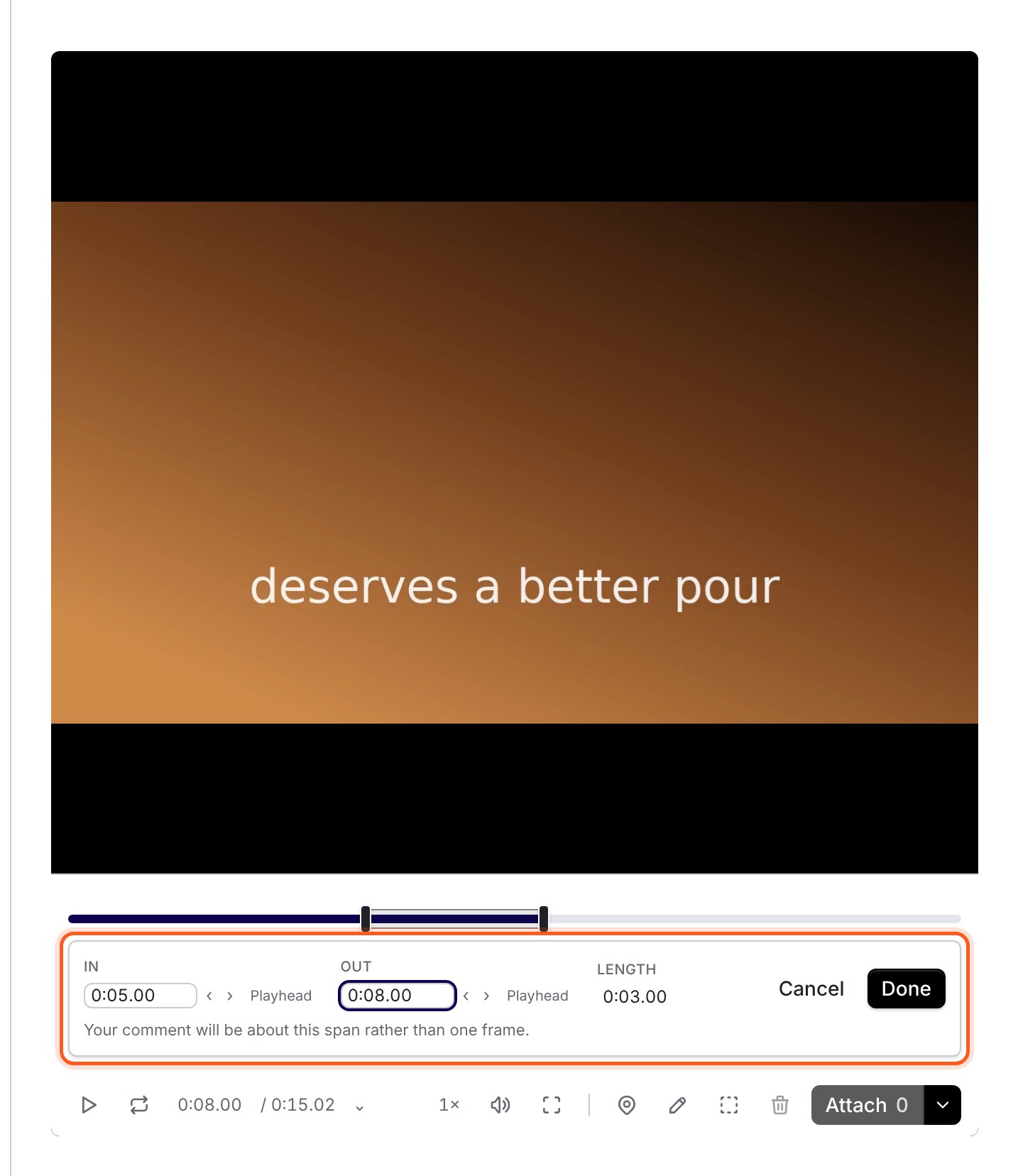
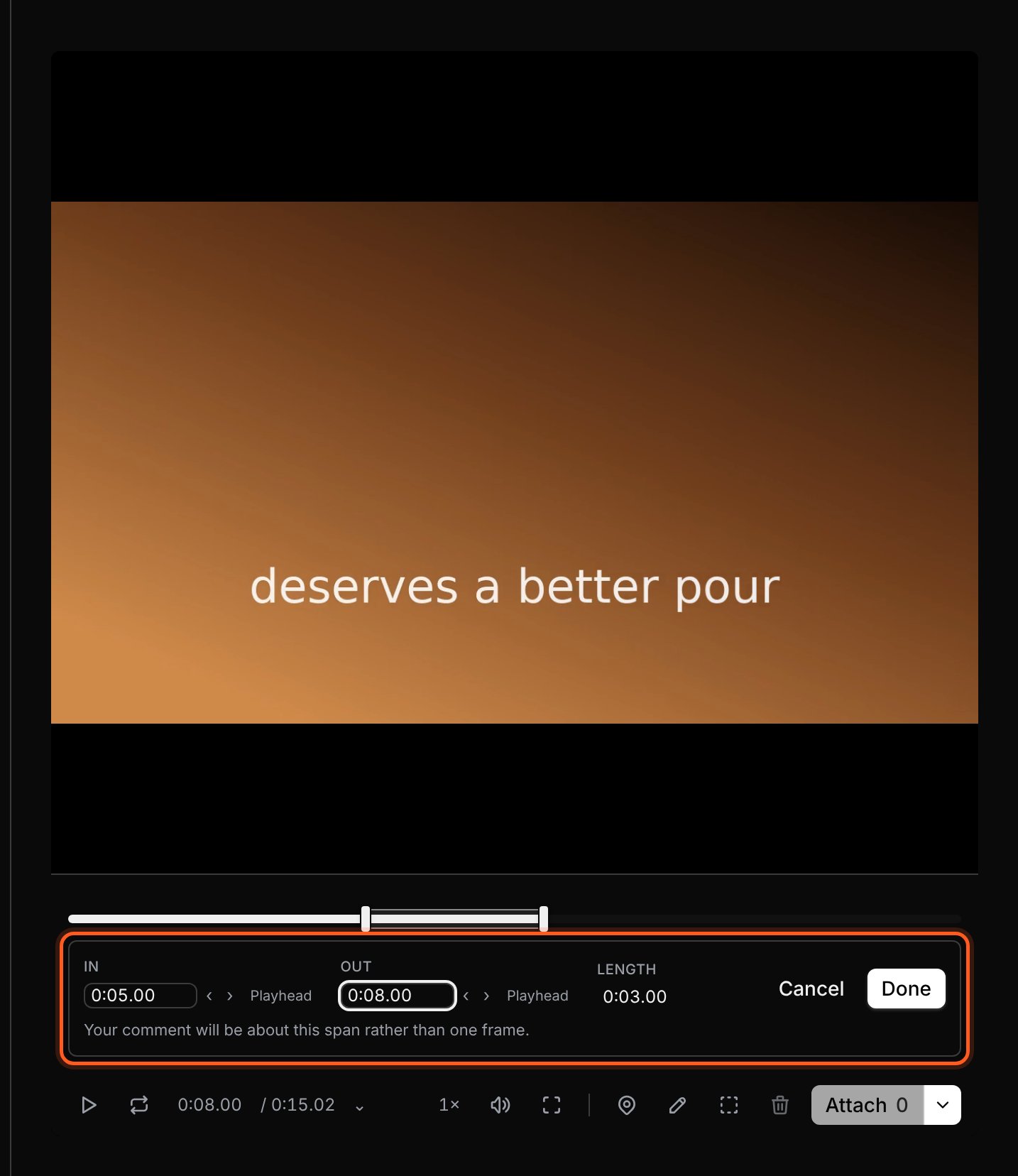
For a change that covers several seconds, use Select time range at the timeline. Set In and Out, then add your note. You can use I and O to set the range while reviewing.For example: “Slow this entrance down, but keep the title fully visible for the final two seconds.” A range is more useful than a single frame for pacing, transitions or audio.
A range comment applies to the span between In and Out.
4
Attach and send your notes
A revision that generates new images, clips, music or voice can cost money. Review the new estimate and your question-answer mode and spend limit before approving paid work.
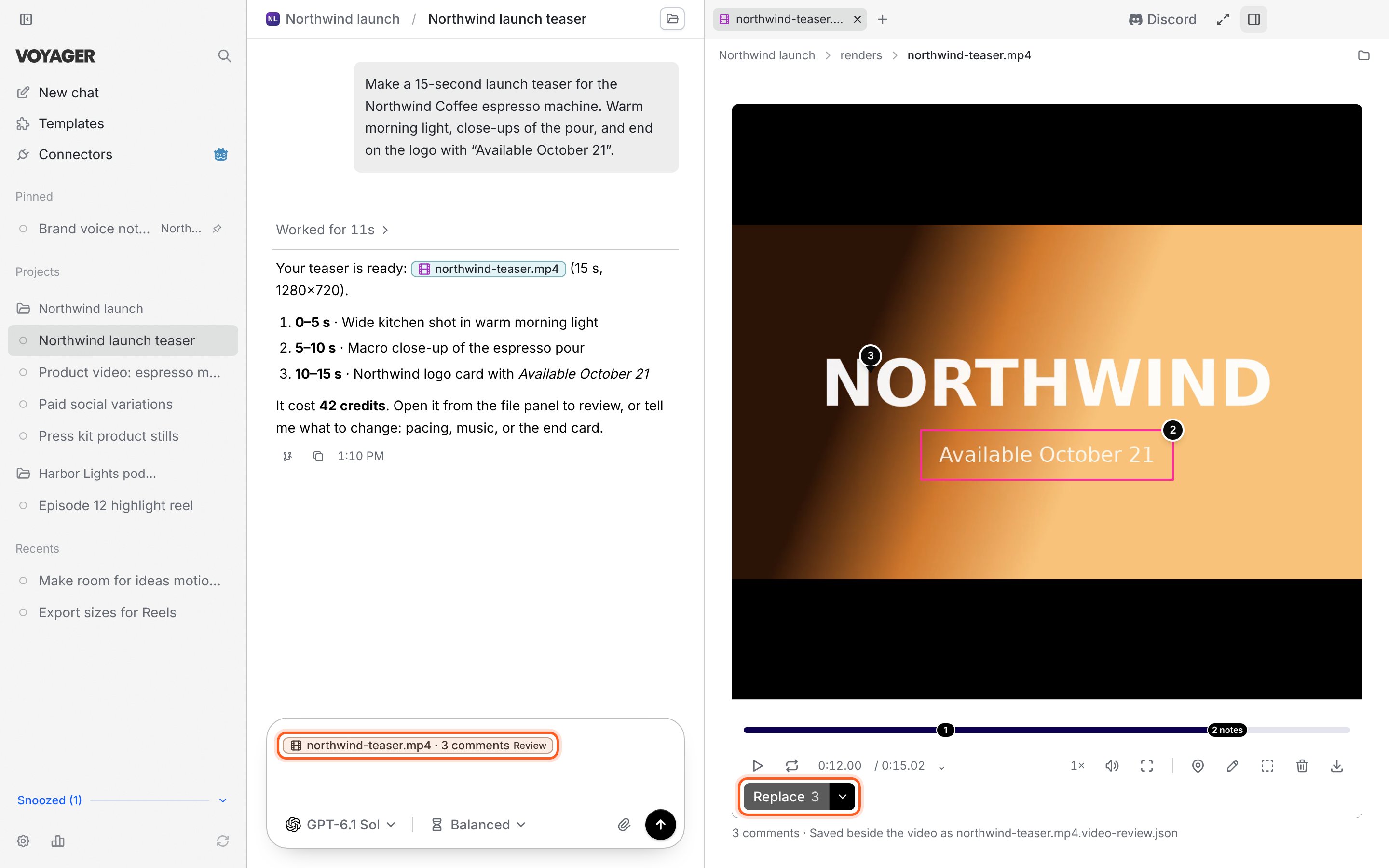
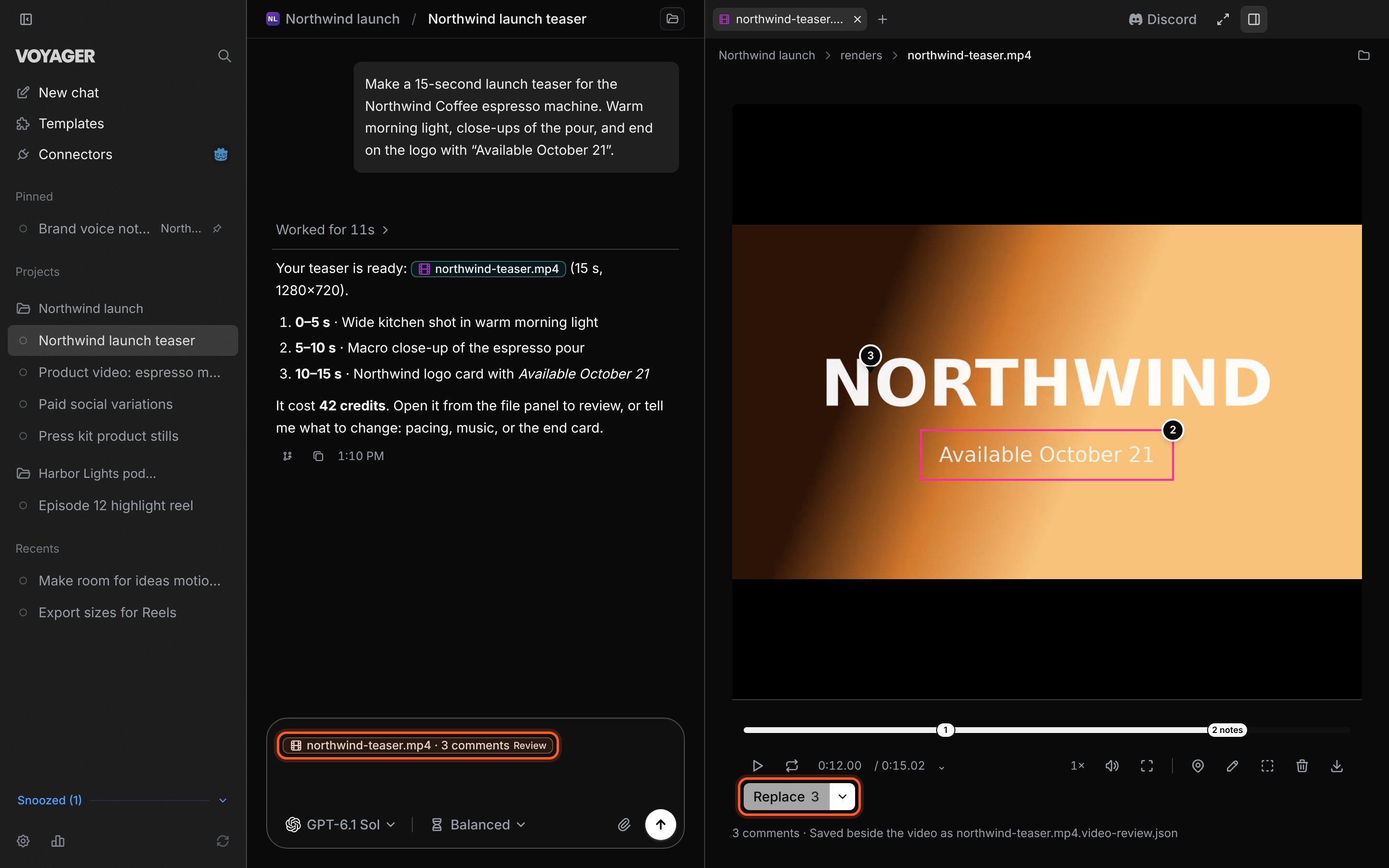
Click Attach followed by the comment count, such as Attach 3. This puts a review attachment in the message box. Add your instruction and send it:
Apply these notes. Keep the parts I haven't commented on.Save a new version and keep the original.
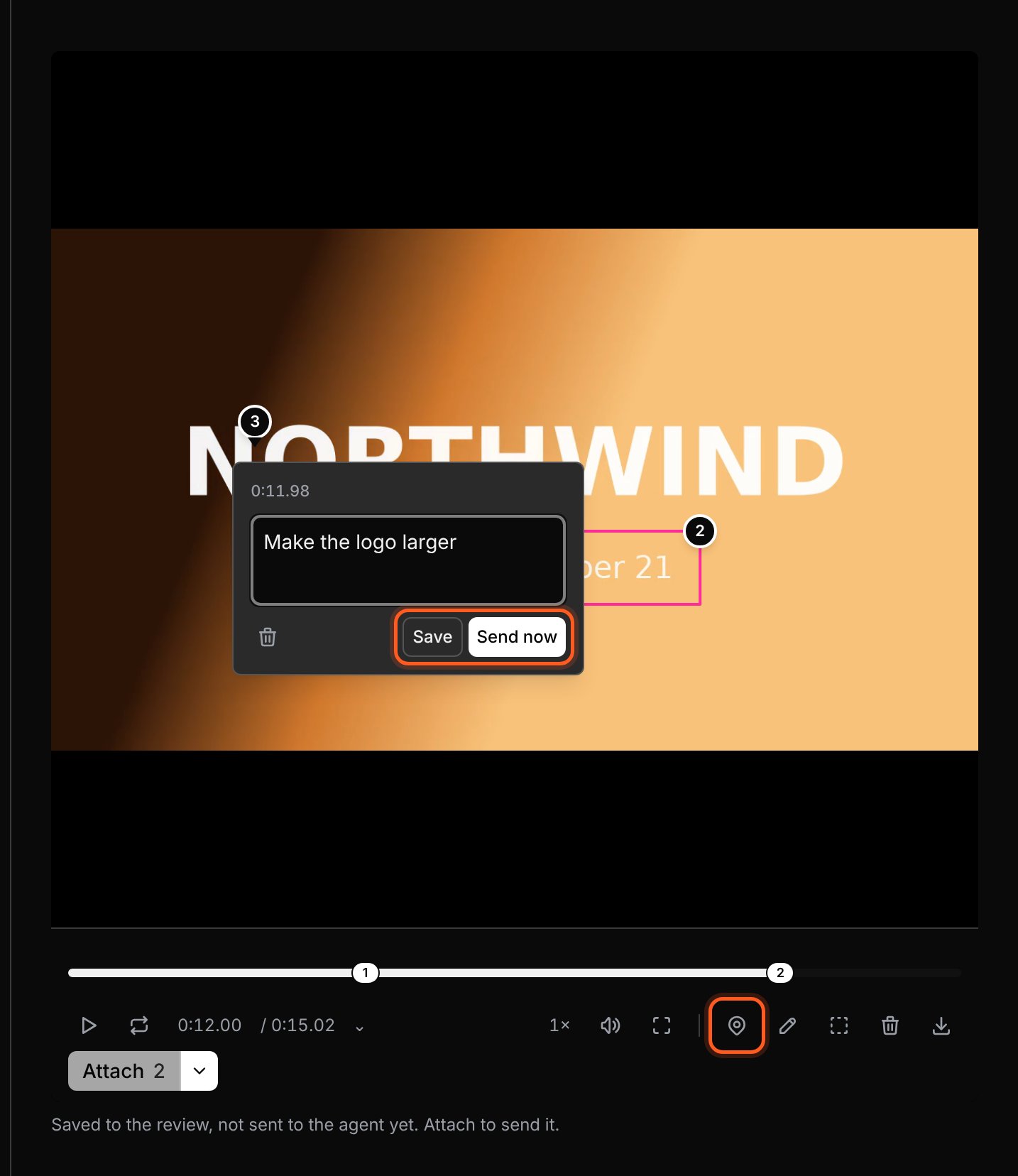
Attach stages the notes; it does not send a message. Send now on a comment sends that note immediately. Use Save while collecting several notes, then Attach to send them together.
The review attachment is ready for your next message; send it when your instructions are complete.
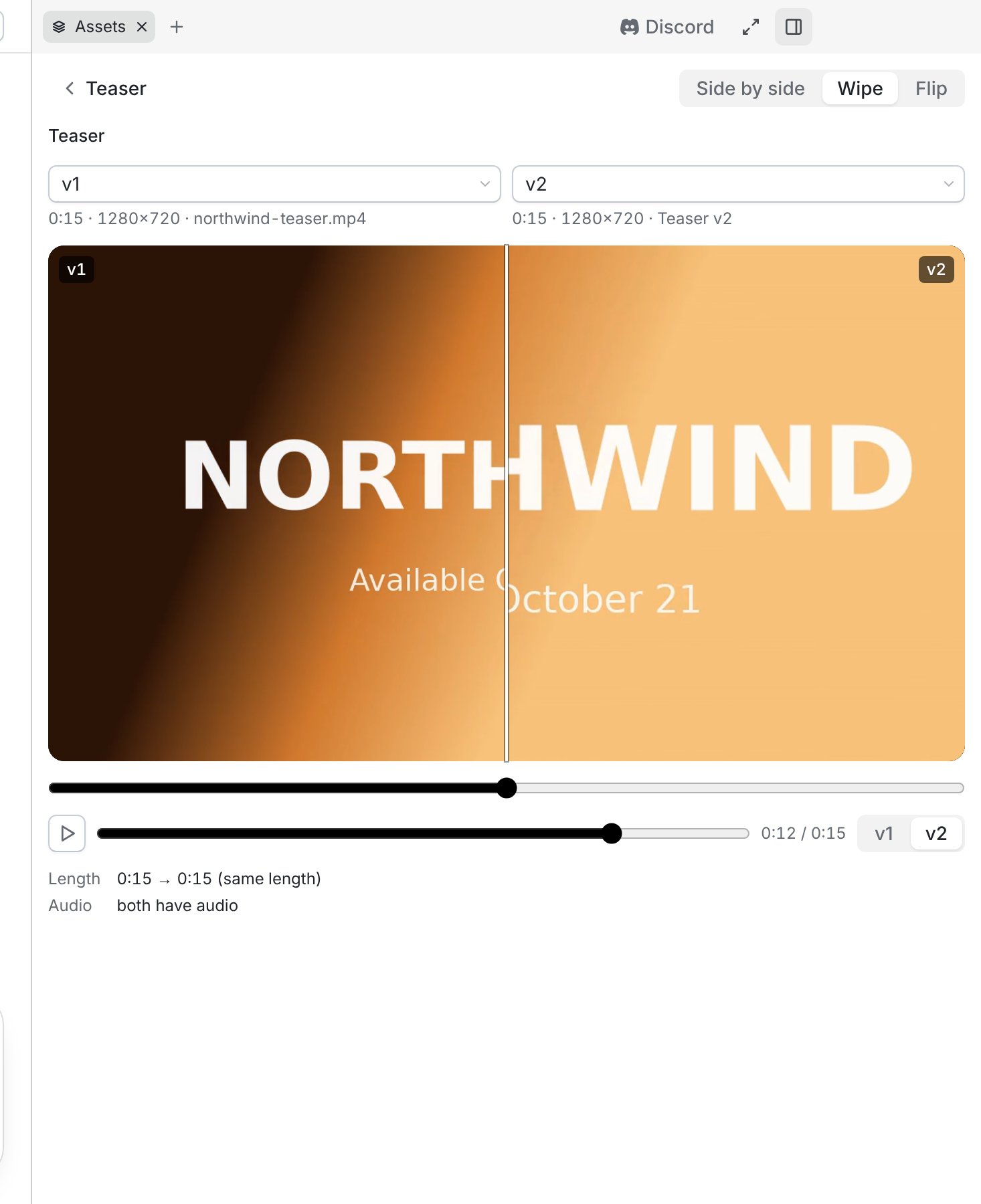
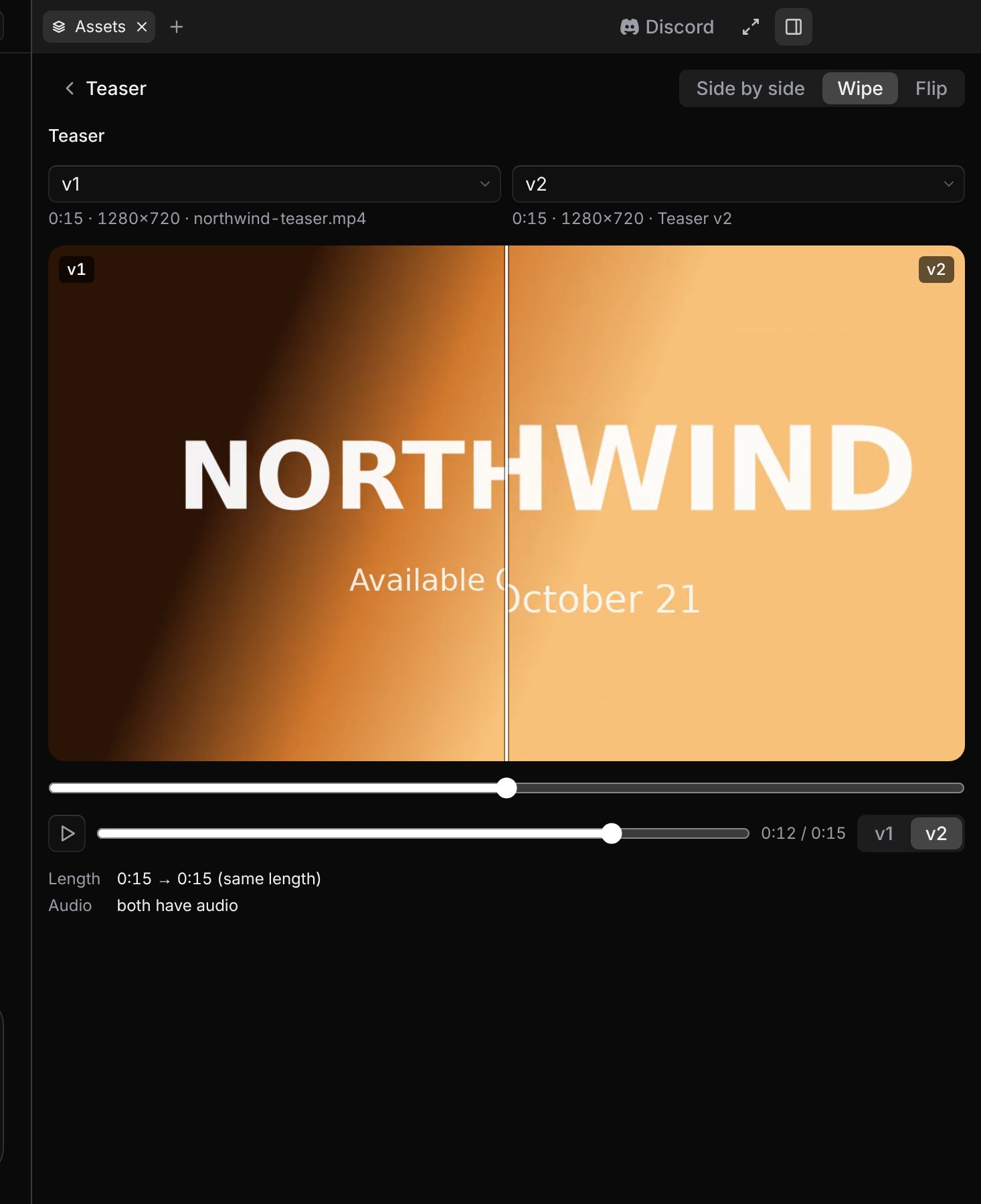
Open Assets in the right panel and select the output. When it has suitable versions to compare, click Compare and choose the two versions.
View
Use it to check
Side by side
Both versions at once.
Wipe
Differences across the same picture using a divider.
Flip
One version at a time, switching between them.
Compare versions of the same output before choosing the one to keep using.
Play the revised section and the complete video. A title change may look right in one frame but arrive too early in motion. Keep giving feedback in the same chat so the agent has the earlier decisions.
Look for the review attachment in the message box. Add an instruction and click Send. Attaching a review does not start a revision by itself.
The agent changed the wrong version
Open the intended version and attach a review from that file. Name the version in your message and say what should stay unchanged.
Compare is missing
Check that you selected an output with more than one comparable version in Assets. If the revision is a separate output, ask the agent to present it as the next version of the original.
Next: find your file
Open the finished version in your file manager or save a copy.