Use your Claude subscription or Anthropic API key as Voyager’s agent: install Claude Code and sign in from the Connect providers step.
When you finish, Voyager’s agent runs on your own Claude account, through Claude Code. This is part of step 2 of 5, Connect providers.
Before you start
A Claude plan that includes Claude Code, such as Pro or Max (see Claude’s plans), or an Anthropic API key. Claude Code can sign in with either.
Cost: nothing extra from Voyager. With a subscription, usage counts against your Claude plan’s own limits. With an API key, Anthropic bills you per use.
You don’t need to install anything yourself. If Claude Code isn’t on your computer, Voyager opens a terminal with the official installer ready to run. It doesn’t need Node or any other developer tools.
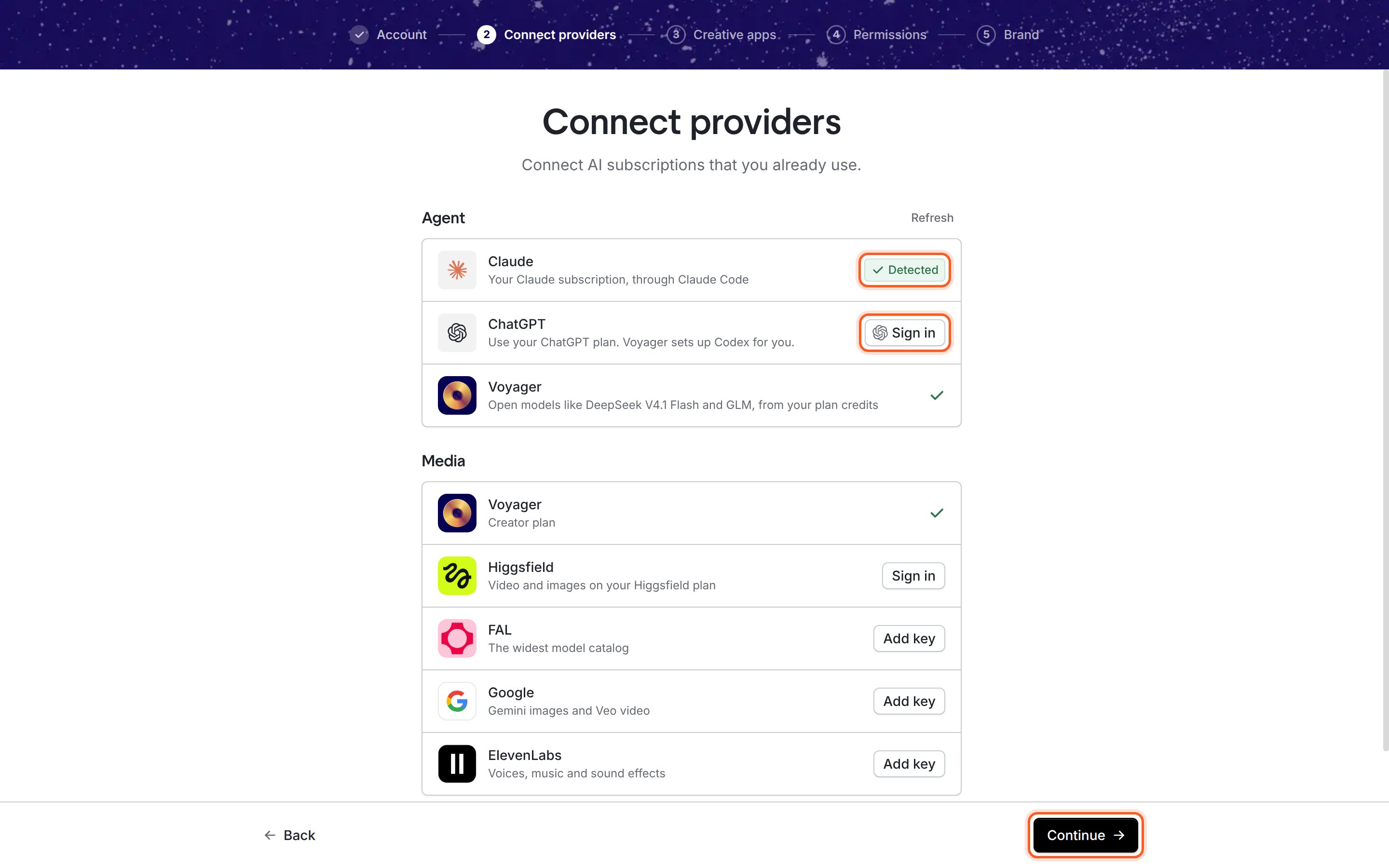
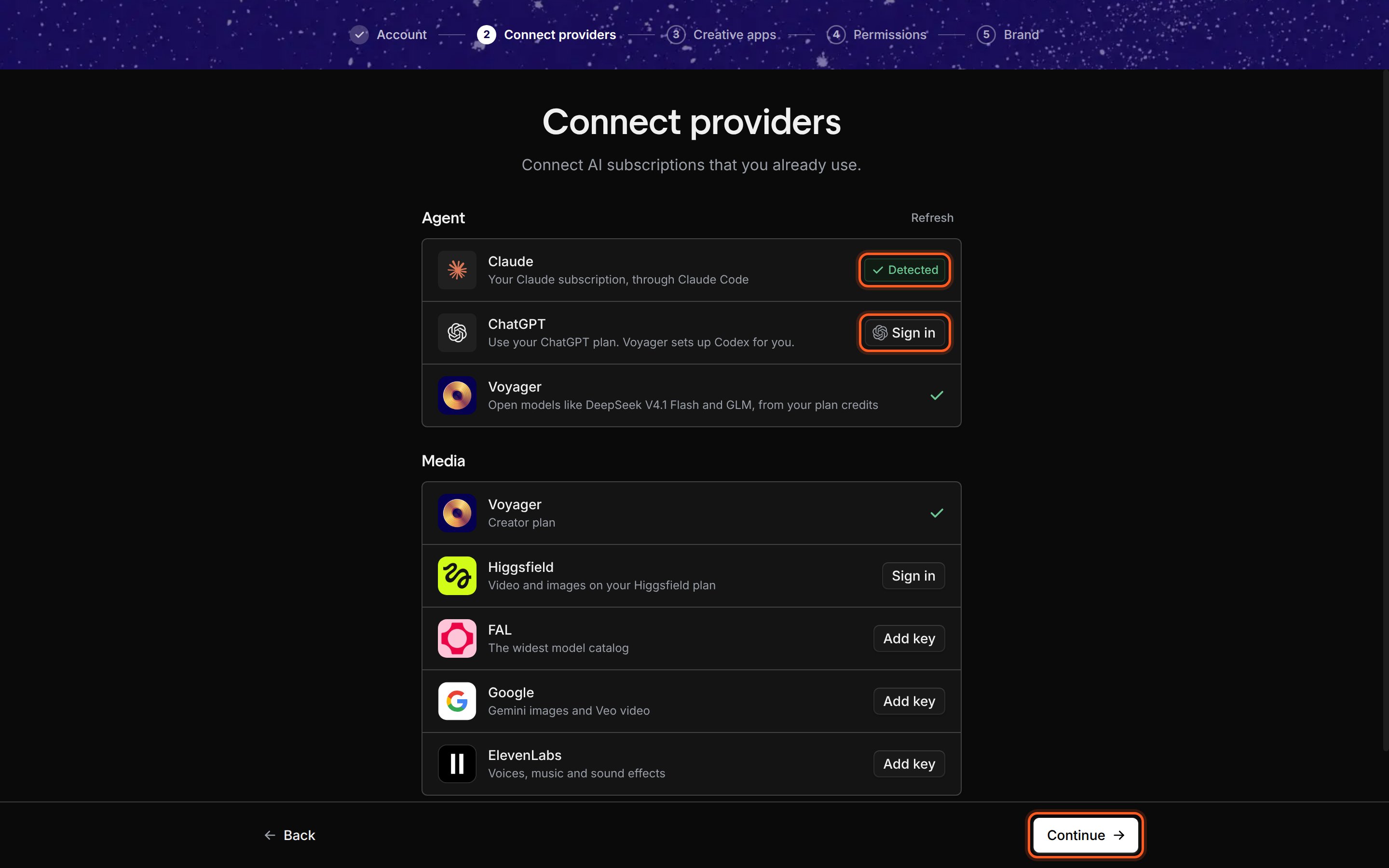
On Connect providers, the Agent section lists Claude first, described as Your Claude subscription, through Claude Code. The right side of the row tells you what to do:
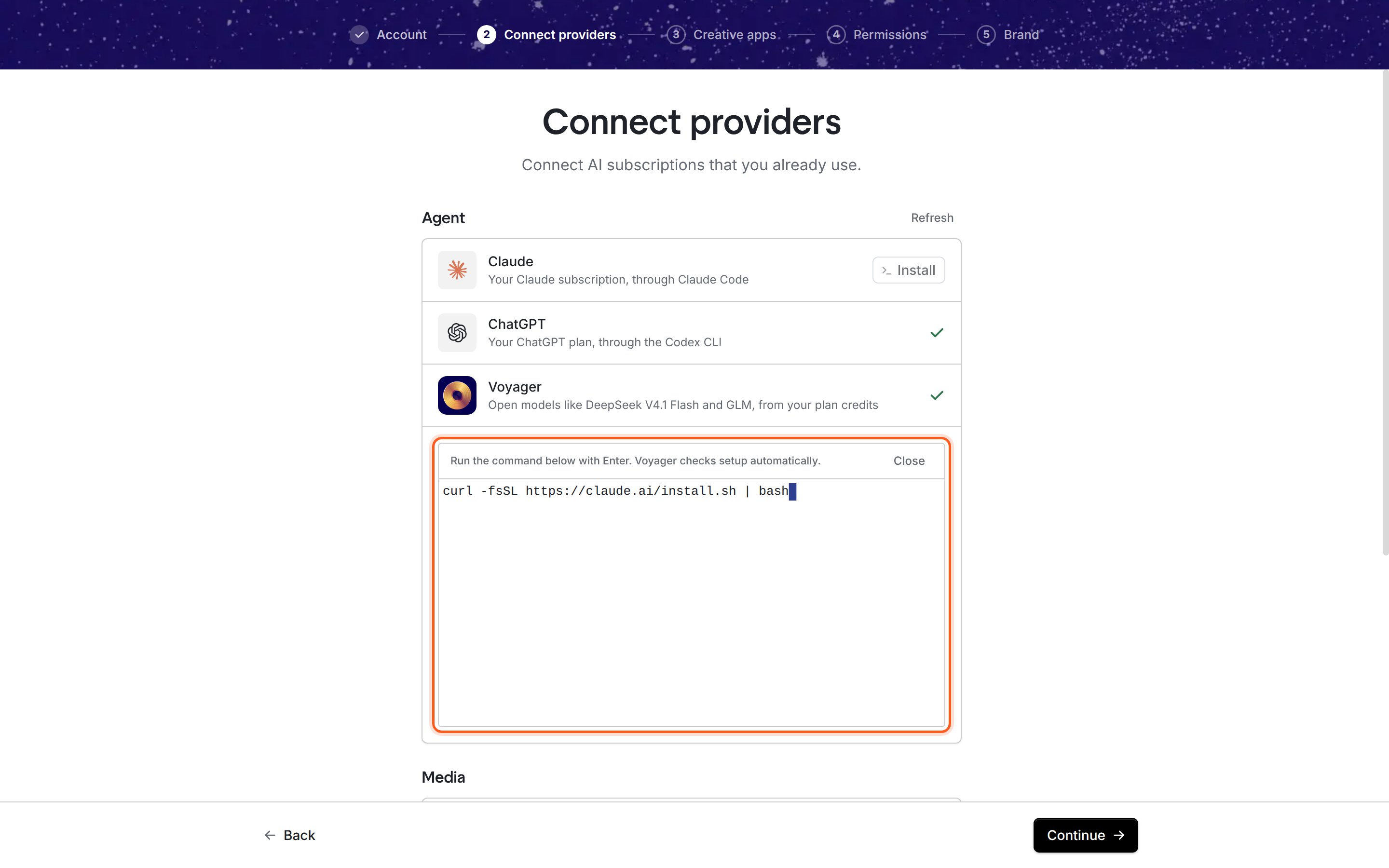
On the Claude row, click Install. A terminal opens under the agent list with the official Claude Code installer already typed in. Nothing runs until you press Enter.
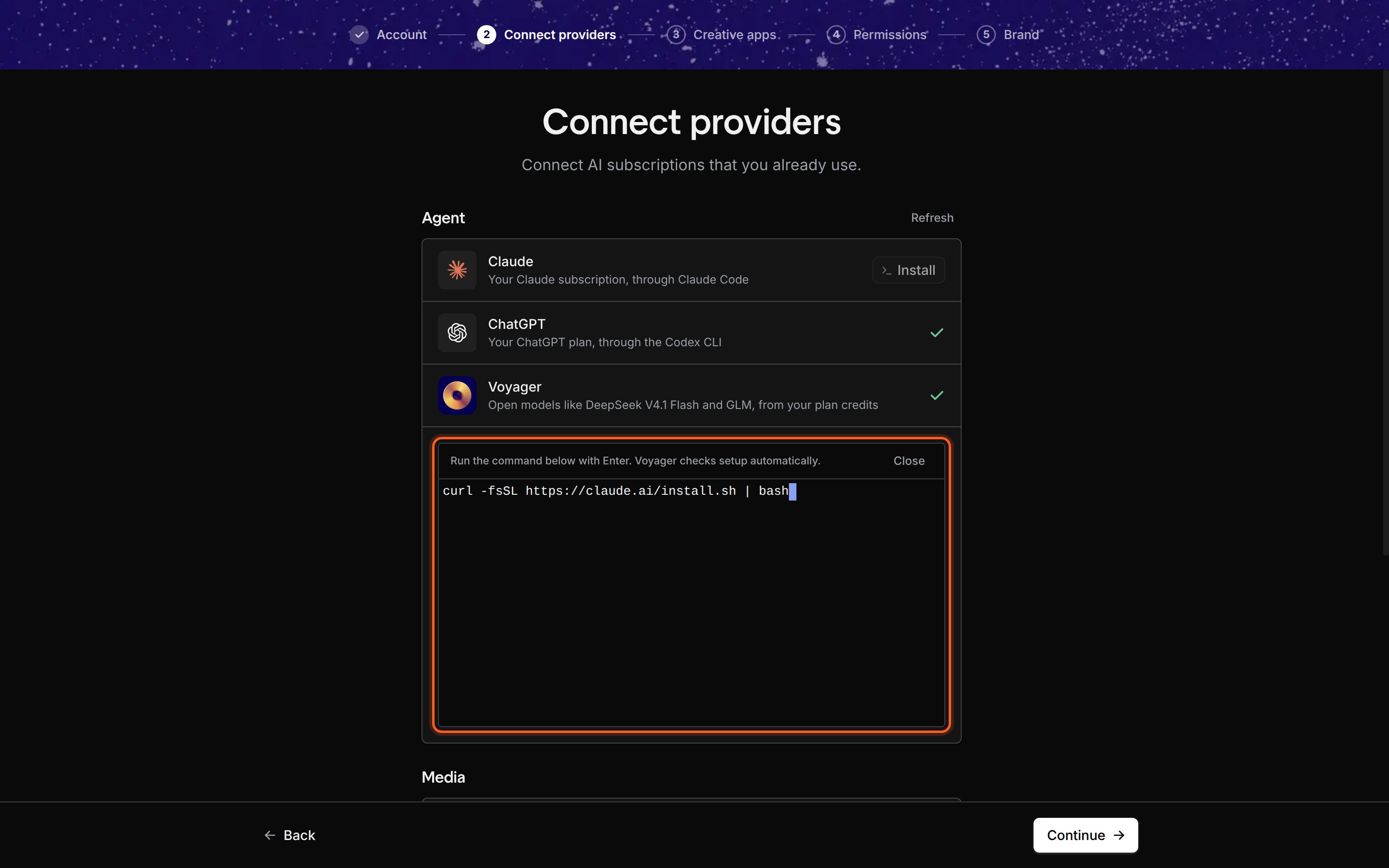
The setup terminal, with the installer typed in and waiting for you to press Enter.
2
Press Enter to install
Click in the terminal and press Enter. The installer downloads Claude Code. When it’s done, the status line changes to Installed. Continue to sign in to your account.The command is Anthropic’s own installer:
curl -fsSL https://claude.ai/install.sh | bash
irm https://claude.ai/install.ps1 | iex
3
Click Continue to sign in
Click Continue to sign in. The terminal now has the sign-in command typed in: claude auth login. (If the row showed Sign in to begin with, clicking it opens this same terminal.)
4
Press Enter and sign in to Claude
Press Enter. Claude Code opens your browser so you can sign in with your Claude subscription or your Anthropic Console account (for API billing). Follow the prompts there, then come back to Voyager.Voyager checks every few seconds. When it sees you’re signed in, the status line reads Connected. Your subscription is ready to use.
5
Click Use subscription
Click Use subscription to close the terminal. The Claude row now shows a green check.
6
Click Continue
Click Continue at the bottom right. Voyager saves your setup and moves on to Creative apps.
Closing the terminal stops anything still running in it. If you close it mid-install, click Install again to start over.
Setup doesn’t ask you to pick a model. If Claude is connected, Voyager starts new chats on Claude Opus 5.5, even if you also connect ChatGPT or have a Voyager plan.To use something else, pick a different model in the chat box, or change the default in Settings → General, under Conversations → Model.
The terminal says “Could not open the setup terminal.”
Click Retry in the terminal’s header. If it still fails, install Claude Code in your own terminal with the command above, run claude auth login, then click Refresh above the agent list.
Sign-in finished, but the row still says Sign in
Click Refresh above the agent list. Voyager re-checks Claude Code. If the row still doesn’t change, run claude auth login again and make sure you signed in with the Claude account that has your plan.
The row shows a warning instead of a check
Claude Code is installed but something needs attention, for example an expired sign-in. The warning text says what. Usually clicking Sign in and signing in again fixes it.
Continue stays off: “Connect at least one agent to continue.”