

Before you start: sign in to Voyager. Review links work for video, audio and image files. For a motion graphic or web page, use Share → Render to video, then share and share the video when it’s ready.
Create a link
1
Open the share options
Open the video, audio or image in the file viewer. Click Share in the file’s header, then choose Share for review.
2
Create the link
Click Create link. Voyager uploads the file, which can take a while for a large video. You can close the window while it uploads; Voyager tells you when the link is ready.
3
Name and copy it
Give the link a Title if you like, so reviewers know what they’re looking at. Click Copy link and send it to your reviewers.
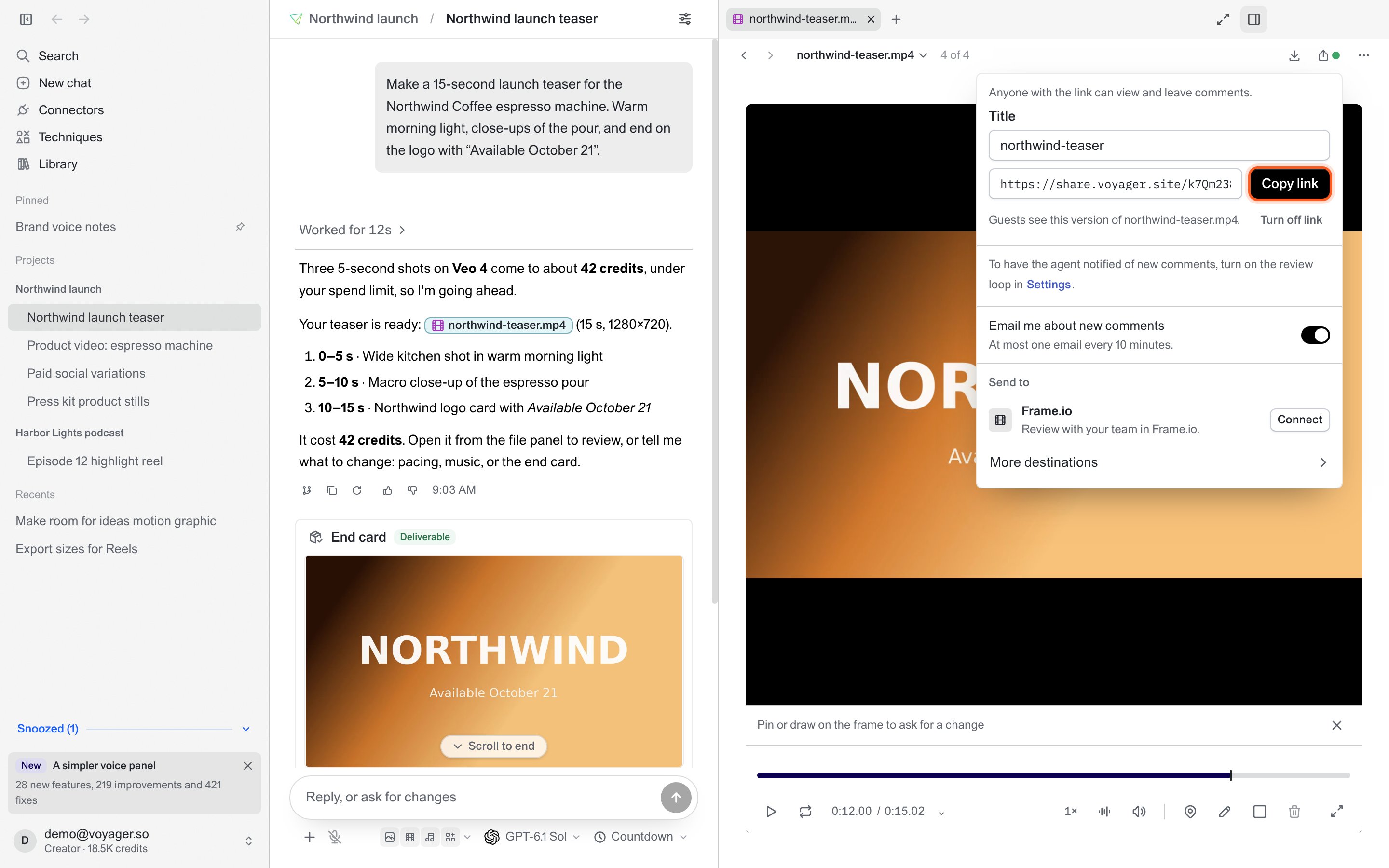
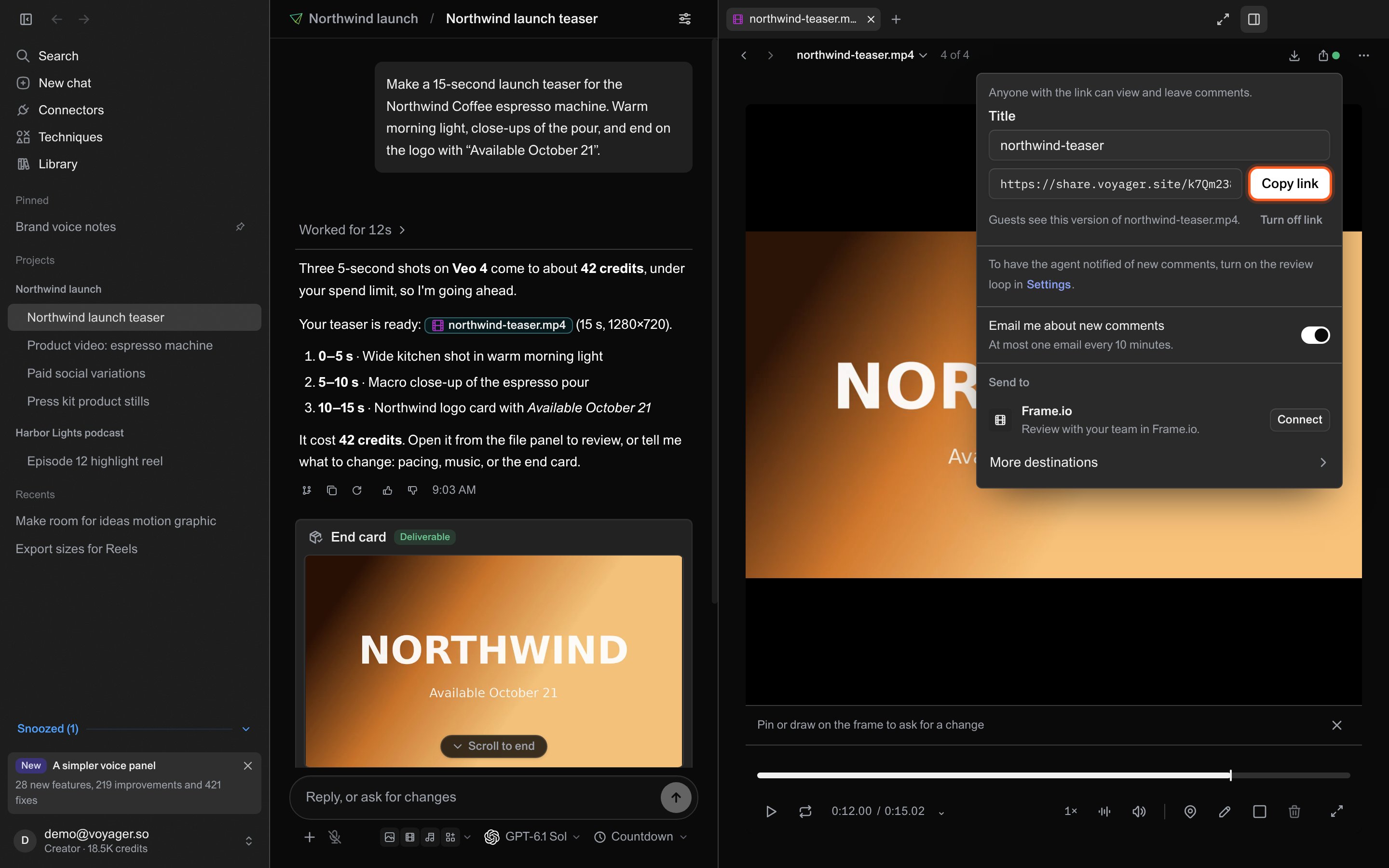
The share options for a video: the link, its title, comment alerts and Send to Frame.io.
Other ways to share a file
Share in a file’s header lists every way that file can go out:What your reviewers do
Reviewers enter their name, or click Sign in instead to comment with their Voyager account. Then they pause on a moment and leave a note. They can drop a pin, draw, box an area or select a time range, just as you can in Voyager. They see each other’s notes and can reply to them.Bring the feedback back
Reviewers’ notes appear in your review with their name and Guest. A check beside the name means they signed in with Voyager. You can Reply to a guest’s note from the review; they see your reply on their page. Once there are notes, click Add to chat (N) below the player to add them all to the chat, then press Send. See Review and revise your video. When a note is resolved, reviewers see it marked Resolved on their page.Get told about new comments
In the Share options, turn on:- Email me about new comments: at most one email every 10 minutes.
- Notify the agent of new comments: ask the agent in a chat to watch this link, and it tells you when notes are waiting. Notes then wait for your approval before the agent acts on them; signed in on the review page, you approve them with Approve. This needs a paid Voyager plan (see plans) and Tell me about new review notes turned on in Settings → General → Notifications.
Share a new version
After you change the file, Voyager shows Update shared version in the file’s header, and the Share options say guests still see the older version. Click Update shared version, or Share latest version in the Share options. Voyager adds the new version to the same link. Reviewers see the newest version, can switch back to earlier ones, and each note stays with the version it was left on.Send to Frame.io
If your team reviews in Frame.io, send the video there instead.1
Connect Frame.io
Open Apps & Models → Apps, find Frame.io and click Connect. You can also click Connect next to Frame.io in the Share options.
2
Send the video
In the Share options, under Send to, click Send next to Frame.io, then choose the folder.
See all your links
Open Settings → Devices & sharing and look under Active links, at the end of the page, to see every link that’s live. Each shows the file, how many versions it has, how many guest notes are open and how many are new. From there you can Copy link, turn Email alerts on or off, Update a link whose file has changed, and use the ⋯ menu to Open review, Open in browser or Turn off link.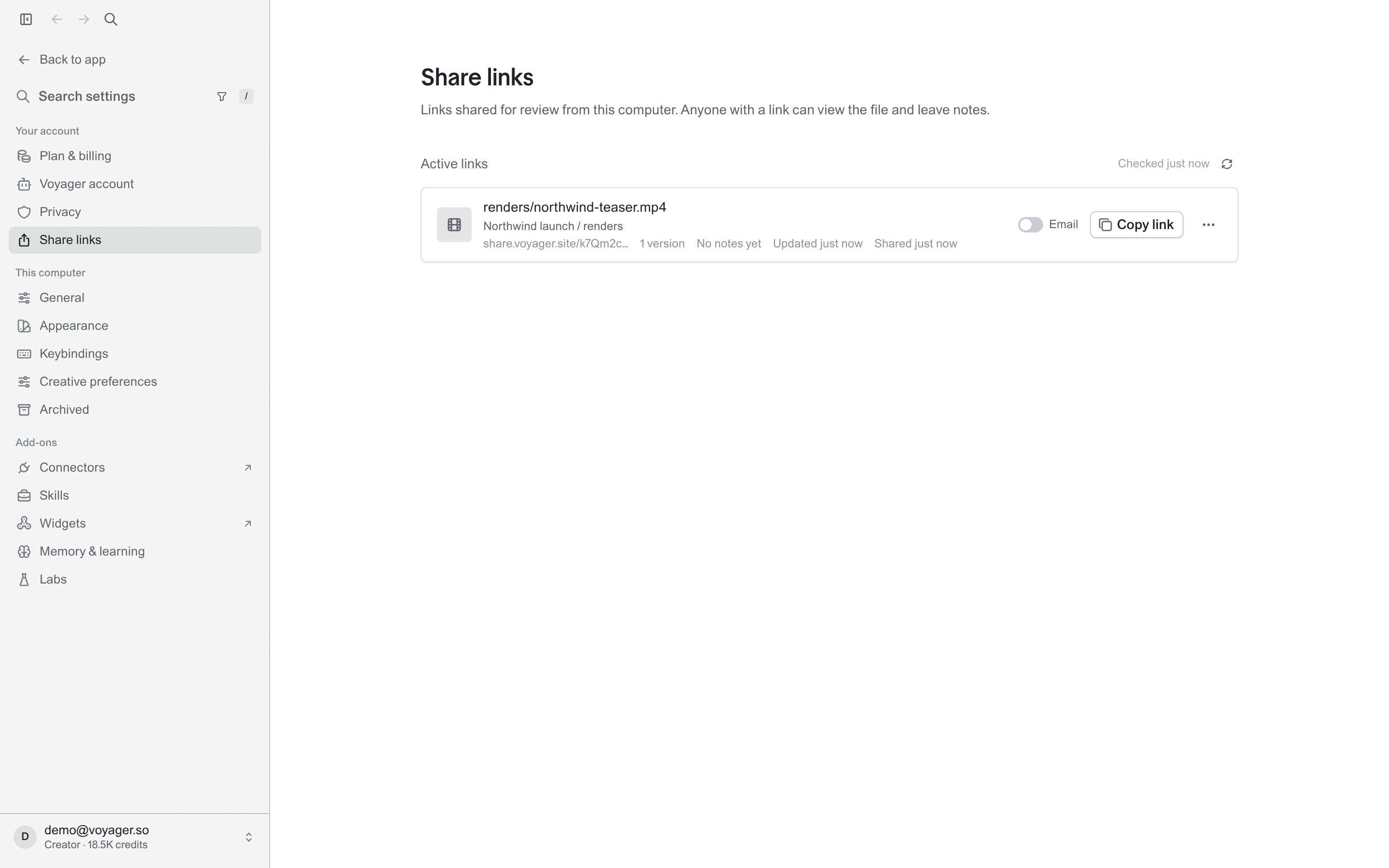
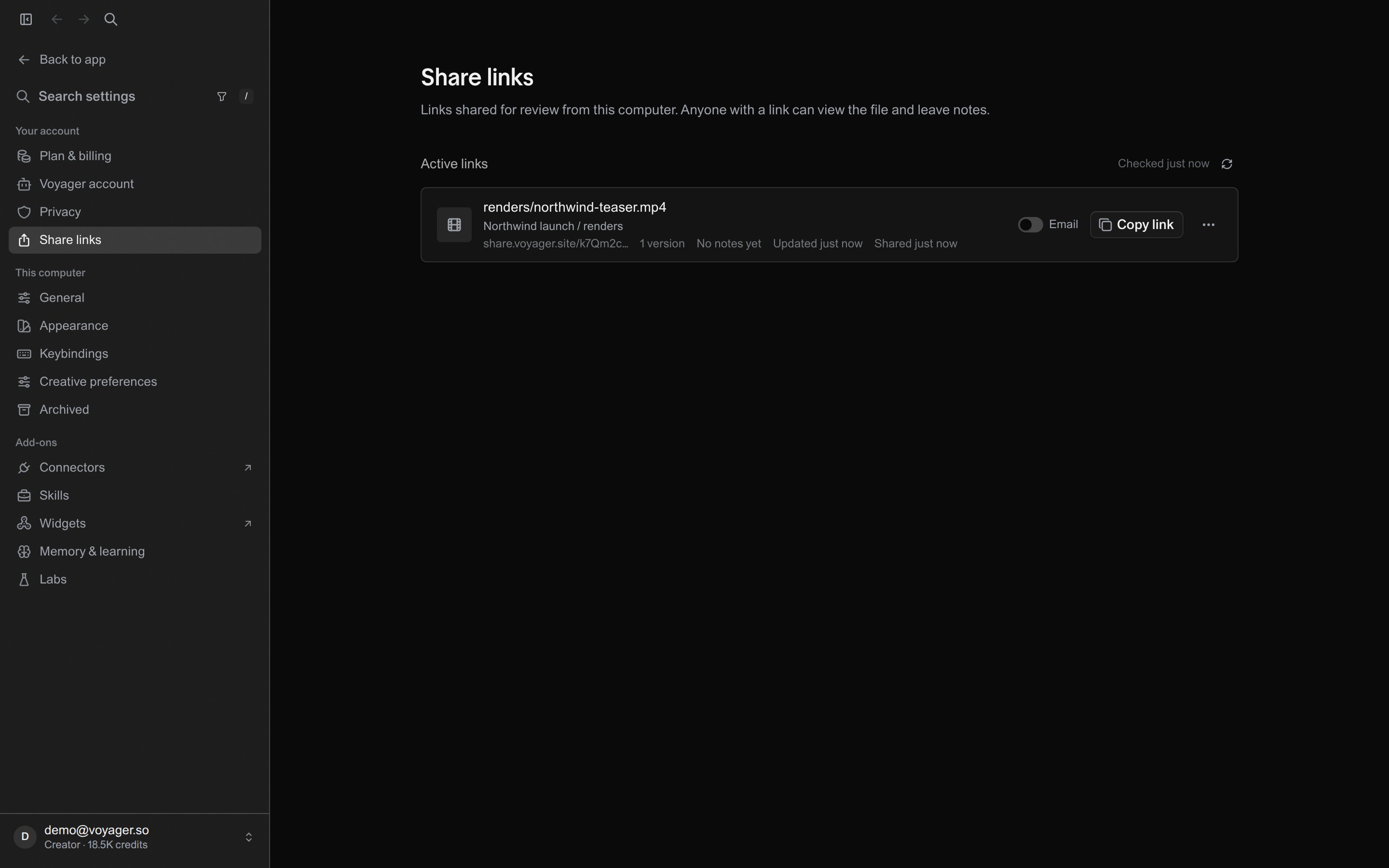
Settings → Devices & sharing lists every live link at the end of the page.
Turn off a link
Click Share in the file’s header, choose Manage review link, then Turn off link. Or turn it off from Settings → Devices & sharing. The page stops working right away. Notes you already received stay in your review. To share the file again, click Create new link; this makes a new link.Check the result
Open the copied link in a private browser window. You should see the file and be able to leave a note. The link is listed in Settings → Devices & sharing.Common problems
The link wasn't created
The link wasn't created
Check your internet connection and click Create link again. Very large files (over 5 GB) can’t be shared.