

Brand kits
A brand kit holds a brand’s logo, colors and fonts. When a project has one, Voyager uses it for titles, captions and graphics. Brand kits come from your Voyager account, so you need to be signed in.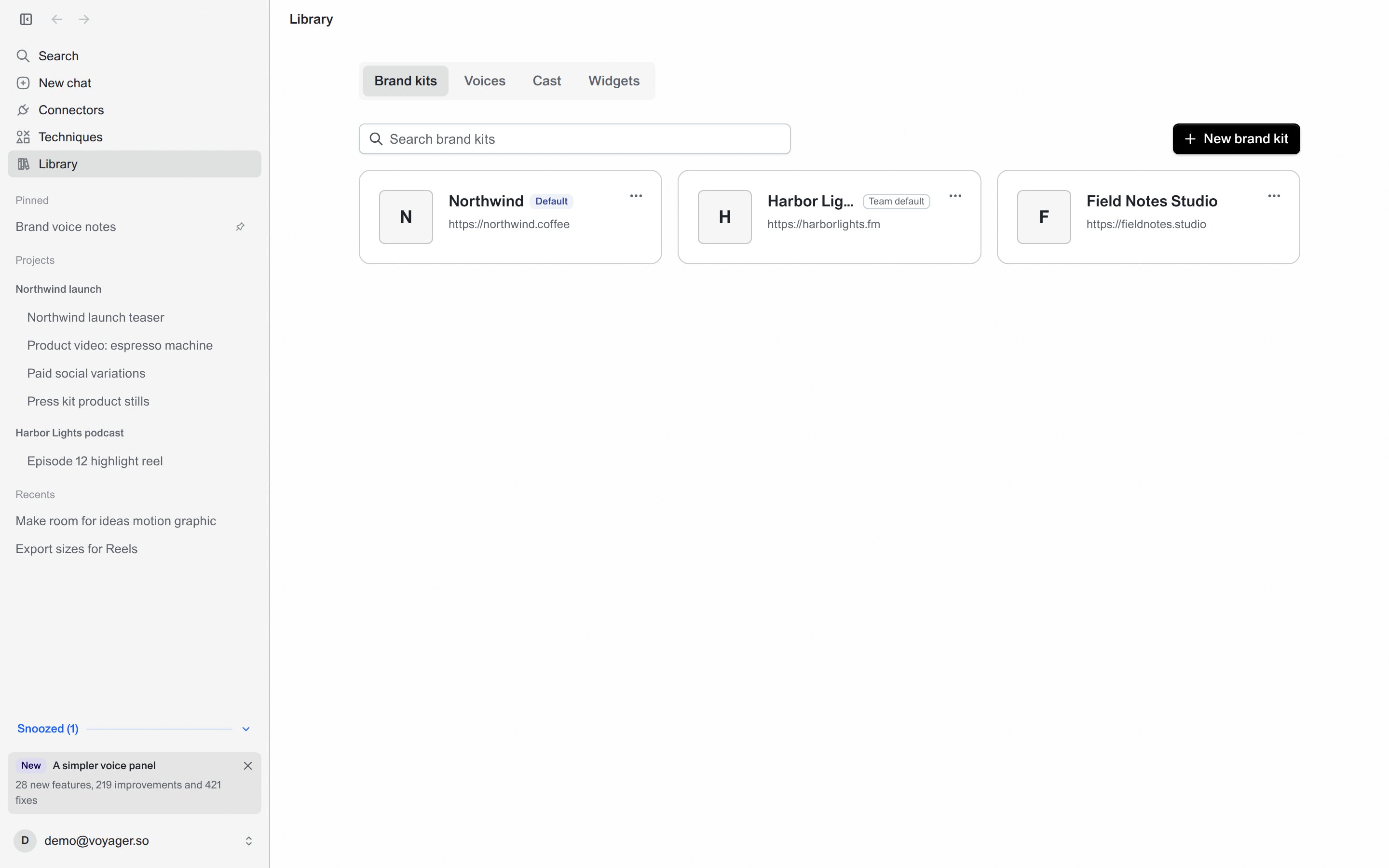
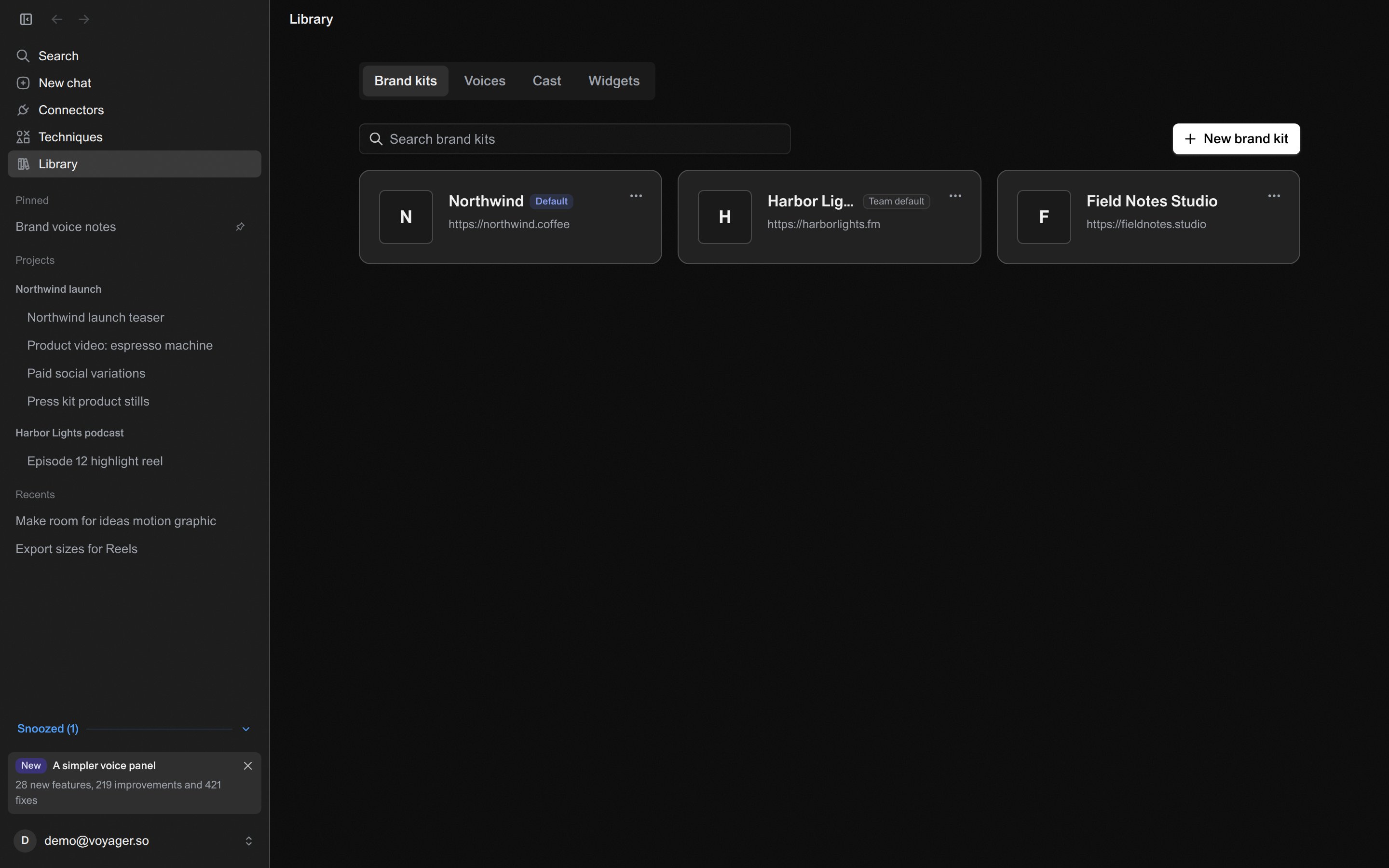
Library → Brand kits lists your kits and marks the default for new projects.
- Open a kit by clicking its card to see its description, colors and fonts.
- Set the default for new projects: open the card’s menu (⋯) and choose Set as default, or use Set as default on the kit’s page. New projects start with that kit, and its card shows Default. Choose Remove as default to clear it. A kit marked Team default is your team’s default in your Voyager account.
- Make a new kit: choose New brand kit. Voyager opens a new chat with the request started; finish it with your website or attach your logo, fonts or brand guide, then send.
Voices
Voices lists the voices Voyager can use for narration and voiceover.- Your voices shows voices you’ve cloned. Choose Clone your voice to make one from a recording of your own voice. Voice cloning is included with Voyager Ultra and GigaMax™; on other plans, See plans shows the options.
- In the Voice library, play a voice to hear it, and star the ones you like to find them under Favorites.
Elements
A project’s Elements (formerly Cast) keep its characters, locations and props looking the same in every shot. Elements live in each project on your computer. The tab shows All projects; use the Project menu at the top to show one.- Add from a photo: choose Add element (or Choose photos when the project has no elements yet) and pick one or more photos. Voyager reads each photo and fills in the description and kind, so you only add a name.
- Describe someone instead: choose Describe one instead, and the agent drafts an element from your description.
- You can also open a project image in Files and choose Add to Elements.
Widgets
Widgets are interactive cards the agent can show in a chat: for example, picking shots, reviewing clips one by one, comparing two images or approving a cost. Built-in widgets are always available, and widgets you or the agent save appear here too.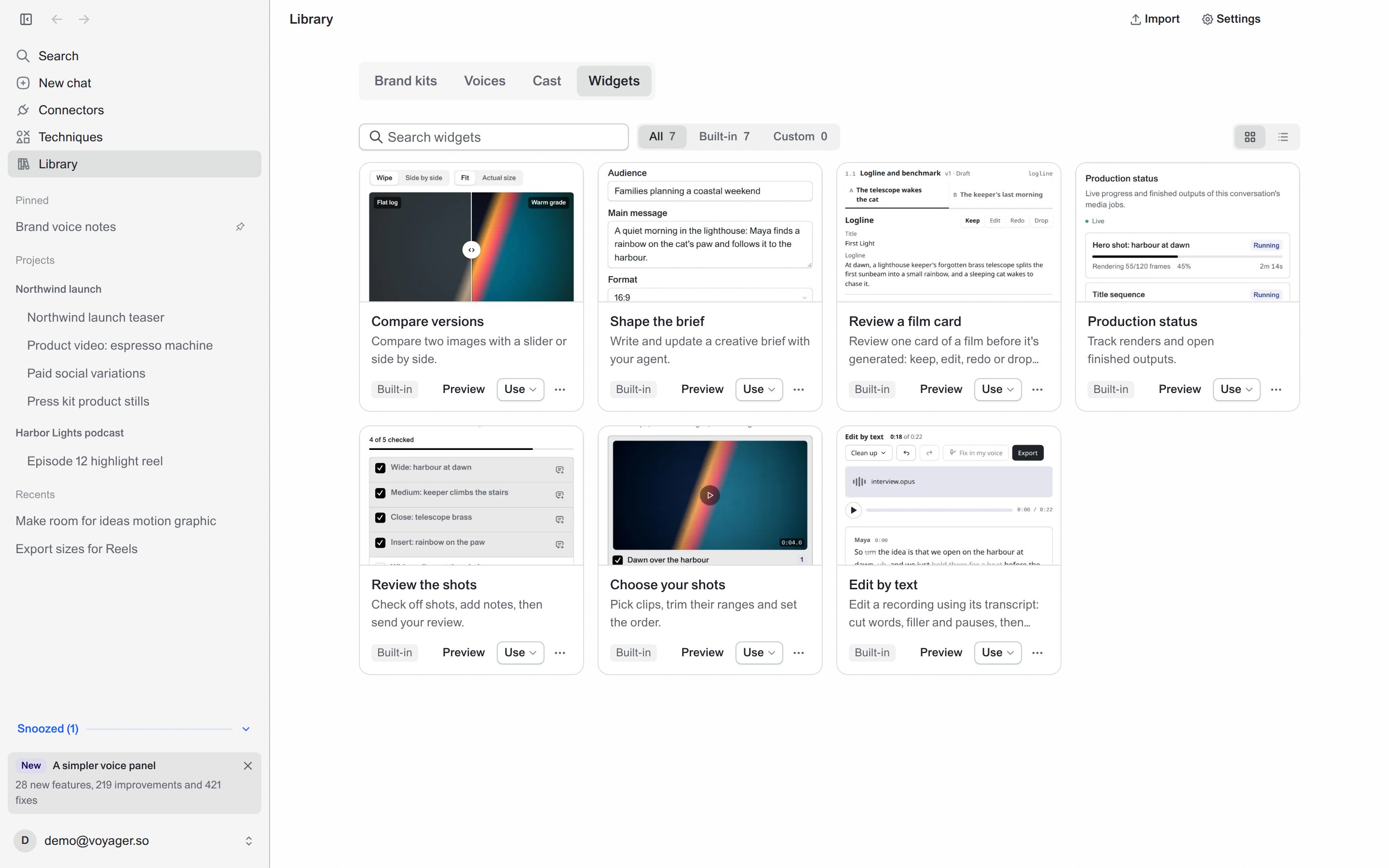
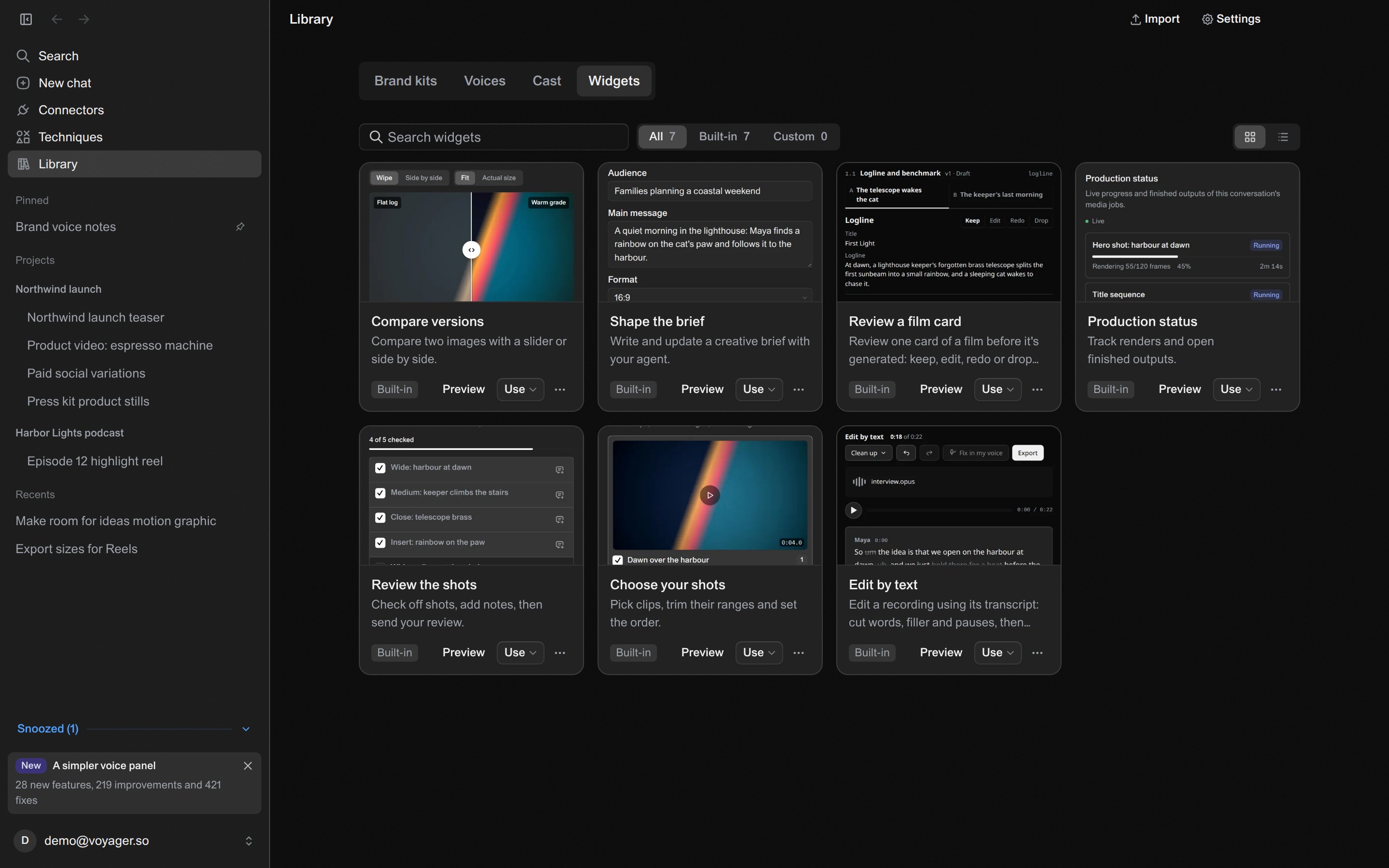
Library → Widgets lists built-in and saved widgets, with Import and Settings at the top.
- Use opens a widget in a chat you pick, or in a New conversation.
- Preview lets you try a widget with sample data. Nothing is saved or sent.
- A widget’s menu has Edit with agent, View source, Export, Duplicate, Turn off and Remove.
- Import adds a widget someone exported for you (a
.jsonfile).
- Allow agent-created widgets lets the agent make and revise widgets, within the permissions it already has.
- Save reusable widgets automatically keeps widgets the agent makes in your Library so you can use them again.
Techniques
Techniques, also in the sidebar, collects tested ways to make things with Voyager, such as animated posters, product films and voiceovers. Search or filter by what you want to make, read a technique in the app, then start a new chat with it attached.Set up your brand
Add a brand kit and choose it for a project.
Generate images and video
Use your elements and brand in generated work.