

Before you start: you don’t have to choose anything. Every choice starts on Auto: Voyager picks, using your subscriptions before credits. A model you choose still needs a provider that can run it; see Choose your generation providers.
Choose for a chat
1
Open Preferred models and apps
In the message box, click the button just before the agent model picker (its tooltip reads Preferred creative apps and media models). It shows small media icons while everything is on Auto, and the marks of your choices once you set some.
2
Pick a model or app
Under Models, click a kind: Image, Image edit, Video, Voice, Music, Sound effects or 3D. Under Apps, click a job: Motion graphics, Video editing, Design, Slides, 3D, Music or Games. Search the list and choose one. Anything you leave alone stays on Auto.
3
Keep it for the project, if you like
Changes apply to this chat and your next new chat. To make them the project’s default, click Save as … default (it shows your project’s name).
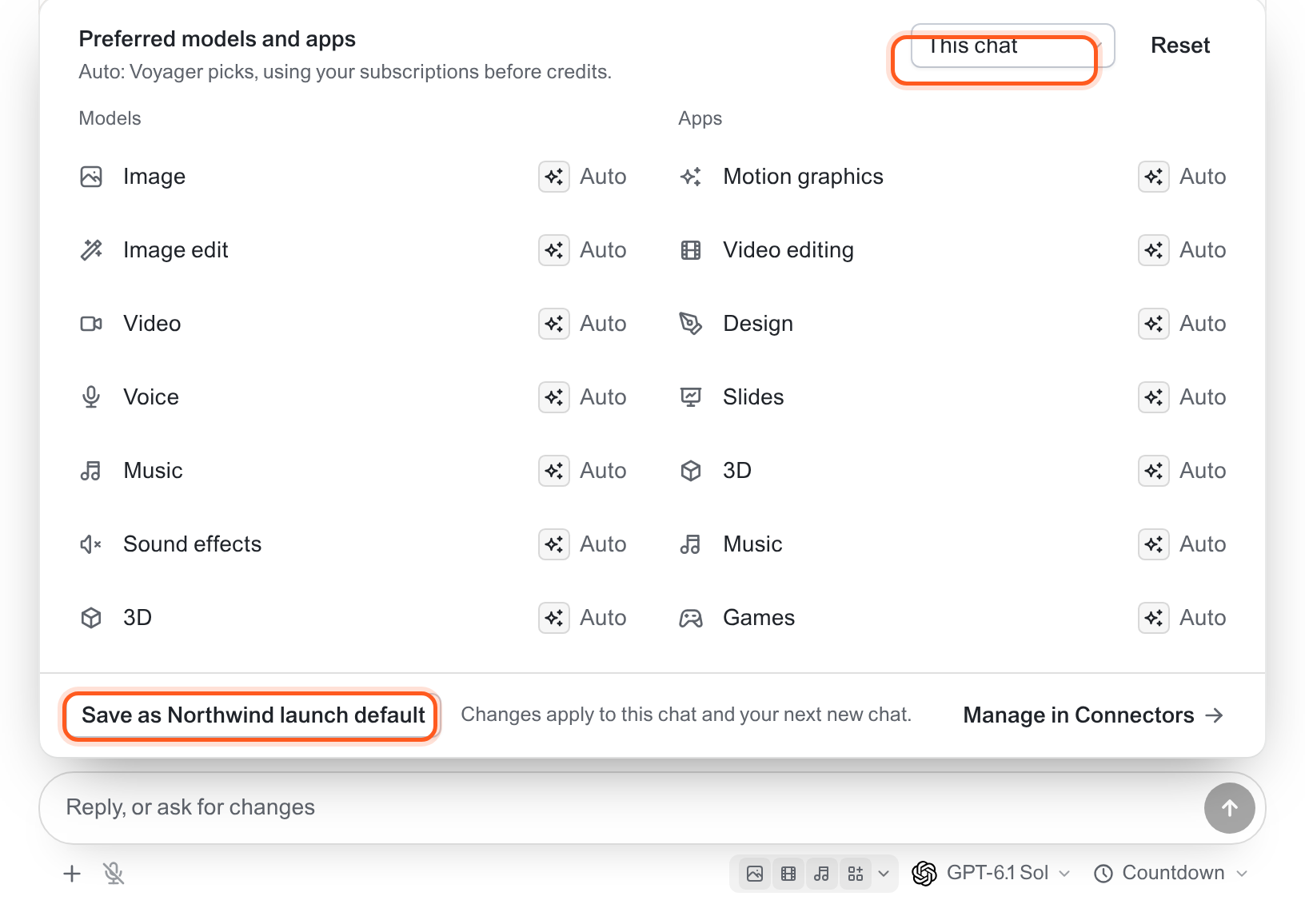
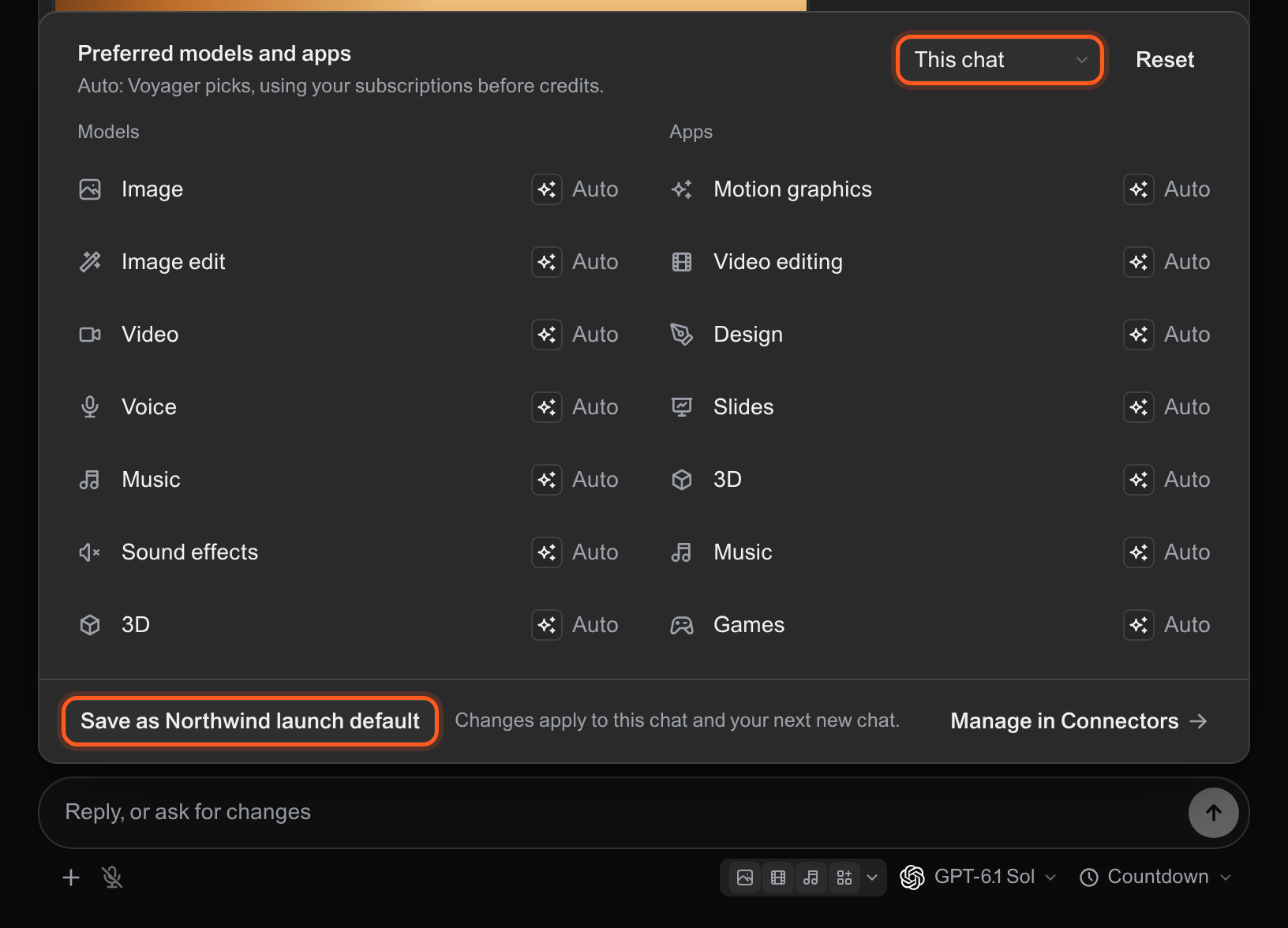
Preferred models and apps: one row per kind of model and per kind of app, with the scope at the top.
Choose for a project or every project
Use the menu at the top of the panel to change whose choices you’re editing:
Each chat keeps its own copy of the choices it started with, so changing a project’s or the All projects defaults affects new chats, not ones you already have.
Reset goes back one level: a chat goes back to its project’s choices, a project to the All projects settings, and All projects to Auto everywhere.
You can name a model or app in your message at any time. That wins for that request.
Manage them in Apps & Models
Click Manage in Apps & Models, or open Apps & Models in the sidebar:- Apps & Models → Models → Default models: the model Voyager uses when a chat doesn’t name one, for All projects or a single project.
- Apps & Models → Apps → Preferred apps: the app new chats start with, with the same scope choice.
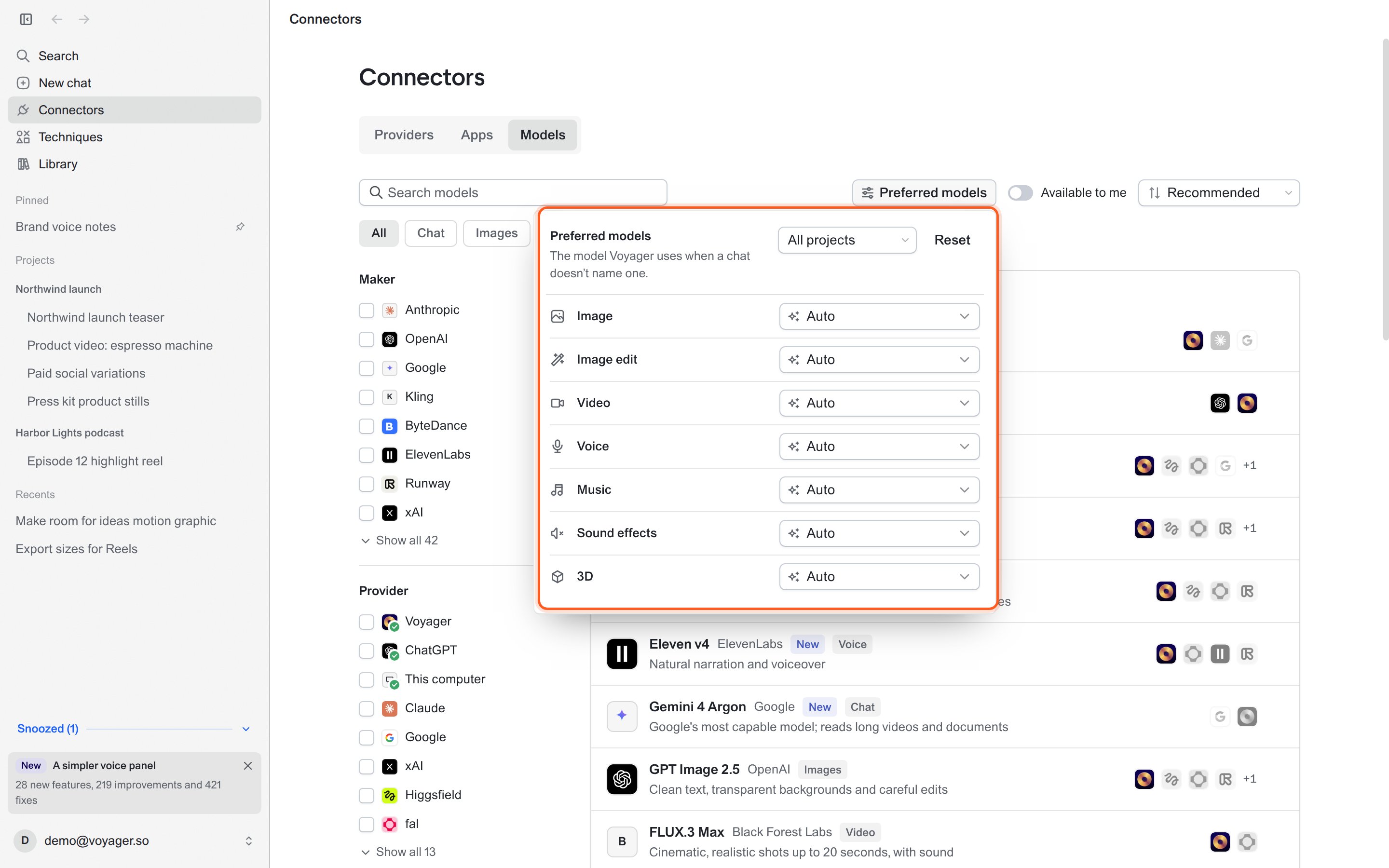
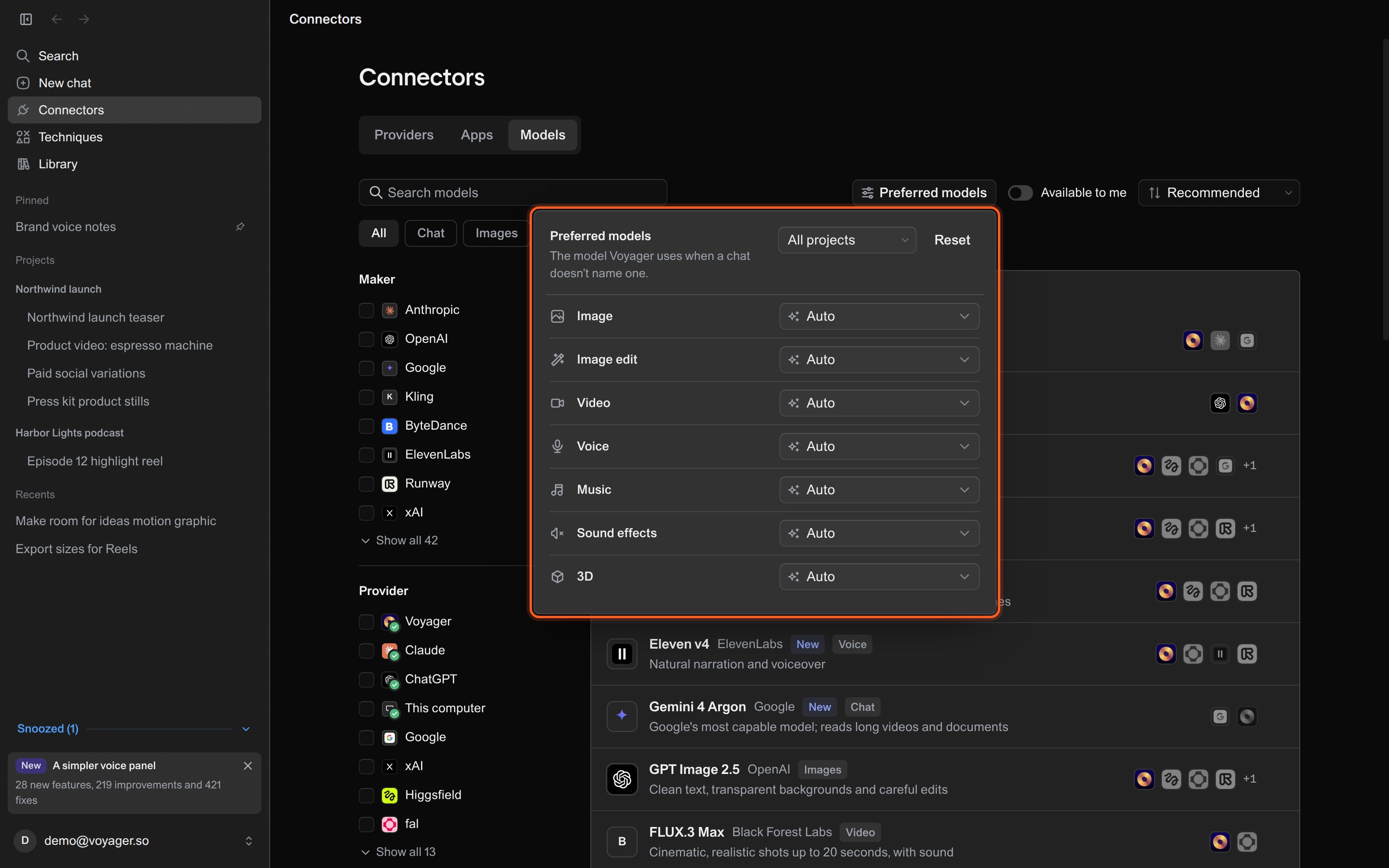
Apps & Models → Models, with Default models open.
Check the result
The button in the message box shows the marks of the models and apps you chose. In the panel, a row changed only in this chat reads Changed in this chat, and a row that comes from the project reads … default with the project’s name.Common problems
A model says “Connect … to use” or “Sign in to … to use”
A model says “Connect … to use” or “Sign in to … to use”
No provider you’ve set up can run that model yet. Connect or sign in to the provider in Apps & Models → Providers, or leave the row on Auto.
An app says “Install … to use”
An app says “Install … to use”
The app isn’t on this computer. Install it, or choose another app or Auto.
A changed default didn't reach my chat
A changed default didn't reach my chat
A new chat starts from your latest chat choices, or from its project’s or the All projects defaults if you haven’t made any. Changing a default doesn’t change chats that already exist. To change an existing chat, set it under This chat or click Reset.
Related
- Model playground: run an image, video, voice, music, sound or 3D model directly.
- Choose your generation providers: which provider Voyager tries first and what happens when one can’t finish.
- Write a useful request
- Connect your creative apps