

Complete signing in on the web
Voyager is waiting for the browser sign-in to finish.- Switch to the browser window opened by Voyager and finish signing in or creating your account.
- If the page did not open, choose Reopen sign-in in Voyager.
- Finish the browser flow on the same computer, then return to Voyager.
- If you are asked to Choose a workspace, select the workspace you want to use.
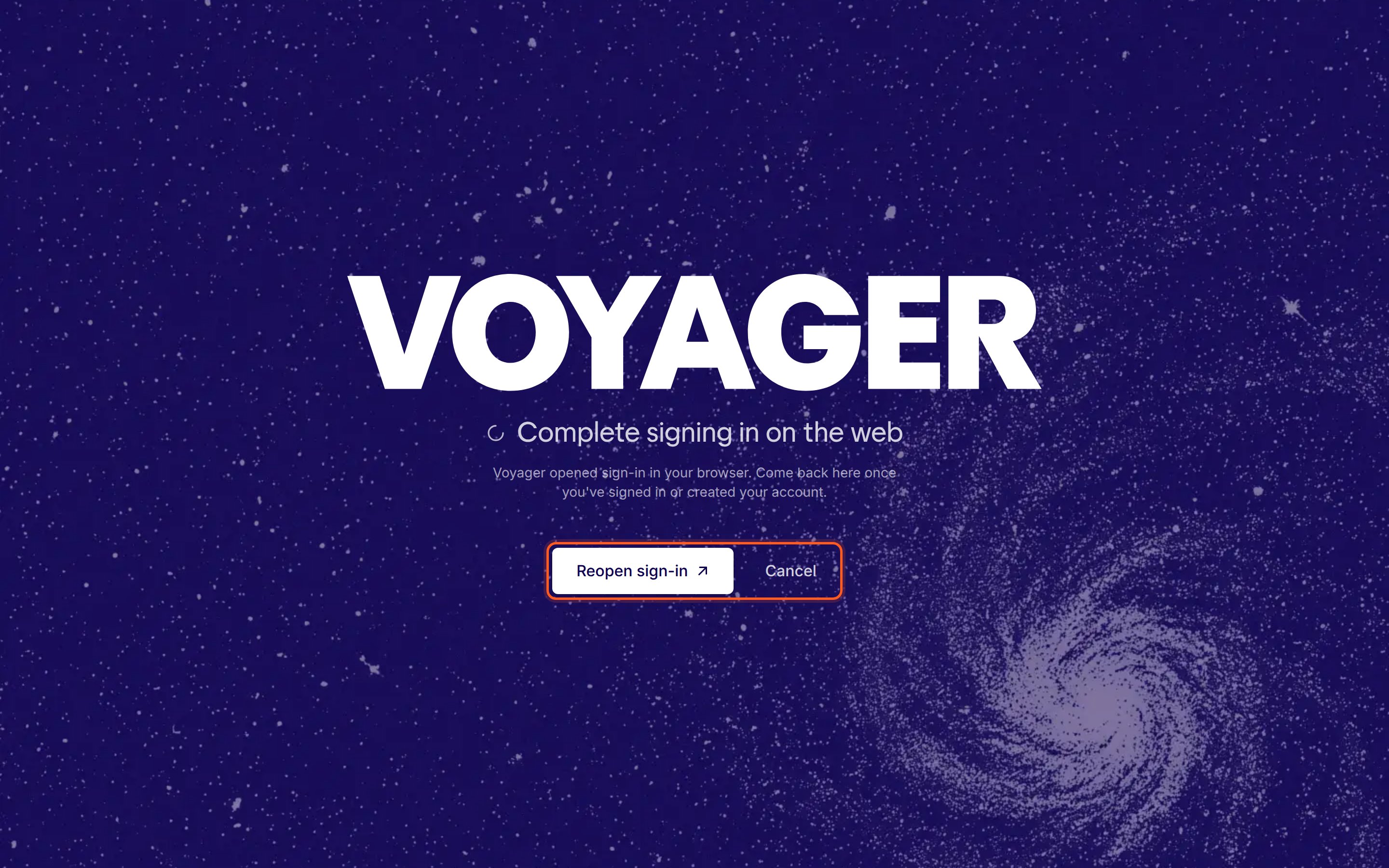
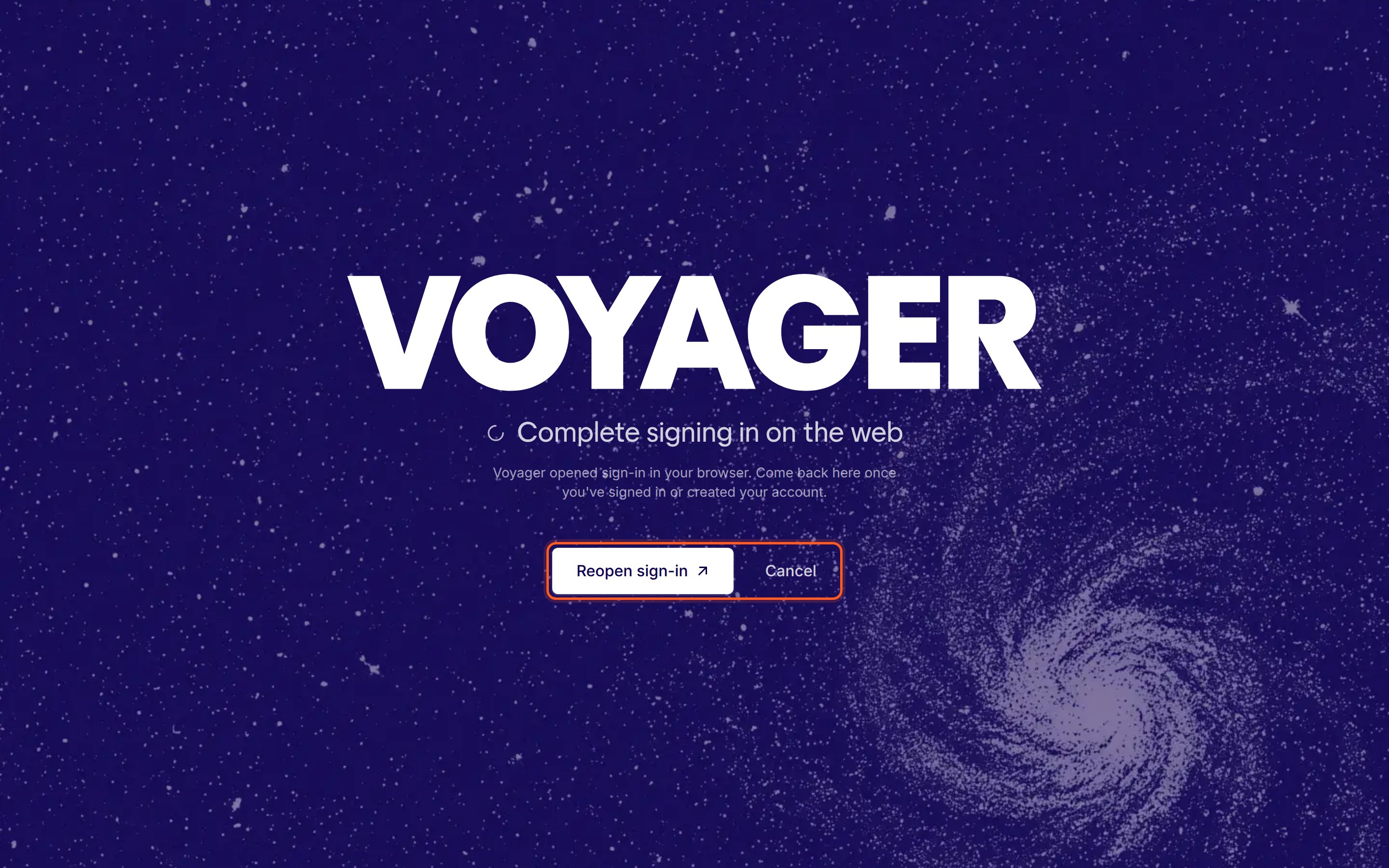
Finish in the browser; Reopen sign-in brings the page back if you closed it.
Voyager login timed out. Try connecting again.
The browser sign-in did not finish before the attempt expired.- Close the old sign-in tab.
- Start a fresh sign-in from Voyager. In Settings → Accounts, use Sign in or Sign in again.
- Complete the newest browser attempt, then choose a workspace if requested.
Connect at least one agent to continue.
Voyager is signed in, but no chat agent is ready yet.- In Connect providers, connect Claude or ChatGPT, or set up Voyager models.
- Finish the installation or sign-in requested by that row. If Voyager opens an installation terminal, press Enter to run the command shown and wait for it to finish.
- Return to the setup screen and wait for the connection to be detected.
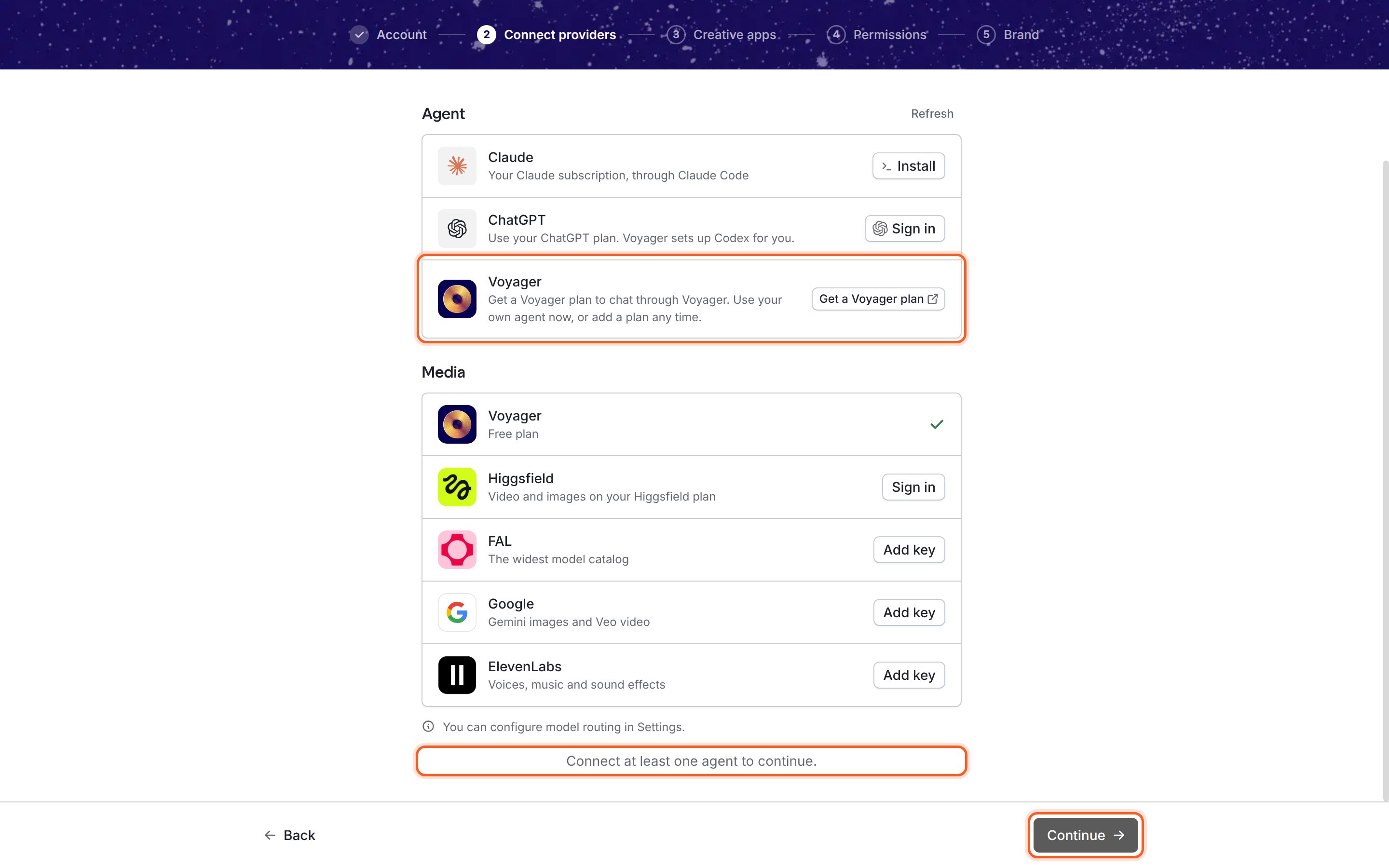
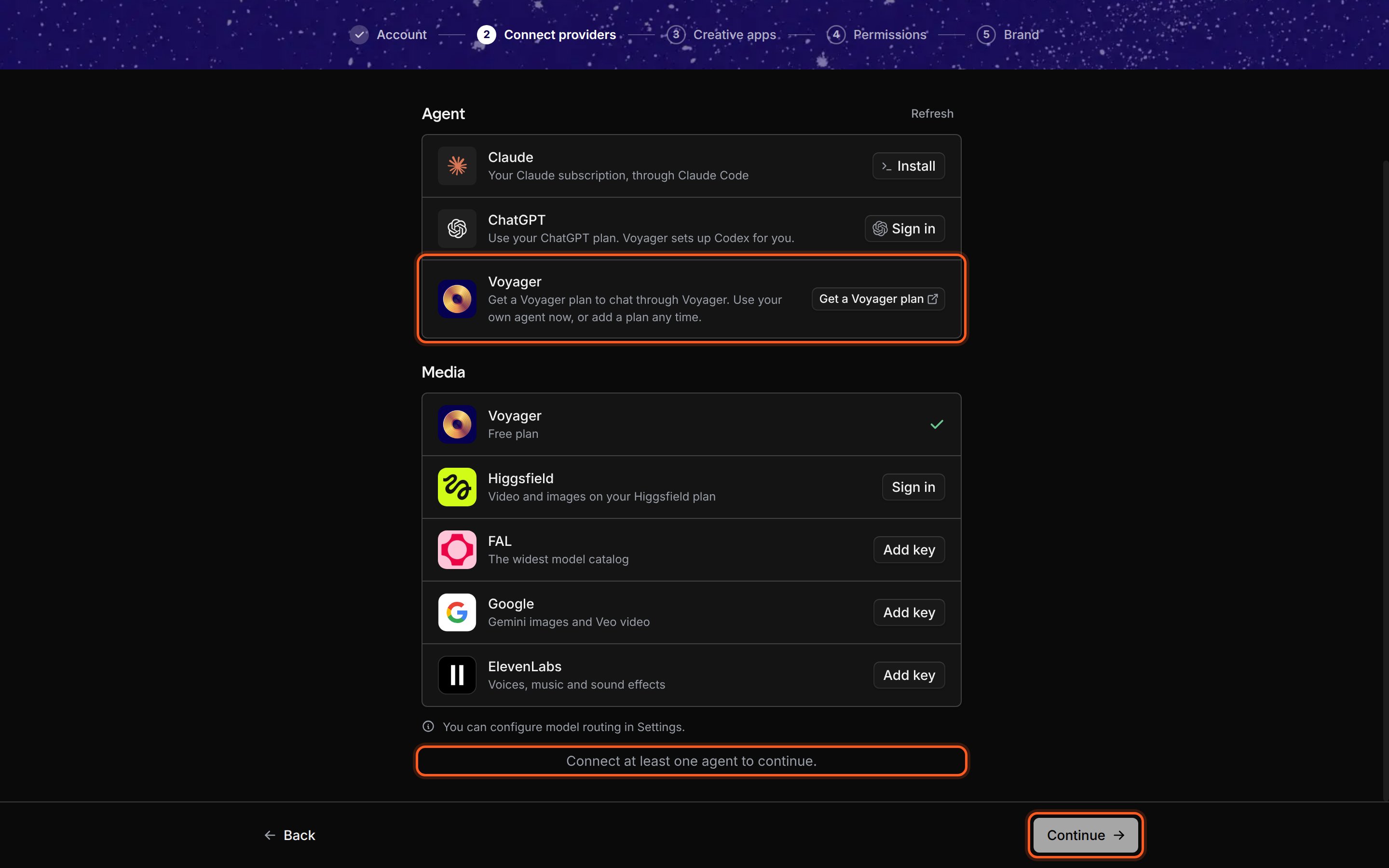
Connect a chat agent to enable Continue; a generation account alone is not enough.
Voyager could not use your system’s secure storage. Unlock it and try again.
Voyager cannot read or save the credentials it needs.- macOS
- Windows
- Linux
- Unlock your login keychain in Keychain Access if it is locked.
- Return to Settings → Accounts and choose Check connection, or start sign-in again.
Windows Smart App Control blocked Voyager’s credential storage component.
Windows has blocked part of the app; repeating sign-in will not remove that block.- Read the Windows Smart App Control guide for the Windows alpha.
- If the message says A Windows Application Control policy blocked Voyager’s credential storage component., ask the administrator of the PC whether Voyager can be allowed.
- Once the block has been resolved, reopen Voyager and try sign-in again.
Still connecting
Voyager has not been able to finish opening the workspace.- Choose Reload on the recovery screen.
- If it returns, quit and reopen Voyager.
- If startup fails with a dialog, follow Voyager could not start its local server. below.
Could not read settings
Voyager could not load your saved settings.- Choose Retry.
- If the same message returns, quit and reopen Voyager.
- Contact support before deleting or resetting your profile.
Voyager could not start its local server.
Voyager could not open the local workspace it needs to run.- Read the details in the dialog and choose Try Again once.
- If it fails again, choose Open Profile Folder to locate the saved data and the logs named in the dialog.
- If Repair and Start is offered, read the repair confirmation before deciding whether to continue.
ChatGPT usage limit reached
The selected ChatGPT account has reached a usage limit for Voyager.- Choose Manage usage and review that account’s usage and credit settings in ChatGPT.
- Wait for available usage or make the change offered by ChatGPT.
- Try the chat again, or deliberately choose another connected account or model.
Reconnect your ChatGPT account
Voyager needs a renewed sign-in for the ChatGPT account selected in this chat.- Open Settings → Accounts and select that ChatGPT account.
- Choose Reconnect account and finish the browser flow.
- If the browser does not return to Voyager, follow the sign-in panel’s instruction to paste the final page address there. Keep that address private.
ChatGPT didn’t allow this request
Voyager’s access to your ChatGPT plan does not cover this request.- Choose another available model or account in the model picker.
- Send the request using that selection. Signing in again does not change this permission.
ChatGPT plan unavailable for this account
The account, workspace, or its policy does not currently allow this use of the ChatGPT plan.- Check that you selected the intended ChatGPT account.
- Choose another connected agent account to continue. If the message specifically suggests your existing Codex CLI, follow Connect ChatGPT to use that connection.
A model is missing
The account’s model list depends on its plan, connection, installed version, and your display settings.- In Settings → Accounts, confirm the intended account is enabled and signed in.
- Turn on Show advanced model choices if you need the full model list.
- In the model picker, click Not seeing the models you expect? to open Model troubleshooting. Each account shows its status. If an account is out of date, click its Update to … button (or Copy update command and run it). Otherwise click Open in Accounts to check that account’s sign-in and plan.
- Choose Check again after changing the connection or updating.