

Install an update
- Open Settings → General → About to see your current version and update status.
- Choose Check for Updates. If automatic downloads are off, choose Download when an update is available. The notification calls this Download update.
- Keep working while the download completes.
- When you see Update ready to install, choose Restart Voyager. You can also quit normally and use the update on the next launch.
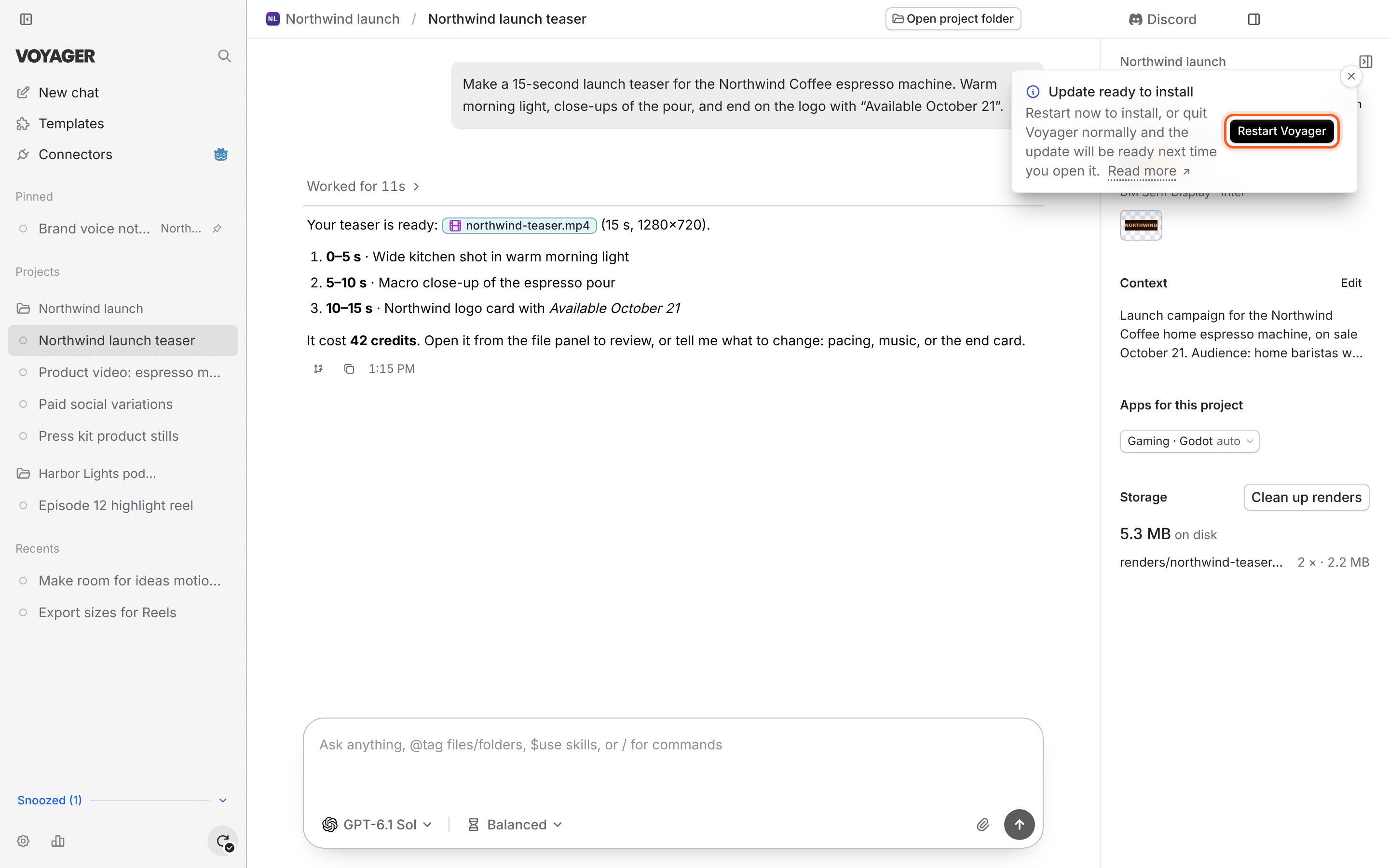
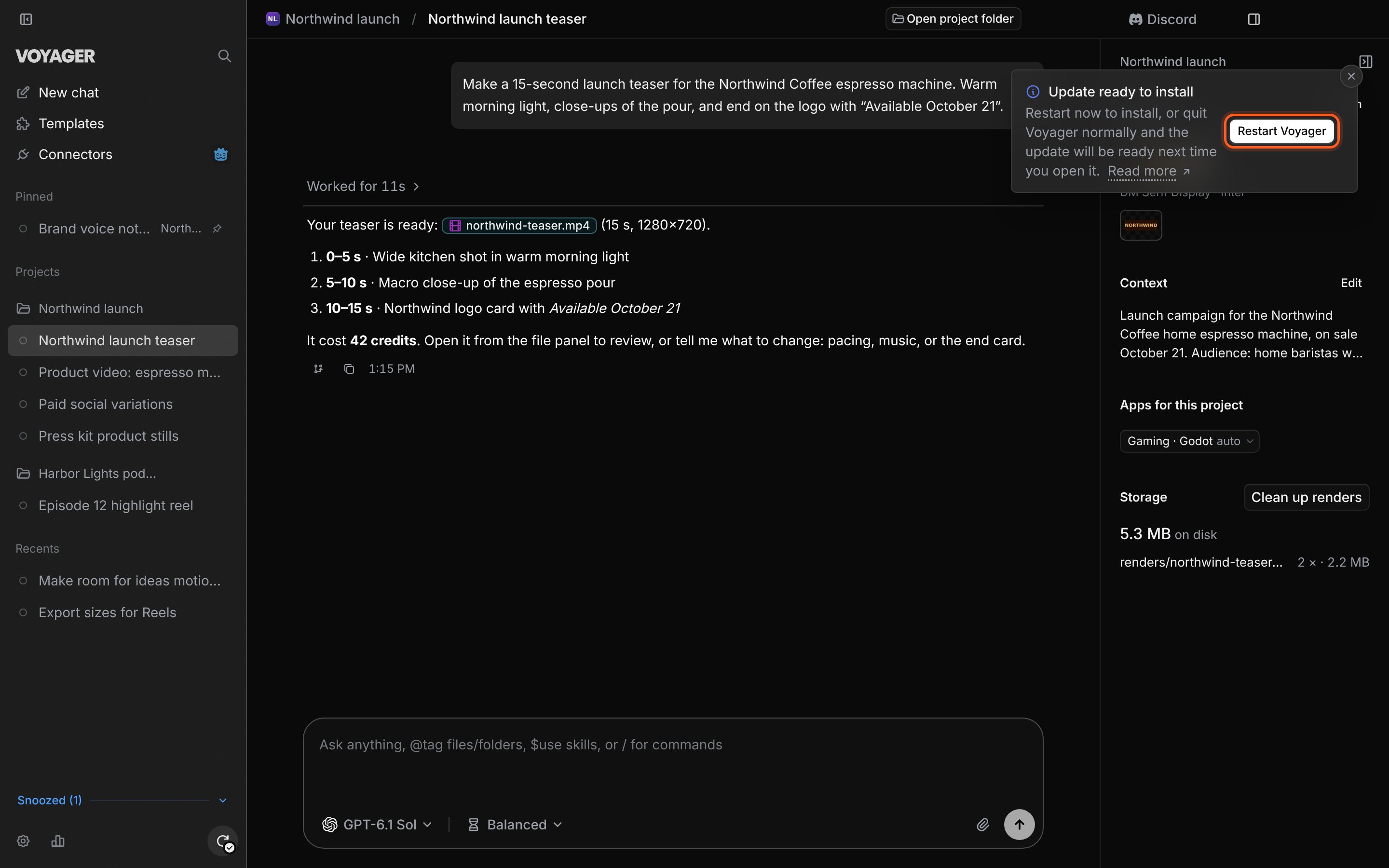
Restart when you are ready to install the downloaded update.
Choose when to download
Turn Download updates automatically on or off in Settings → General → About. Turning it off does not cancel a download already in progress. Downloading an update does not restart Voyager while you work. The same section has Update track, with Stable and Nightly. Stable is the default. Choose Nightly only if you want to try nightly builds. If an update is already downloaded, install it before changing tracks.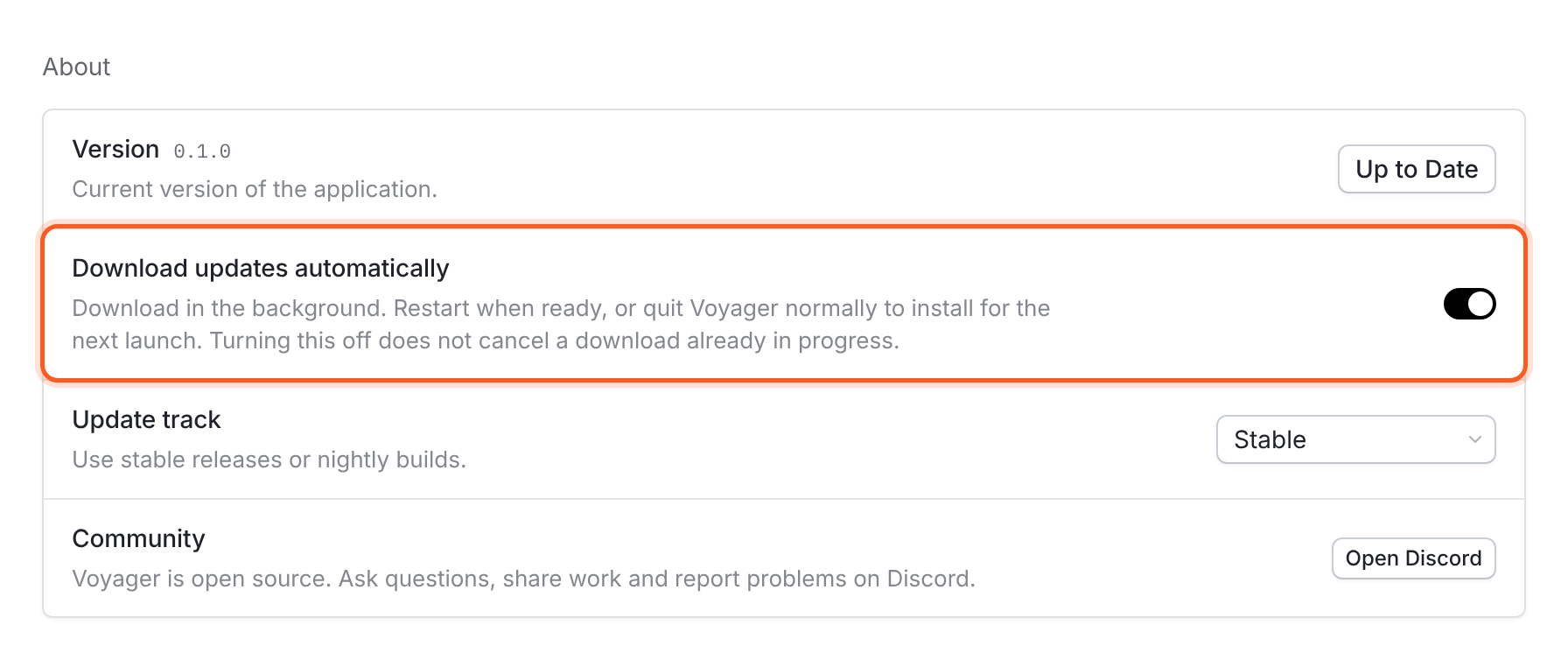
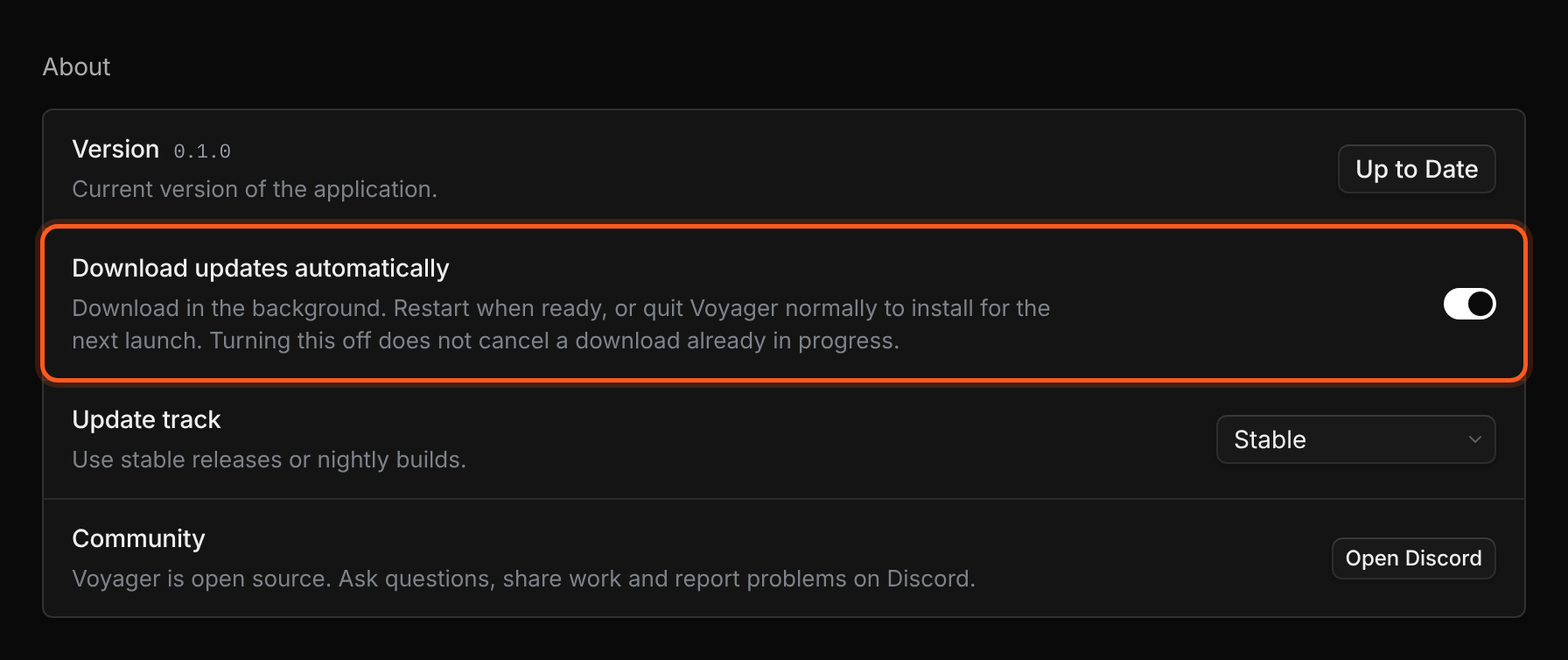
Version, automatic downloading, and Update track are in General's About section.
Update manually
Sign in at voyager.so and download the installer for your computer from Download in your dashboard.- macOS
- Windows
- Linux
- Finish active work and quit Voyager.
- Open the new disk image and replace Voyager in Applications.
- Open the copy in Applications.
Update download failed
Voyager could not finish downloading the update.- Check your internet connection and available disk space.
- Choose Retry download.
- If the same failure returns, use the manual download above.
Automatic updates are not available because no update feed is configured.
This installation cannot obtain updates from inside the app.- Open Download Voyager.
- Install the latest build for your platform using the manual steps above.
.deb installations continue to need manual updates.
Still stuck: Send support your version and which installer you used.
Automatic updates on Linux require running the AppImage build.
In-app Linux updates apply to the AppImage.- If you use
.deb, install the latest.debmanually. - If you use AppImage, quit Voyager and open the downloaded AppImage itself.