Voyager keeps your working files on your computer and sends information to the connected services needed for the work you request. For example, a local recording is saved on your computer. Asking an online model to use that recording can send it, or information from it, to that service. Keeping files locally does not mean every AI task runs locally.

Your files and connected services

Chats, settings, and project files have local storage locations. See Data locations to find them. Your chosen chat provider receives the conversation and context needed to answer. A media provider receives the prompt and inputs needed for a generation. The provider you use has its own terms and data practices. With automatic fallback enabled, a generation can go to another provider in your list. API keys added through the account controls are saved in your system’s secure storage, not in project files. Other connected tools can manage their own credentials separately.

Control optional sharing

Open Settings → Privacy. It has two checkboxes, Share usage statistics and, under Feedback, Let the agent report problems with Voyager. Both are on by default. Setup shows the same two choices as switches, with the second labelled Let the agent report problems to the Voyager team. You can change them at any time.
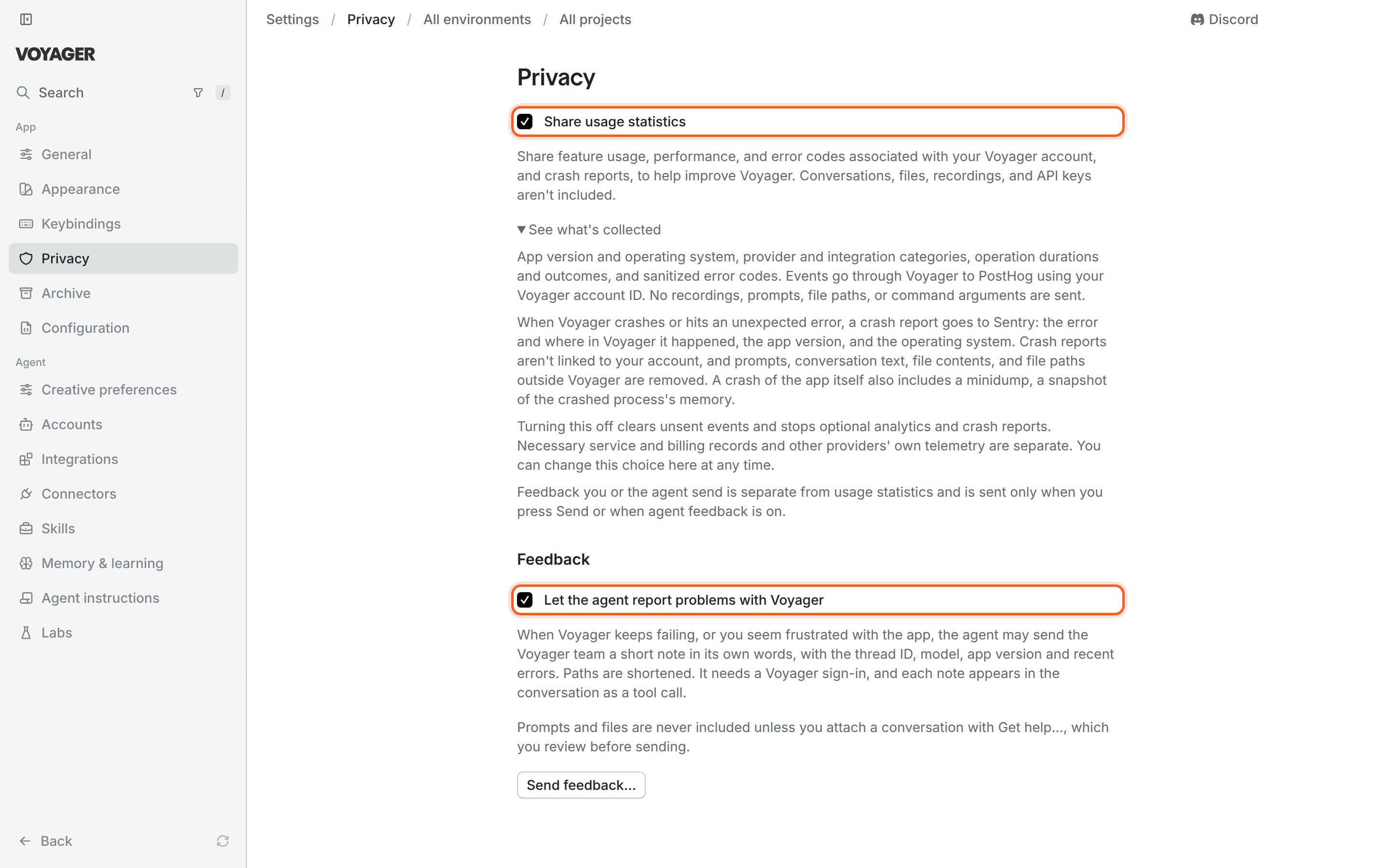
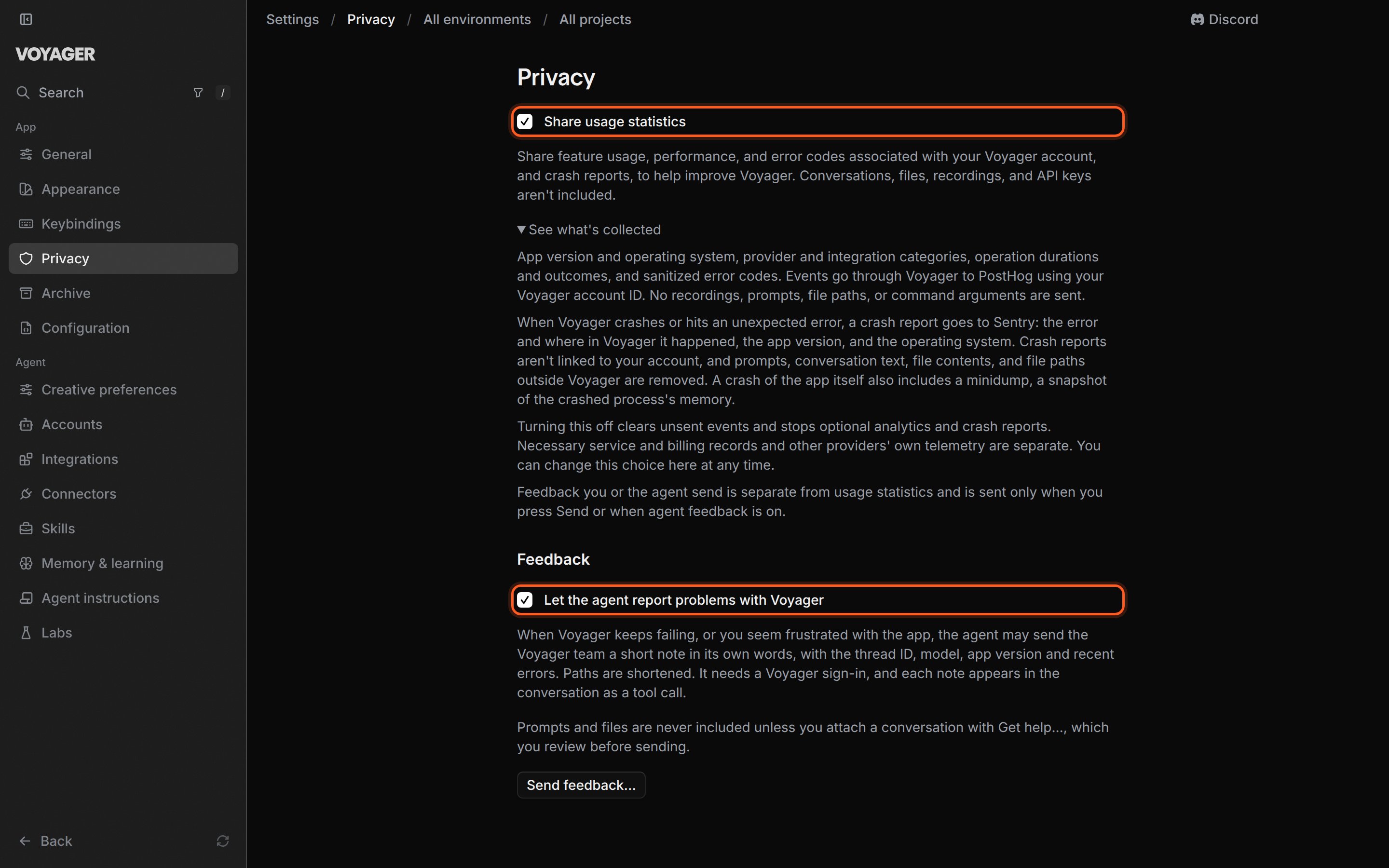
The Privacy settings page. The Share usage statistics checkbox is ticked, with its description and See what's collected expanded. Under a Feedback heading, the Let the agent report problems with Voyager checkbox is ticked, followed by its description and a Send feedback… button.The Privacy settings page. The Share usage statistics checkbox is ticked, with its description and See what's collected expanded. Under a Feedback heading, the Let the agent report problems with Voyager checkbox is ticked, followed by its description and a Send feedback… button.

Settings → Privacy, with both checkboxes ticked and See what's collected expanded.

Share usage statistics

This shares feature usage, performance, and error information associated with your Voyager account. It is account-linked data, not anonymous usage statistics. Usage events include the app version, operating system, provider and integration categories, how long operations take, their outcomes, and sanitized error codes. These events do not include your conversation text, recordings, file contents, API keys, file paths, or command arguments. Sign-in failure events sent before an account is connected use an installation identifier. The same option controls crash reports. These describe the error, where it happened in Voyager, and the app and operating system versions. Sentry also records the IP address a crash report came from and a rough location based on it. A crash of the app itself can also include a snapshot of the crashed process’s memory, which may contain information that was in memory at the time. Turning this option off clears unsent usage events and stops optional usage and crash reporting. Necessary service and billing records remain separate, as do other providers’ own reporting settings.

Let the agent report problems with Voyager

When this is on, the agent can send the Voyager team a short note about repeated failures or frustration with the app. The note uses the agent’s own words and includes the chat’s identifier, model, app version, and recent errors. Paths are shortened. These reports require a Voyager sign-in. Each one appears as a tool call in the chat. This setting is separate from Share usage statistics: turn off both if you want to disable both kinds of optional sharing.

Check the first-message setting too

Settings → Creative preferences → Guess what I’m making is on by default. When you start a chat without choosing what you are making, Voyager can send the first message and attachment names and types to Voyager to help choose a category. Some clear briefs can be matched on your computer. Turn this setting off if you do not want that automatic guess. It is separate from usage statistics; turning off Share usage statistics does not turn it off. The message still goes to whichever chat provider you choose when you send it.

Local recording and voice input

Screen recordings are saved locally; recording alone does not send or edit them automatically. Voice input transcribes speech on your device, and its audio stays there. When you send the transcribed text as a chat message, it goes to your selected agent like other chat text. Local media search processes footage on your computer. Choosing a separate hosted transcription or generation service sends the inputs needed for that request.

Feedback and support bundles

Send feedback… sends your written report with your Voyager account. It can include app and error details, but does not attach your chat by default. Get help… opens with Attach this conversation enabled. The support bundle includes the transcript, tool-call summaries, errors, and diagnostics for that chat. It does not attach your original files or media, but text you typed or pasted into the conversation is included. File and folder names inside the project can also appear. Voyager removes paths, keys, and tokens it recognizes. Always use Review files before sending: automatic redaction is not a substitute for checking your own content. An agent cannot send a support bundle on your behalf. See Get help for the review and sending steps. If you save a bundle to share manually, send it privately to the Voyager team rather than posting it in a public channel.