> ## Documentation Index
> Fetch the complete documentation index at: https://docs.voyager.so/llms.txt
> Use this file to discover all available pages before exploring further.
# Voyager models and media
> What the Voyager rows mean on the Connect providers step, when you need a Voyager plan, and how to add your own image, video and audio keys.
When you finish this page, you'll know whether Voyager's own models can be your agent, and which services will make your images, video and audio. This is the rest of step 2 of 5, **Connect providers**.
**Before you start**
* **A Voyager plan is optional.** If you connected [Claude](/setup/connect-claude) or [ChatGPT](/setup/connect-chatgpt), you can finish setup and work without one. Your own media keys generate media without a plan.
* **Cost:** chat with Voyager models and media made with Voyager credits use your plan's credits. Media made with your own key is billed by that provider, to your account with them. Plan names and prices are on [voyager.so/pricing](https://voyager.so/pricing).
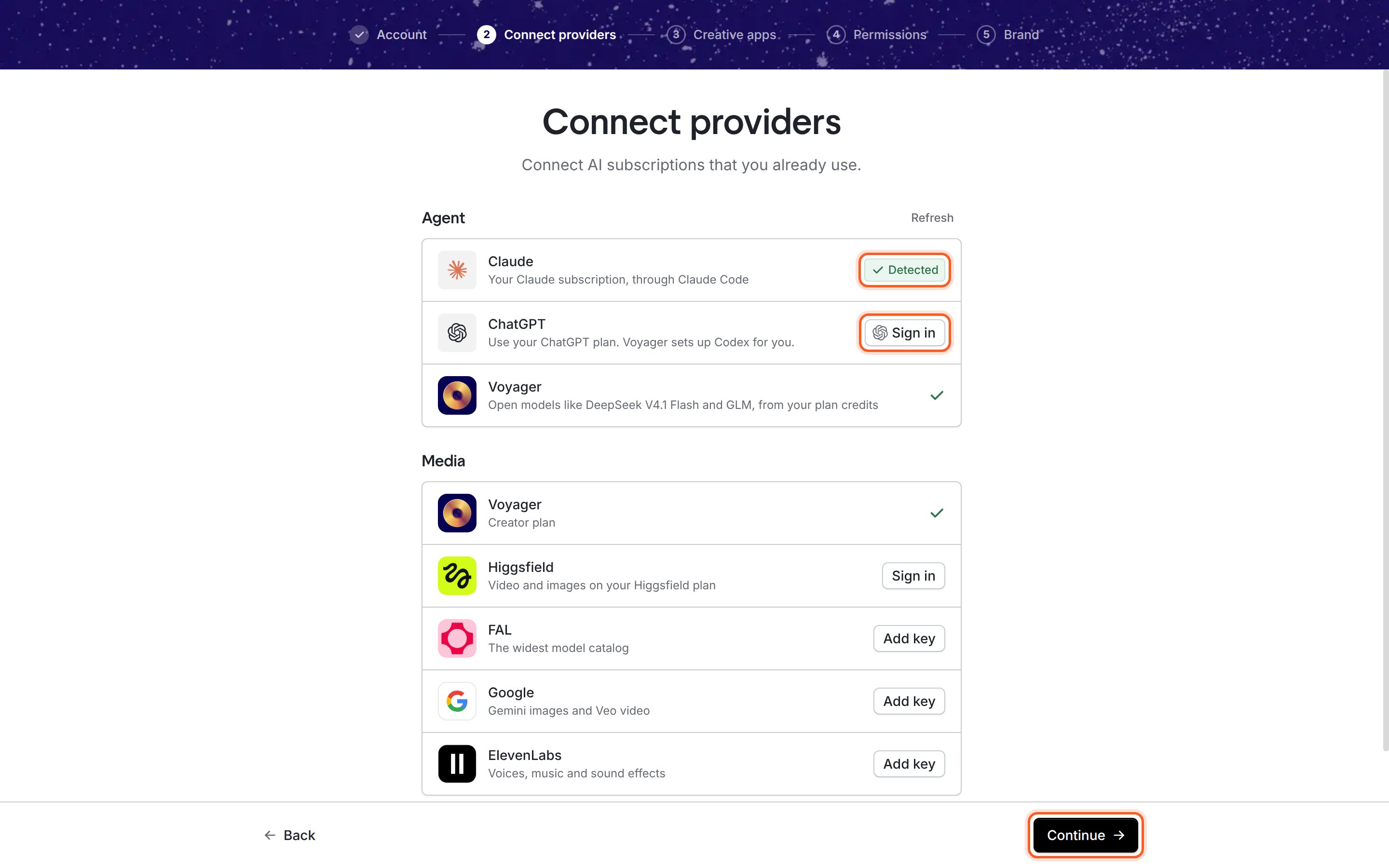
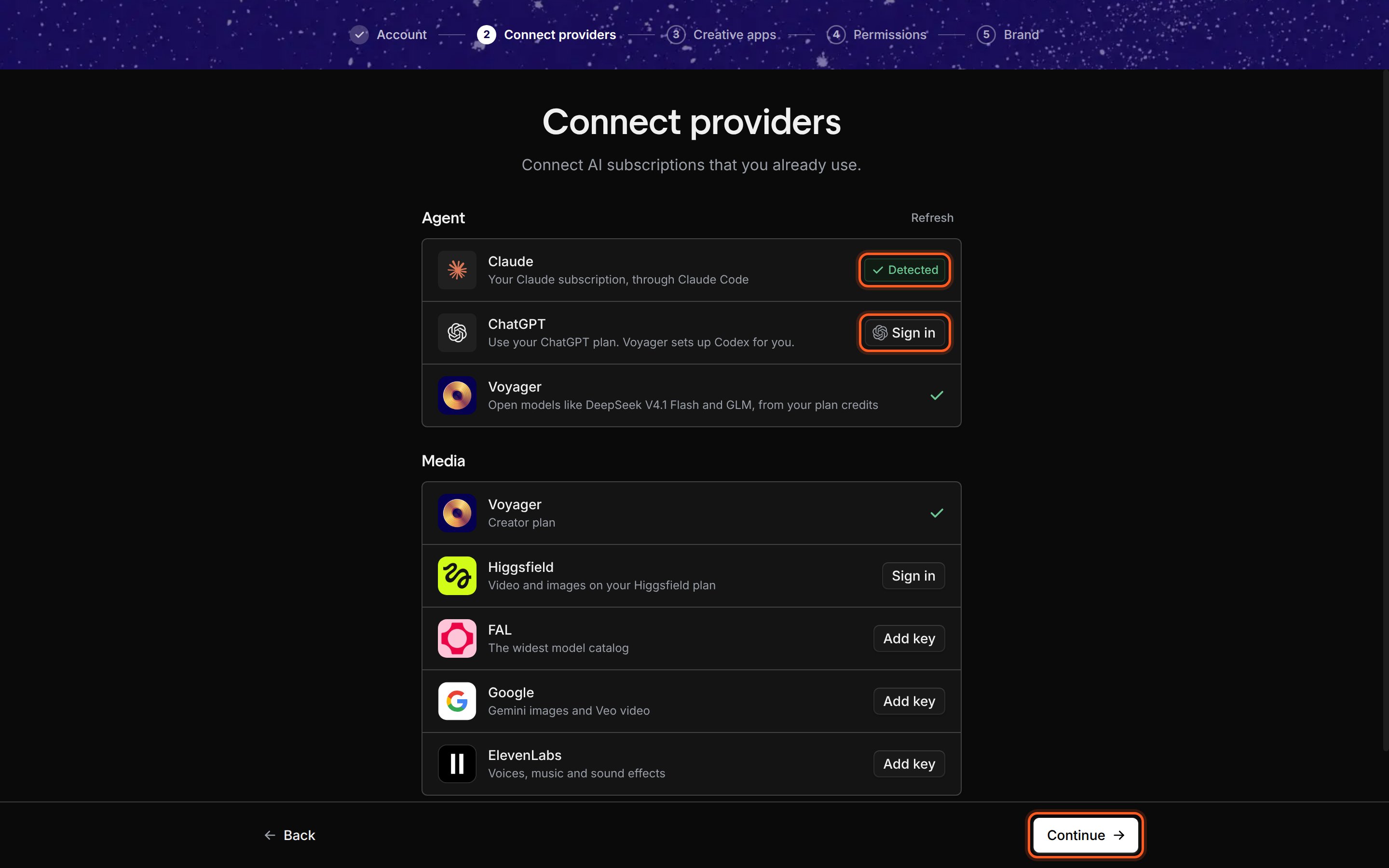
The **Connect providers** step has two sections. **Agent** is who you chat with. **Media** is who makes your images, video, voice and music.
 ## The Voyager agent row
The last row under **Agent** is **Voyager**: open models such as DeepSeek V4.1 Flash and GLM, run by Voyager and paid for from your plan's credits. Higher plans add more models; see [pricing](https://voyager.so/pricing).
There's nothing to connect. The row reflects your workspace's plan:
| The row says | What it means |
| - | - |
| **…from your plan credits**, marked **Included** | Your plan includes chat with Voyager models. Each turn uses some of your plan's credits. |
| **…with a Voyager plan**, no check | Your workspace has no plan. Voyager models aren't available until you get one. Use Claude or ChatGPT now. |
| **…billed separately at cost**, marked **Billed at cost** | Your workspace pays for Voyager chat separately from its plan. |
| A message explaining why, with a button that names the fix | Chat through Voyager is paused for this workspace. The button matches the reason: **Add credits** when it's out of credits, **Update payment** after a failed payment, **Get a Voyager plan** or **Upgrade plan** when the plan doesn't cover it, **Open seats** when you need a seat, or **Turn chat back on** / **Raise chat limit** when an admin turned chat off or capped it. The button opens your billing page. You can carry on with Claude or ChatGPT. |
Voyager models become your default agent only when neither Claude nor ChatGPT is connected. New chats then start on **DeepSeek V4.1 Flash**. You can switch to Voyager models in any chat from the model picker.
If you have no Claude, no ChatGPT and no Voyager plan, **Continue** stays off and the step shows **Connect at least one agent to continue.** Connect one of the three to finish setup.
### Get a plan or use a promo code
* Click the button on the Voyager row (for example **Get a Voyager plan**), or go to [voyager.so/dashboard/billing](https://voyager.so/dashboard/billing). When your plan is active, click **Refresh** above the agent list.
* Have a promo code? Go **Back** to the Account step and enter it, or add it later in **Settings → Accounts**. Some codes start a trial plan.
## The Media section
**Media** lists the services that can make images, video and audio for you. Every change here saves straight away.
| Row | What it makes | How to connect |
| - | - | - |
| **Voyager** | Images, video, voice, music and sound effects from many models, paid with your workspace's Voyager credits. Shows your plan name, or **Free plan** when the workspace has no paid plan. Generating with Voyager credits needs a plan. | Nothing to do. It uses your Voyager sign-in. |
| **Higgsfield** | Video and images on your Higgsfield plan | **Sign in** with your Higgsfield account in the browser. |
| **FAL** | The widest model catalog | **Add key** (get one at fal.ai/dashboard/keys) |
| **Google** | Gemini images and Veo video | **Add key** (get one at aistudio.google.com/apikey) |
| **ElevenLabs** | Voices, music and sound effects | **Add key** (get one at elevenlabs.io/app/settings/api-keys) |
To add a key: click **Add key**, paste your key into **Paste your key**, and click **Save**. Voyager checks the key, then the row shows a green check.
You don't have to connect anything here to finish setup, and you can add keys later in **Settings → Accounts**, under **Generation providers**.
### Who pays for a generation
When the agent makes an image, video or clip, Voyager uses the first connected service in your list that offers the model it needs. This setup list shows Voyager first, but the order Voyager actually tries puts your own Higgsfield, FAL, Google and ElevenLabs connections before Voyager credits. Connecting one means that service bills you directly for the models it offers.
**Automatic fallback is on by default.** If a service is out of credits, rejects its sign-in or is down, Voyager tries the next one in your list. That can bill a different account, for example your Voyager credits instead of your own FAL key, and Voyager may adjust settings slightly to match. You can turn **Automatic fallback** off, change the order, or ask the agent to pin a provider for a job. See [Generation providers](/account/generation-providers).
## Check it worked
* At least one row under **Agent** has a green check, and **Continue** is available.
* The **Voyager** row under **Media** shows your plan name (or **Free plan**), and any key you added shows a green check.
## If something went wrong
Your workspace has no plan. Connect [Claude](/setup/connect-claude) or [ChatGPT](/setup/connect-chatgpt) to continue now, or get a plan and click **Refresh**.
Buy a credit pack or turn on auto-reload on your [billing page](https://voyager.so/dashboard/billing), or use your own Claude or ChatGPT subscription now.
Your workspace has a plan, but you don't have a seat on it. Ask an admin to add you, or use your own subscription now.
Voyager checks each key when you save it. Make sure you copied the whole key from the provider's dashboard, with no spaces, and that your account with that provider is active.
Click Continue to save your setup, then let Voyager find the creative apps on your computer.
This documentation is built and hosted on [Mintlify](https://mintlify.com), a developer documentation platform.
## The Voyager agent row
The last row under **Agent** is **Voyager**: open models such as DeepSeek V4.1 Flash and GLM, run by Voyager and paid for from your plan's credits. Higher plans add more models; see [pricing](https://voyager.so/pricing).
There's nothing to connect. The row reflects your workspace's plan:
| The row says | What it means |
| - | - |
| **…from your plan credits**, marked **Included** | Your plan includes chat with Voyager models. Each turn uses some of your plan's credits. |
| **…with a Voyager plan**, no check | Your workspace has no plan. Voyager models aren't available until you get one. Use Claude or ChatGPT now. |
| **…billed separately at cost**, marked **Billed at cost** | Your workspace pays for Voyager chat separately from its plan. |
| A message explaining why, with a button that names the fix | Chat through Voyager is paused for this workspace. The button matches the reason: **Add credits** when it's out of credits, **Update payment** after a failed payment, **Get a Voyager plan** or **Upgrade plan** when the plan doesn't cover it, **Open seats** when you need a seat, or **Turn chat back on** / **Raise chat limit** when an admin turned chat off or capped it. The button opens your billing page. You can carry on with Claude or ChatGPT. |
Voyager models become your default agent only when neither Claude nor ChatGPT is connected. New chats then start on **DeepSeek V4.1 Flash**. You can switch to Voyager models in any chat from the model picker.
If you have no Claude, no ChatGPT and no Voyager plan, **Continue** stays off and the step shows **Connect at least one agent to continue.** Connect one of the three to finish setup.
### Get a plan or use a promo code
* Click the button on the Voyager row (for example **Get a Voyager plan**), or go to [voyager.so/dashboard/billing](https://voyager.so/dashboard/billing). When your plan is active, click **Refresh** above the agent list.
* Have a promo code? Go **Back** to the Account step and enter it, or add it later in **Settings → Accounts**. Some codes start a trial plan.
## The Media section
**Media** lists the services that can make images, video and audio for you. Every change here saves straight away.
| Row | What it makes | How to connect |
| - | - | - |
| **Voyager** | Images, video, voice, music and sound effects from many models, paid with your workspace's Voyager credits. Shows your plan name, or **Free plan** when the workspace has no paid plan. Generating with Voyager credits needs a plan. | Nothing to do. It uses your Voyager sign-in. |
| **Higgsfield** | Video and images on your Higgsfield plan | **Sign in** with your Higgsfield account in the browser. |
| **FAL** | The widest model catalog | **Add key** (get one at fal.ai/dashboard/keys) |
| **Google** | Gemini images and Veo video | **Add key** (get one at aistudio.google.com/apikey) |
| **ElevenLabs** | Voices, music and sound effects | **Add key** (get one at elevenlabs.io/app/settings/api-keys) |
To add a key: click **Add key**, paste your key into **Paste your key**, and click **Save**. Voyager checks the key, then the row shows a green check.
You don't have to connect anything here to finish setup, and you can add keys later in **Settings → Accounts**, under **Generation providers**.
### Who pays for a generation
When the agent makes an image, video or clip, Voyager uses the first connected service in your list that offers the model it needs. This setup list shows Voyager first, but the order Voyager actually tries puts your own Higgsfield, FAL, Google and ElevenLabs connections before Voyager credits. Connecting one means that service bills you directly for the models it offers.
**Automatic fallback is on by default.** If a service is out of credits, rejects its sign-in or is down, Voyager tries the next one in your list. That can bill a different account, for example your Voyager credits instead of your own FAL key, and Voyager may adjust settings slightly to match. You can turn **Automatic fallback** off, change the order, or ask the agent to pin a provider for a job. See [Generation providers](/account/generation-providers).
## Check it worked
* At least one row under **Agent** has a green check, and **Continue** is available.
* The **Voyager** row under **Media** shows your plan name (or **Free plan**), and any key you added shows a green check.
## If something went wrong
Your workspace has no plan. Connect [Claude](/setup/connect-claude) or [ChatGPT](/setup/connect-chatgpt) to continue now, or get a plan and click **Refresh**.
Buy a credit pack or turn on auto-reload on your [billing page](https://voyager.so/dashboard/billing), or use your own Claude or ChatGPT subscription now.
Your workspace has a plan, but you don't have a seat on it. Ask an admin to add you, or use your own subscription now.
Voyager checks each key when you save it. Make sure you copied the whole key from the provider's dashboard, with no spaces, and that your account with that provider is active.
Click Continue to save your setup, then let Voyager find the creative apps on your computer.
This documentation is built and hosted on [Mintlify](https://mintlify.com), a developer documentation platform.