> ## Documentation Index
> Fetch the complete documentation index at: https://docs.voyager.so/llms.txt
> Use this file to discover all available pages before exploring further.
# Sign in to Voyager
> Start setup, sign in or create your Voyager account in the browser, choose a workspace and add a promo code.
When you finish this step, Voyager is signed in to your account and knows which workspace to use. This is step 1 of 5, **Account**.
**Before you start**
* Voyager is installed and open. See [Install on macOS](/get-started/install-macos), [Windows](/get-started/install-windows) or [Linux](/get-started/install-linux).
* You can use the browser you already have. Creating a Voyager account is free.
* **Windows (alpha):** if Smart App Control is on, Windows can block Voyager's sign-in. Read [Windows Smart App Control](https://voyager.so/help/windows-smart-app-control) first.
* **Linux (alpha):** Voyager stores your sign-in in your system keyring (for example GNOME Keyring or KWallet). Make sure it's unlocked.
## Sign in
The first time you open Voyager, you see the welcome screen with one button. Click **Set up**.
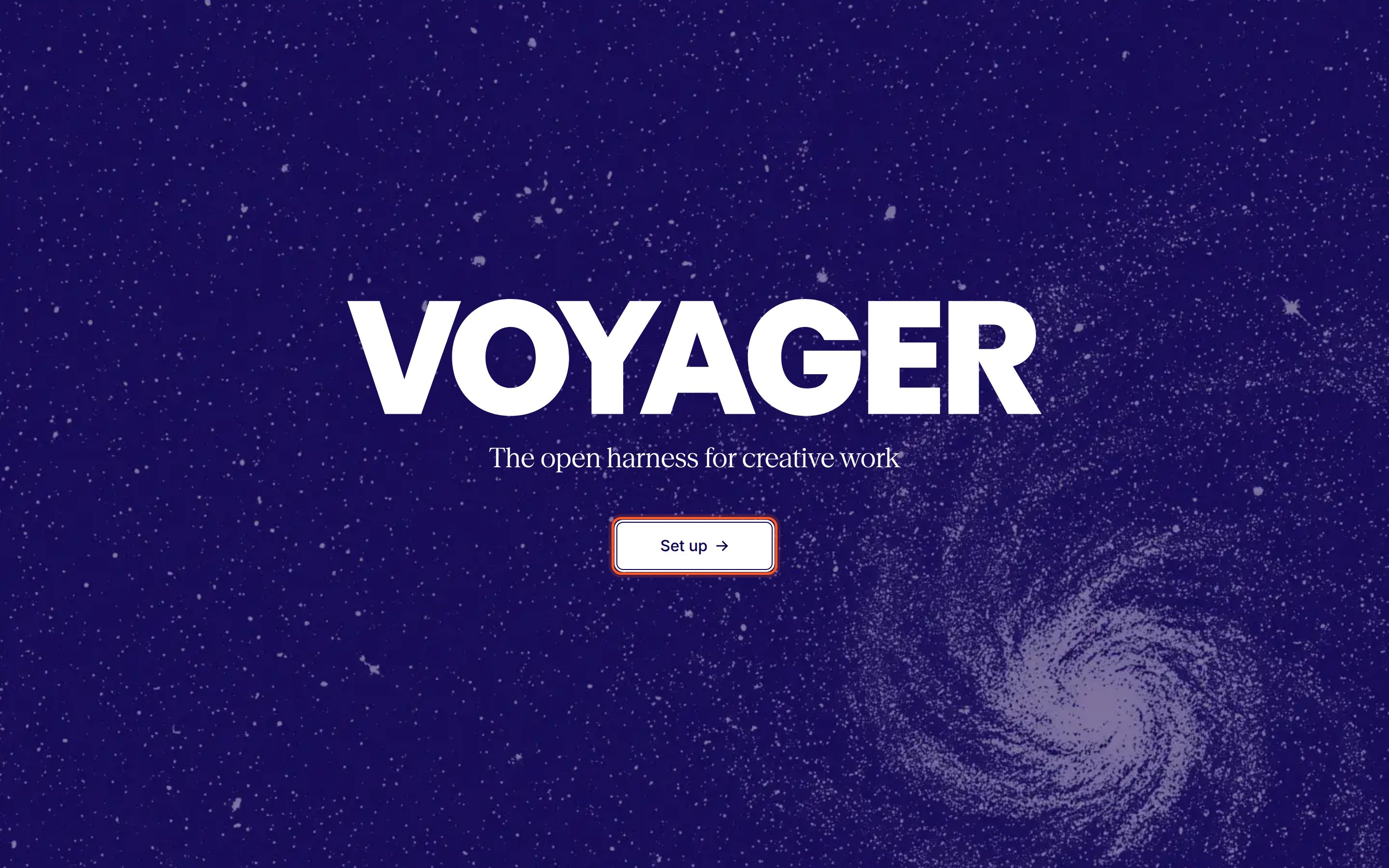
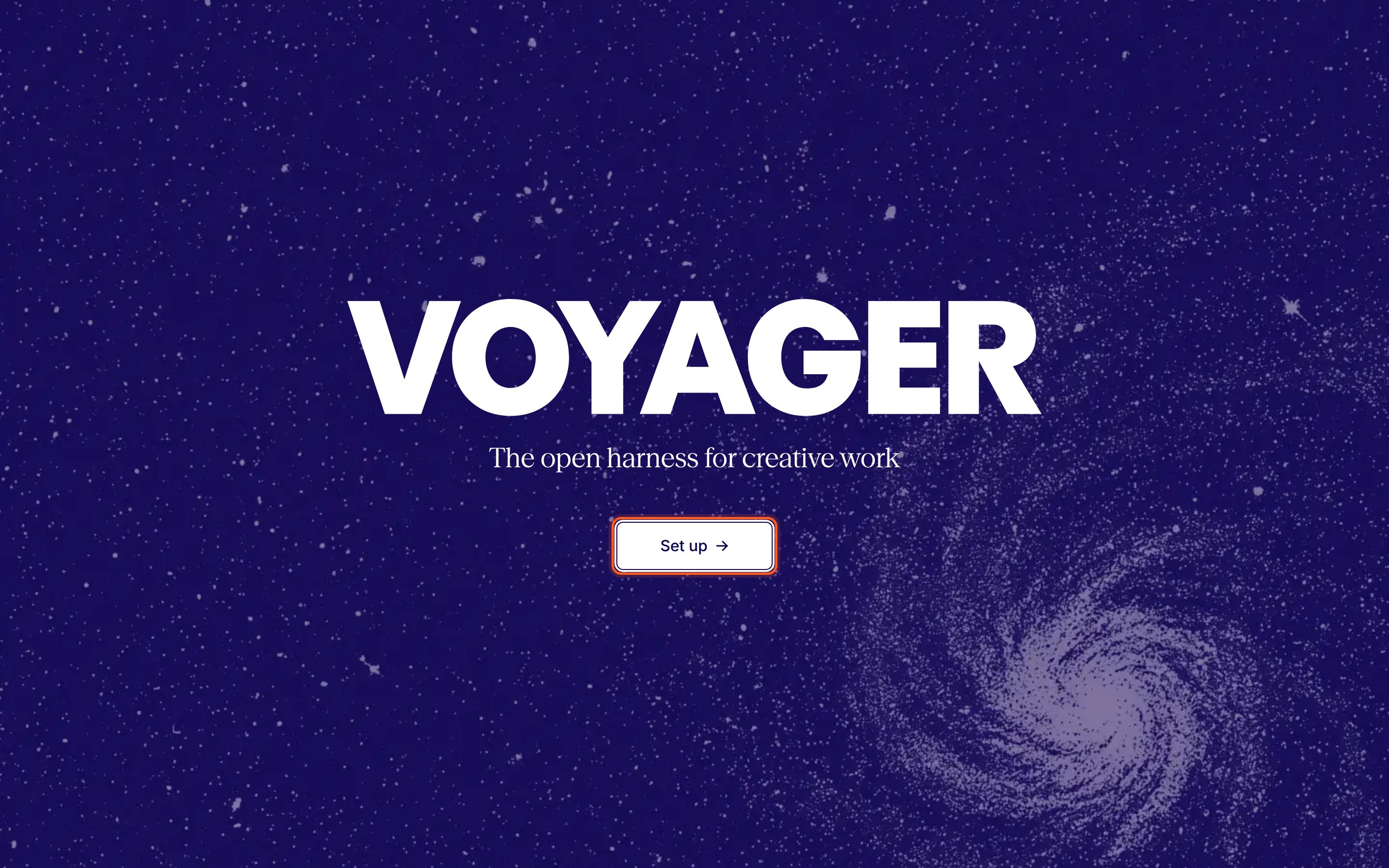 On Windows, a Smart App Control notice may appear under the button. Its **Learn more** link explains your options.
Voyager opens a sign-in page in your default browser and shows **Complete signing in on the web** while it waits.
In the browser, sign in to your Voyager account, or create one. When you're done, the browser page says **You're signed in** (or **Choose a workspace**) and takes you back to Voyager. If your browser asks whether to open Voyager, allow it. Voyager moves on by itself; you don't need to click anything.
On Windows, a Smart App Control notice may appear under the button. Its **Learn more** link explains your options.
Voyager opens a sign-in page in your default browser and shows **Complete signing in on the web** while it waits.
In the browser, sign in to your Voyager account, or create one. When you're done, the browser page says **You're signed in** (or **Choose a workspace**) and takes you back to Voyager. If your browser asks whether to open Voyager, allow it. Voyager moves on by itself; you don't need to click anything.
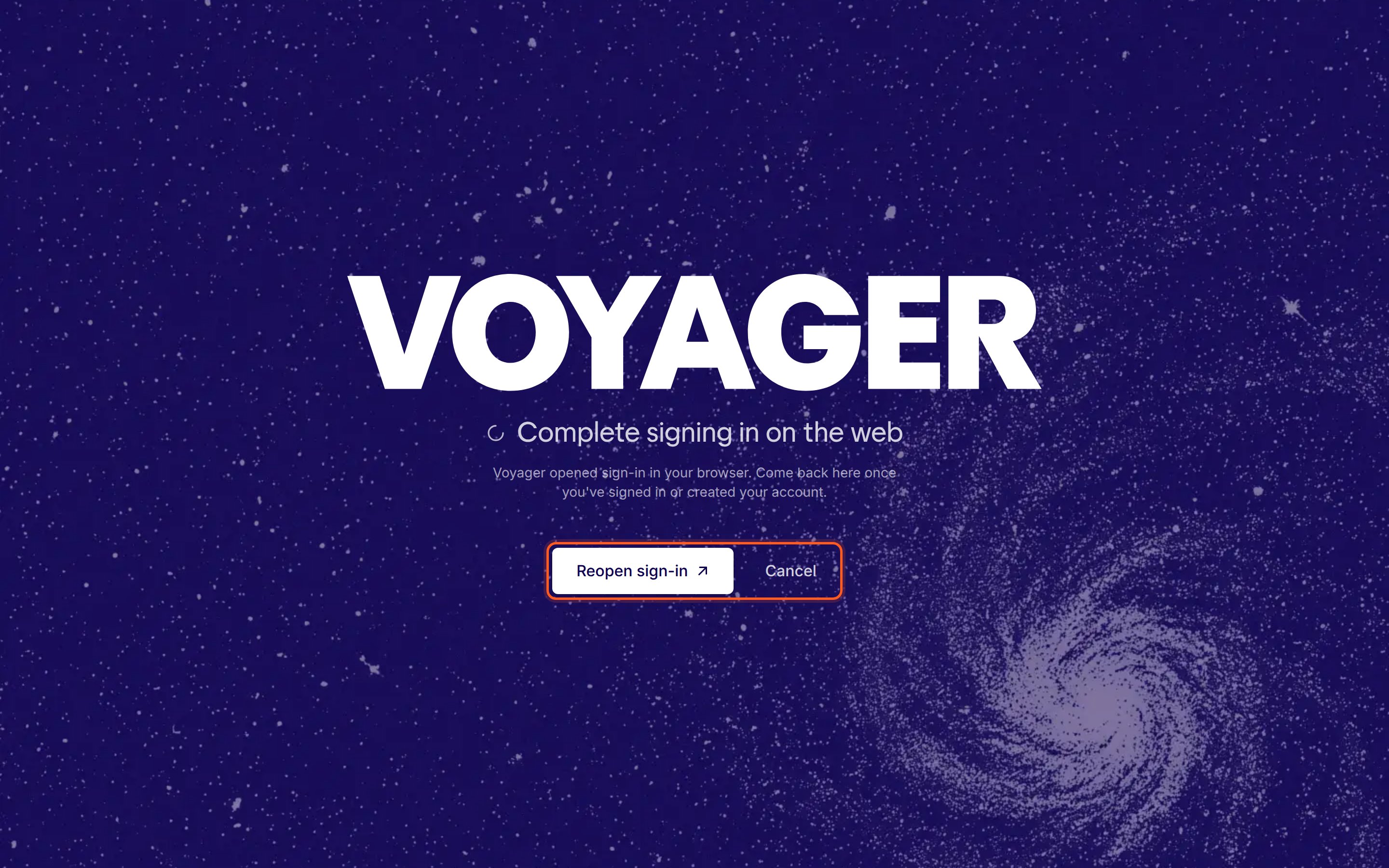
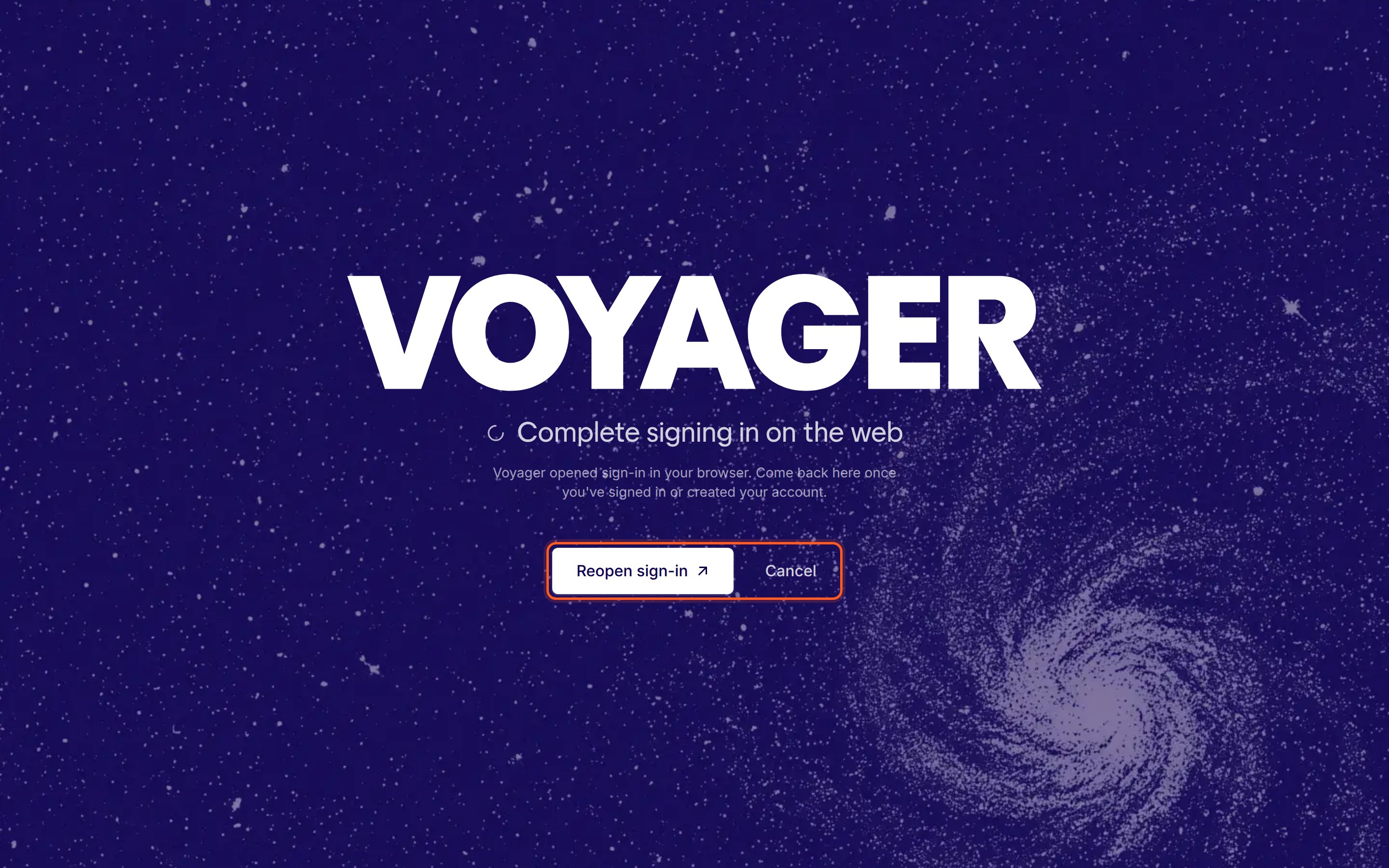 Closed the tab by accident? Click **Reopen sign-in** to bring the same page back. **Cancel** returns you to the welcome screen.
On a Mac, macOS may ask whether Voyager can use your keychain. Allow it: that's where Voyager keeps your sign-in.
Back in Voyager, the **Account** step shows **Your Voyager account** and the email you signed in with.
* If your account has one workspace, it's already selected under **Workspace**.
* If you belong to several, pick one under **Choose a workspace**. With more than five, a search box helps you find it.
The workspace decides which plan, credits and brand kits Voyager uses.
Closed the tab by accident? Click **Reopen sign-in** to bring the same page back. **Cancel** returns you to the welcome screen.
On a Mac, macOS may ask whether Voyager can use your keychain. Allow it: that's where Voyager keeps your sign-in.
Back in Voyager, the **Account** step shows **Your Voyager account** and the email you signed in with.
* If your account has one workspace, it's already selected under **Workspace**.
* If you belong to several, pick one under **Choose a workspace**. With more than five, a search box helps you find it.
The workspace decides which plan, credits and brand kits Voyager uses.
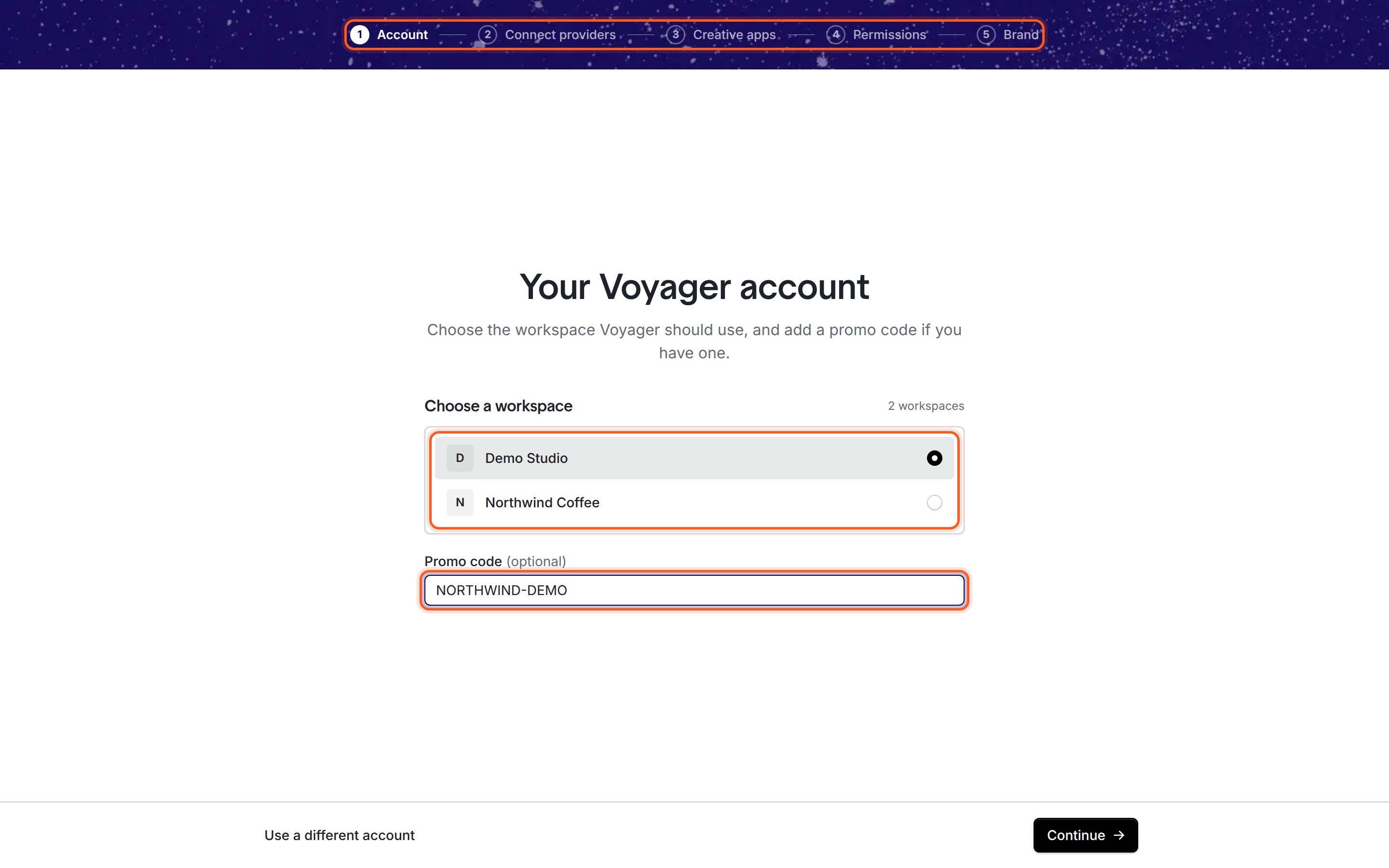
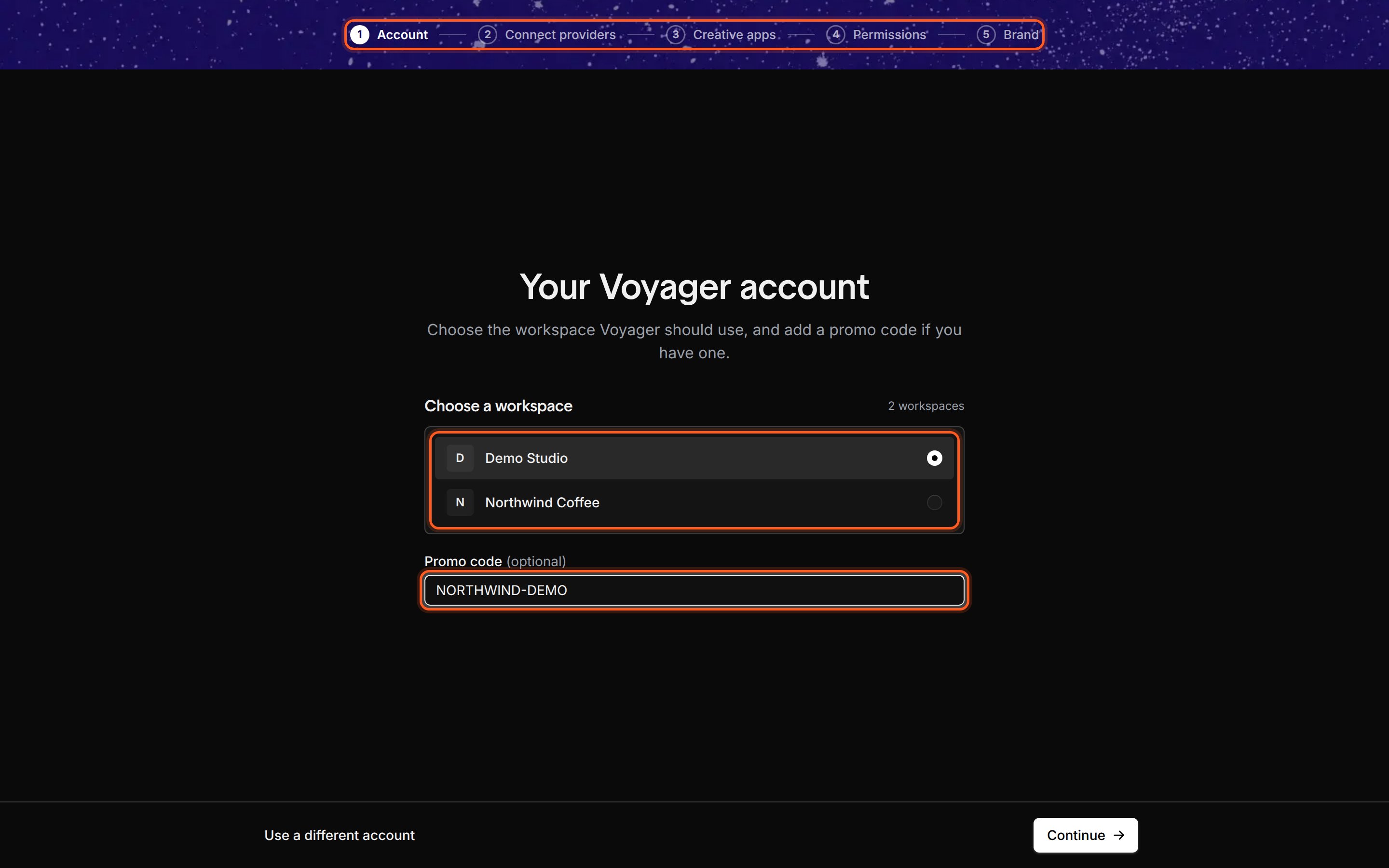 If you have a promo code, type it in **Promo code (optional)**. Voyager applies it when you click **Continue**, and shows the result at the top of the next step, for example **Code applied** or a message that a trial has started.
A code that doesn't work never stops setup. You can try it again later in **Settings → Accounts**.
Click **Continue**. The button reads **Setting up…** while Voyager checks your account, then you move to **Connect providers**.
Signed in to the wrong account? Click **Use a different account** instead. The browser asks you to sign in again, so you can pick another account.
## Check it worked
* The setup bar shows a check next to **Account**, and **Connect providers** is highlighted.
* Later, **Settings → Accounts** shows **Signed in as** your email and your workspace in the **Voyager** section.
## If something went wrong
The browser sign-in has to finish within about five minutes, and choosing a workspace within a few minutes after that. Click **Try again** and complete the browser page without leaving it open in the background. If you see **The workspace choice timed out. Sign in again.**, start sign-in again and pick your workspace straight away.
Voyager couldn't save your sign-in. Unlock your login keychain (signing out of macOS and back in usually does this), allow Voyager access when macOS asks, then click **Try again**.
On Linux the message mentions your system credential store: unlock your keyring, such as GNOME Keyring or KWallet, and allow Voyager access.
While the Windows alpha is unsigned, Smart App Control blocks the part of Voyager that saves your sign-in. Reinstalling won't help. Read [Windows Smart App Control](https://voyager.so/help/windows-smart-app-control) for your options.
Your sign-in ended or wasn't confirmed. Click **Sign in** on the Account step and sign in again in the browser.
More fixes are in [Setup problems](/help/setup-problems).
Using ChatGPT instead of Claude? Go to [Connect ChatGPT](/setup/connect-chatgpt).
Connect Claude with your Claude subscription or an Anthropic API key.
This documentation is built and hosted on [Mintlify](https://mintlify.com), a developer documentation platform.
If you have a promo code, type it in **Promo code (optional)**. Voyager applies it when you click **Continue**, and shows the result at the top of the next step, for example **Code applied** or a message that a trial has started.
A code that doesn't work never stops setup. You can try it again later in **Settings → Accounts**.
Click **Continue**. The button reads **Setting up…** while Voyager checks your account, then you move to **Connect providers**.
Signed in to the wrong account? Click **Use a different account** instead. The browser asks you to sign in again, so you can pick another account.
## Check it worked
* The setup bar shows a check next to **Account**, and **Connect providers** is highlighted.
* Later, **Settings → Accounts** shows **Signed in as** your email and your workspace in the **Voyager** section.
## If something went wrong
The browser sign-in has to finish within about five minutes, and choosing a workspace within a few minutes after that. Click **Try again** and complete the browser page without leaving it open in the background. If you see **The workspace choice timed out. Sign in again.**, start sign-in again and pick your workspace straight away.
Voyager couldn't save your sign-in. Unlock your login keychain (signing out of macOS and back in usually does this), allow Voyager access when macOS asks, then click **Try again**.
On Linux the message mentions your system credential store: unlock your keyring, such as GNOME Keyring or KWallet, and allow Voyager access.
While the Windows alpha is unsigned, Smart App Control blocks the part of Voyager that saves your sign-in. Reinstalling won't help. Read [Windows Smart App Control](https://voyager.so/help/windows-smart-app-control) for your options.
Your sign-in ended or wasn't confirmed. Click **Sign in** on the Account step and sign in again in the browser.
More fixes are in [Setup problems](/help/setup-problems).
Using ChatGPT instead of Claude? Go to [Connect ChatGPT](/setup/connect-chatgpt).
Connect Claude with your Claude subscription or an Anthropic API key.
This documentation is built and hosted on [Mintlify](https://mintlify.com), a developer documentation platform.