> ## Documentation Index
> Fetch the complete documentation index at: https://docs.voyager.so/llms.txt
> Use this file to discover all available pages before exploring further.
# Set up Voyager
> What the five setup steps do, what you need before you start, and which steps you can skip.
The first time you open Voyager, a short setup walks you through five steps. When you finish, you'll have a signed-in Voyager account, at least one agent ready to chat with, and Voyager ready to make your first video.
Most people are done in about five minutes.
**Before you start**
* **A Voyager account.** Setup opens a sign-in page in your browser, where you can sign in or create a free account. You don't need to pay to create one.
* **An agent to chat with.** You need at least one of these:
* **Claude**, with a Claude plan that includes Claude Code or an Anthropic API key, or
* **ChatGPT**, with a ChatGPT plan that includes Codex or an OpenAI API key, or
* a **Voyager plan**, which includes chat with Voyager models.
With your own Claude or ChatGPT and your own media keys, you don't need a Voyager plan. See [pricing](https://voyager.so/pricing) for what a plan adds.
* **Voyager installed.** If you haven't installed it yet, start with [Install on macOS](/get-started/install-macos), [Windows](/get-started/install-windows) or [Linux](/get-started/install-linux).
## The five steps
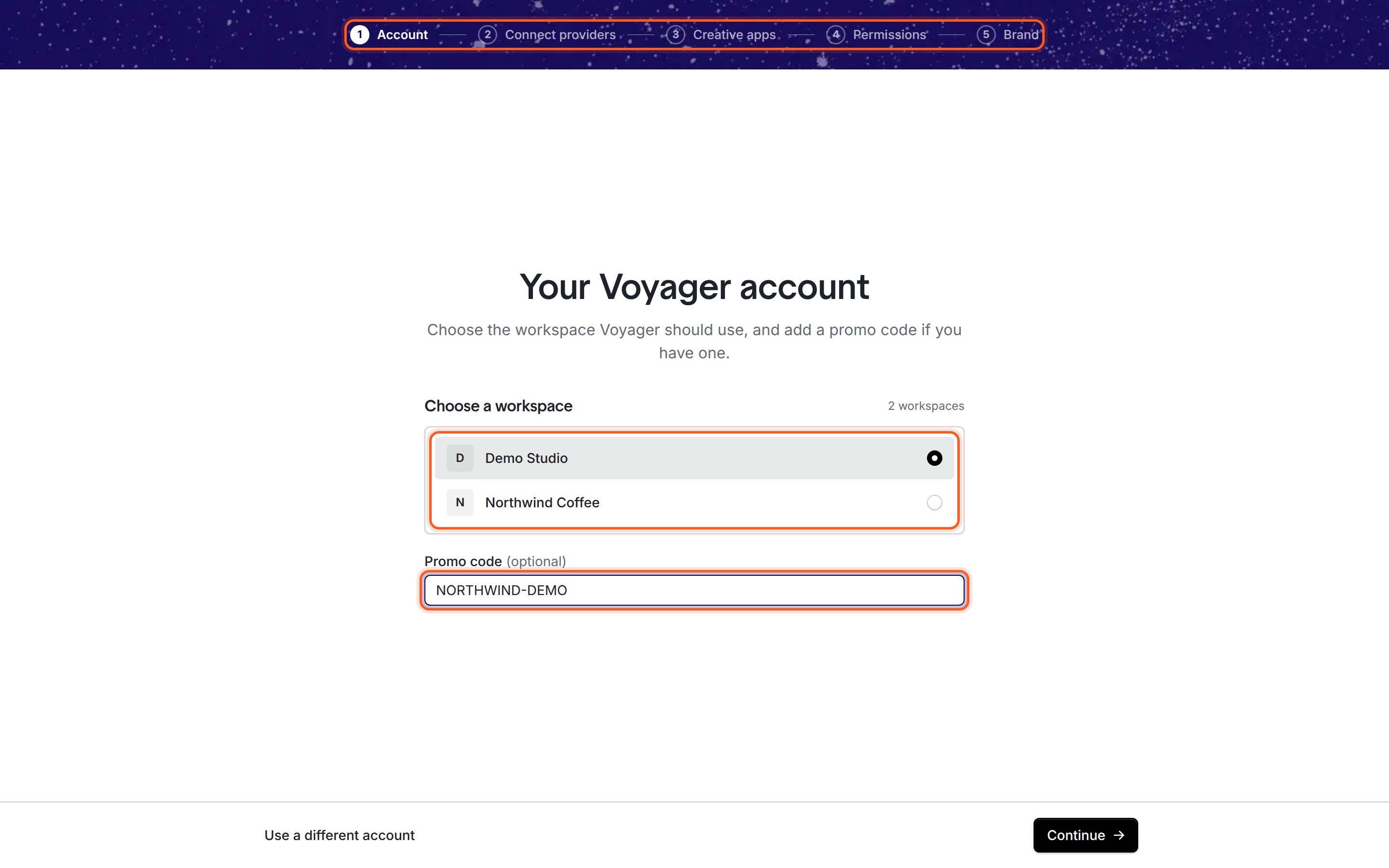
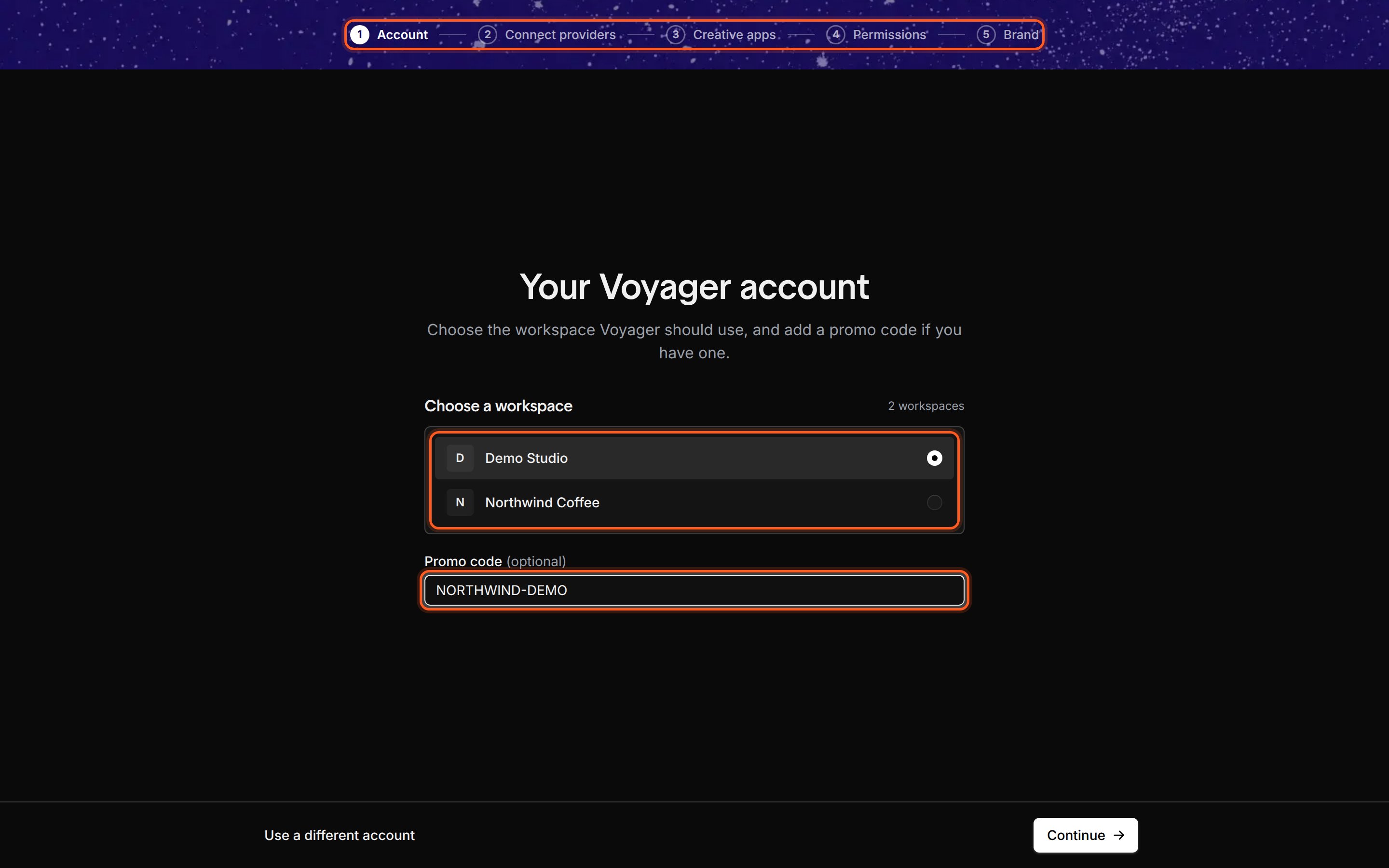
A bar across the top of the setup window shows where you are: **Account**, **Connect providers**, **Creative apps**, **Permissions** and **Brand**. You can click a step you've already finished to go back to it. Steps you haven't reached yet stay locked until you finish the one you're on.
| Step | What it does | Required? | Guide |
| - | - | - | - |
| **Account** | Signs you in to Voyager and picks the workspace Voyager uses. You can add a promo code here. | Yes | [Sign in to Voyager](/setup/sign-in) |
| **Connect providers** | Connects the agent you'll chat with, plus any media services you already pay for. | Yes, at least one agent | [Connect Claude](/setup/connect-claude), [Connect ChatGPT](/setup/connect-chatgpt), [Voyager models and media](/setup/voyager-models) |
| **Creative apps** | Finds creative apps on your computer, such as DaVinci Resolve or Blender, so the agent can use them. | No | [Connect your creative apps](/setup/creative-apps) |
| **Permissions** | On a Mac, lets Voyager see and control your screen if you want it to. On every computer, sets two privacy switches. | No | [Permissions and privacy](/setup/mac-permissions) |
| **Brand** | Picks the brand kit (colors, fonts and logos) that new projects start with. | No | [Choose a brand](/setup/brand) |
 ## What you'll pay for
Setup itself is free. What you pay depends on how you choose to work:
* **Chat with your own Claude or ChatGPT** costs nothing extra from Voyager. A subscription's usage counts against its own limits; an API key is billed per use by the provider.
* **Chat with Voyager models** uses your Voyager plan's credits.
* **Images, video and audio** are billed by whichever service makes them: your own provider account (when you add your own key or sign in), or your Voyager plan's credits.
Voyager asks before it spends more than your spend limit when questions are set to **Balanced** or **Always ask**. **Autopilot** doesn't wait, even above the limit. See [Approvals and spending](/guides/approvals-and-spending) and [Plans and credits](/account/plans-and-credits).
## Setup counts as done after step 2
Once you click **Continue** on **Connect providers**, Voyager saves your setup as complete. The last three steps are optional.
If you quit Voyager during **Creative apps**, **Permissions** or **Brand**, setup won't show those steps again next time. Nothing is lost: each one has a home in Settings, listed below.
| Setup step | Change it later in |
| - | - |
| Account, promo code | **Settings → Accounts**, in the **Voyager** section |
| Agents and media services | **Settings → Accounts** |
| Creative apps | **Settings → Connectors** |
| Mac screen access | **Settings → Permissions** (Mac only) |
| Usage statistics and problem reports | **Settings → Privacy** |
| Default brand kit | **Settings → Creative preferences**, in the **Brand** section |
Open Settings with ⌘ , (Ctrl ,) or from **Settings** at the bottom of the sidebar.
## Platform differences
Setup is the same on macOS, Windows and Linux, with two exceptions:
* **Screen access** on the Permissions step appears only on a Mac.
* **Windows (alpha):** if Windows Smart App Control is on, the first screen shows a notice, because it can block sign-in and other parts of Voyager. Read [Windows Smart App Control](https://voyager.so/help/windows-smart-app-control) before you continue.
See [Requirements](/get-started/requirements) for the full platform table.
## If something went wrong
Voyager's local service is slow to start. Click **Reload**. If you see **Could not read settings**, click **Retry**. If it keeps happening, see [Setup problems](/help/setup-problems).
You can sign in and reach the Connect providers step, but **Continue** stays off until one agent is ready. Connect Claude or ChatGPT, or get a Voyager plan from [pricing](https://voyager.so/pricing). See [Voyager models and media](/setup/voyager-models).
That's fine. Use the table above to set up creative apps, permissions or your brand from Settings.
Start setup and sign in or create your Voyager account.
This documentation is built and hosted on [Mintlify](https://mintlify.com), a developer documentation platform.
## What you'll pay for
Setup itself is free. What you pay depends on how you choose to work:
* **Chat with your own Claude or ChatGPT** costs nothing extra from Voyager. A subscription's usage counts against its own limits; an API key is billed per use by the provider.
* **Chat with Voyager models** uses your Voyager plan's credits.
* **Images, video and audio** are billed by whichever service makes them: your own provider account (when you add your own key or sign in), or your Voyager plan's credits.
Voyager asks before it spends more than your spend limit when questions are set to **Balanced** or **Always ask**. **Autopilot** doesn't wait, even above the limit. See [Approvals and spending](/guides/approvals-and-spending) and [Plans and credits](/account/plans-and-credits).
## Setup counts as done after step 2
Once you click **Continue** on **Connect providers**, Voyager saves your setup as complete. The last three steps are optional.
If you quit Voyager during **Creative apps**, **Permissions** or **Brand**, setup won't show those steps again next time. Nothing is lost: each one has a home in Settings, listed below.
| Setup step | Change it later in |
| - | - |
| Account, promo code | **Settings → Accounts**, in the **Voyager** section |
| Agents and media services | **Settings → Accounts** |
| Creative apps | **Settings → Connectors** |
| Mac screen access | **Settings → Permissions** (Mac only) |
| Usage statistics and problem reports | **Settings → Privacy** |
| Default brand kit | **Settings → Creative preferences**, in the **Brand** section |
Open Settings with ⌘ , (Ctrl ,) or from **Settings** at the bottom of the sidebar.
## Platform differences
Setup is the same on macOS, Windows and Linux, with two exceptions:
* **Screen access** on the Permissions step appears only on a Mac.
* **Windows (alpha):** if Windows Smart App Control is on, the first screen shows a notice, because it can block sign-in and other parts of Voyager. Read [Windows Smart App Control](https://voyager.so/help/windows-smart-app-control) before you continue.
See [Requirements](/get-started/requirements) for the full platform table.
## If something went wrong
Voyager's local service is slow to start. Click **Reload**. If you see **Could not read settings**, click **Retry**. If it keeps happening, see [Setup problems](/help/setup-problems).
You can sign in and reach the Connect providers step, but **Continue** stays off until one agent is ready. Connect Claude or ChatGPT, or get a Voyager plan from [pricing](https://voyager.so/pricing). See [Voyager models and media](/setup/voyager-models).
That's fine. Use the table above to set up creative apps, permissions or your brand from Settings.
Start setup and sign in or create your Voyager account.
This documentation is built and hosted on [Mintlify](https://mintlify.com), a developer documentation platform.