> ## Documentation Index
> Fetch the complete documentation index at: https://docs.voyager.so/llms.txt
> Use this file to discover all available pages before exploring further.
# Get help and send feedback
> Ask the Voyager team for help, review a support bundle, or report a problem without attaching your chat.
Use **Get help…** from the affected chat when you want the Voyager team to help with a specific problem. For general questions, join the [Voyager Discord](https://discord.gg/YGNU4EEKr) or email [support@voyager.so](mailto:support@voyager.so).
## Ask for help with a chat
1. Right-click the chat in the sidebar and choose **Get help…**. You can also open the command palette with ⌘ K (Ctrl K) and choose **Get help with this conversation**.
2. In **What happened**, describe what you expected, what happened instead, and the last action before the problem.
3. Leave **Attach this conversation** on if you want to share its support bundle, or turn it off to send only your report and selected details.
4. Choose **Review files** and read the contents before sending.
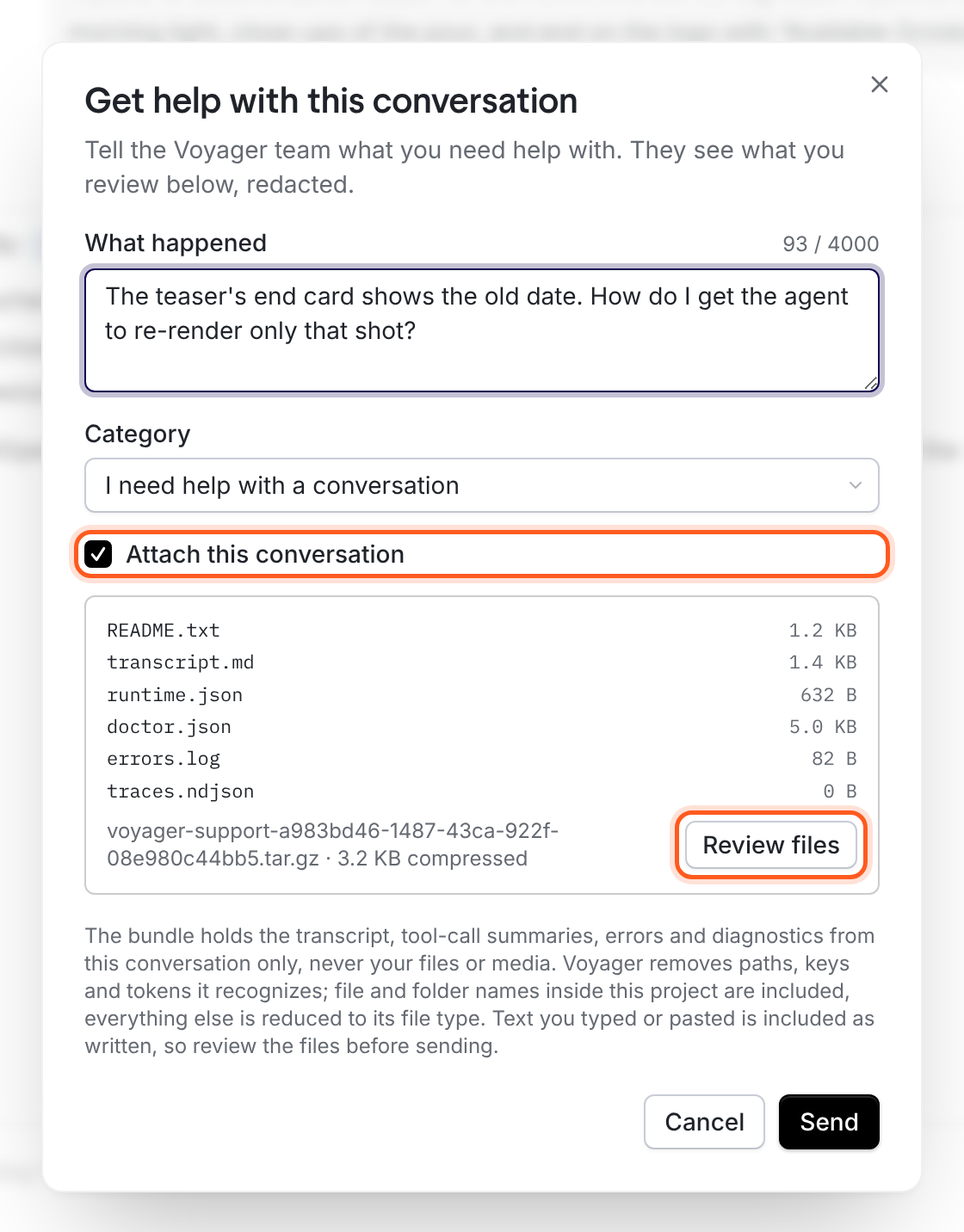
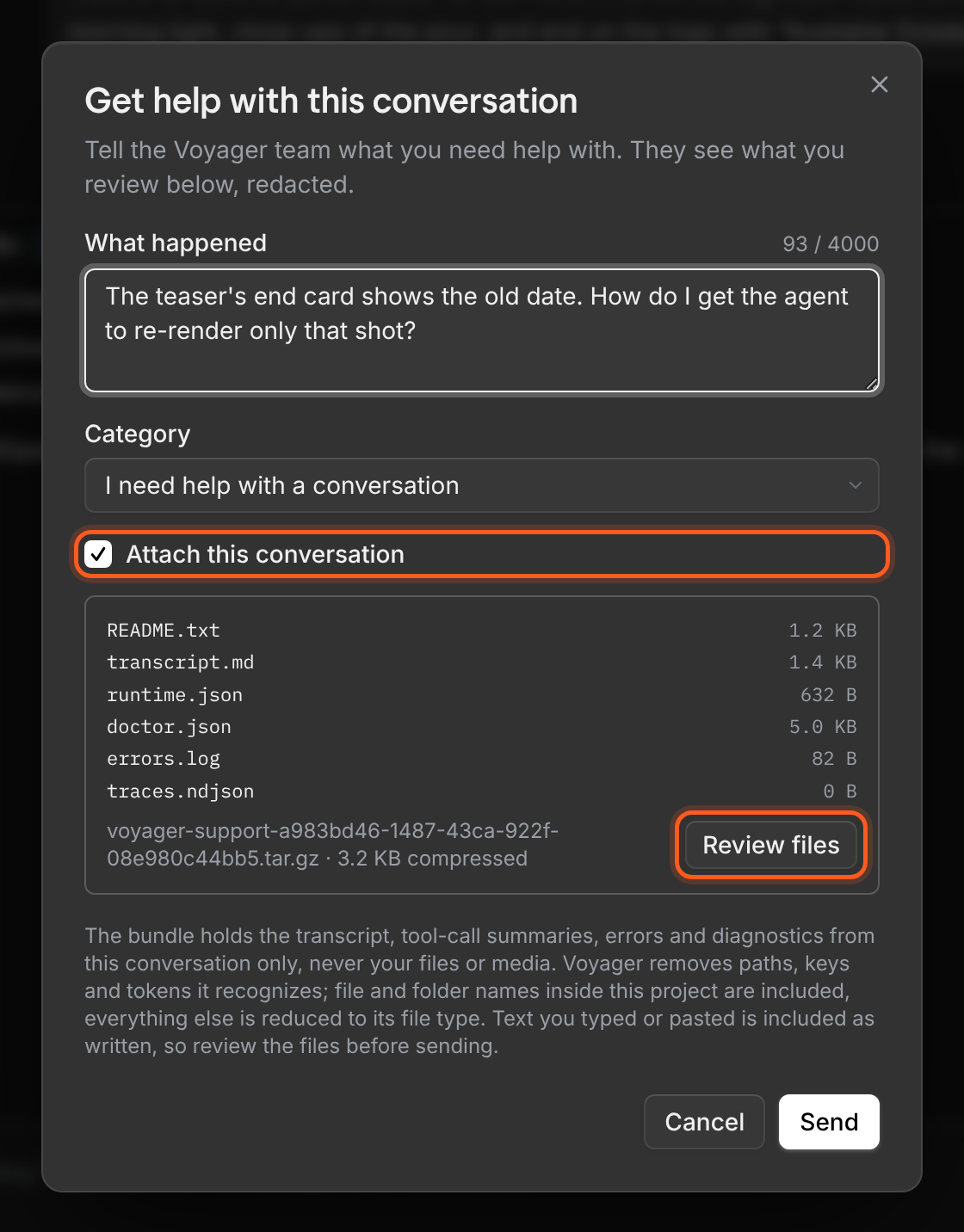 The bundle contains the chat transcript, tool-call summaries, errors, and diagnostics for this conversation. It does not attach original project files or media. Text you typed or pasted into the chat is included, as are file and folder names inside the project.
Voyager removes paths, keys, and tokens it recognizes. If you see content you do not want to share, turn **Attach this conversation** off and describe the problem without the bundle.
5. Choose **Send** to share the reviewed report with the Voyager team.
If the reviewed bundle expires, Voyager rebuilds it and asks you to review the files again. The agent can suggest using **Get help…**, but cannot send the bundle for you.
## Send feedback without a conversation bundle
Use **Send feedback…** from a chat's menu or **Settings → Privacy**. The command palette also has **Send feedback**.
1. Fill in **What happened**.
2. Choose a **Category**, such as **Something broke**, **It keeps failing**, or **Something was confusing**.
3. If you opened feedback from a chat, review **Include details from this thread**. It can include the app version, chat identifier, provider and model, and recent errors.
4. Choose **Send**.
This flow leaves **Attach this conversation** off by default. Your written feedback is sent with your Voyager account; it does not automatically include the chat transcript or your files.
## If you cannot sign in or send the report
When signed out, the dialog offers **Save bundle…** for an attached conversation or **Copy report** for plain feedback. It also offers **Open Discord** and **Connect Voyager**.
Save or copy the report, then contact [support@voyager.so](mailto:support@voyager.so). You can also reach the team through the [Voyager Discord](https://discord.gg/YGNU4EEKr).
Send support bundles privately by email or direct message. Do not post them in a public Discord channel.
If the app will not open, email support directly. Include the startup message and any relevant log named in its dialog. See [Setup problems](/help/setup-problems) for startup recovery.
## What helps us investigate
* What you were trying to make and what you expected to happen.
* The exact error message and approximate time it appeared.
* Your app version from **Settings → General → About**, plus your operating system.
* The selected agent, model, and generation provider, if relevant.
* The job or Voyager request ID shown with a failed generation.
* Whether the problem happens every time or only with this chat or file.
Keep passwords, API keys, sign-in links, and payment details out of your report.
## We may have received this. Check with us before sending again.
Voyager could not confirm whether the report arrived.
1. Do not immediately send another copy.
2. Contact the team by email or Discord with the approximate send time and a short description.
**Check:** The team confirms whether the original report arrived before you resend it.
For more about optional reporting and what stays on your computer, see [Privacy](/help/privacy).
This documentation is built and hosted on [Mintlify](https://mintlify.com), a developer documentation platform.
The bundle contains the chat transcript, tool-call summaries, errors, and diagnostics for this conversation. It does not attach original project files or media. Text you typed or pasted into the chat is included, as are file and folder names inside the project.
Voyager removes paths, keys, and tokens it recognizes. If you see content you do not want to share, turn **Attach this conversation** off and describe the problem without the bundle.
5. Choose **Send** to share the reviewed report with the Voyager team.
If the reviewed bundle expires, Voyager rebuilds it and asks you to review the files again. The agent can suggest using **Get help…**, but cannot send the bundle for you.
## Send feedback without a conversation bundle
Use **Send feedback…** from a chat's menu or **Settings → Privacy**. The command palette also has **Send feedback**.
1. Fill in **What happened**.
2. Choose a **Category**, such as **Something broke**, **It keeps failing**, or **Something was confusing**.
3. If you opened feedback from a chat, review **Include details from this thread**. It can include the app version, chat identifier, provider and model, and recent errors.
4. Choose **Send**.
This flow leaves **Attach this conversation** off by default. Your written feedback is sent with your Voyager account; it does not automatically include the chat transcript or your files.
## If you cannot sign in or send the report
When signed out, the dialog offers **Save bundle…** for an attached conversation or **Copy report** for plain feedback. It also offers **Open Discord** and **Connect Voyager**.
Save or copy the report, then contact [support@voyager.so](mailto:support@voyager.so). You can also reach the team through the [Voyager Discord](https://discord.gg/YGNU4EEKr).
Send support bundles privately by email or direct message. Do not post them in a public Discord channel.
If the app will not open, email support directly. Include the startup message and any relevant log named in its dialog. See [Setup problems](/help/setup-problems) for startup recovery.
## What helps us investigate
* What you were trying to make and what you expected to happen.
* The exact error message and approximate time it appeared.
* Your app version from **Settings → General → About**, plus your operating system.
* The selected agent, model, and generation provider, if relevant.
* The job or Voyager request ID shown with a failed generation.
* Whether the problem happens every time or only with this chat or file.
Keep passwords, API keys, sign-in links, and payment details out of your report.
## We may have received this. Check with us before sending again.
Voyager could not confirm whether the report arrived.
1. Do not immediately send another copy.
2. Contact the team by email or Discord with the approximate send time and a short description.
**Check:** The team confirms whether the original report arrived before you resend it.
For more about optional reporting and what stays on your computer, see [Privacy](/help/privacy).
This documentation is built and hosted on [Mintlify](https://mintlify.com), a developer documentation platform.