> ## Documentation Index
> Fetch the complete documentation index at: https://docs.voyager.so/llms.txt
> Use this file to discover all available pages before exploring further.
# Install on macOS
> Download Voyager for Mac, move it to Applications and open it for the first time.
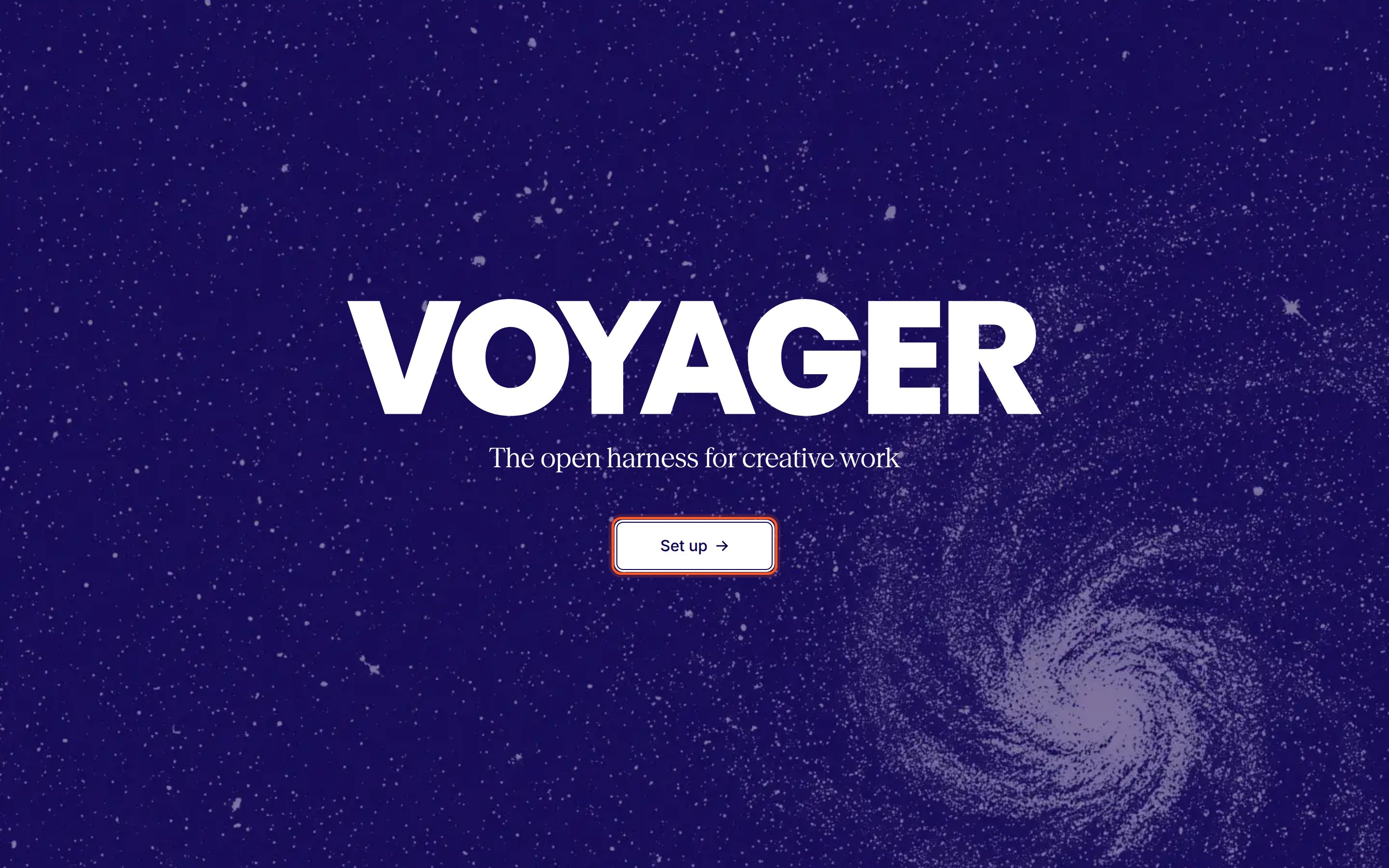
When you're done, Voyager is in your Applications folder and open on its welcome screen, ready for setup.
**Before you start**
* A Mac with Apple silicon (M1 or later) running **macOS 15 or later**. Check under → **About This Mac**.
* About 10 minutes, including setup.
* Voyager is free to download. See [Requirements](/get-started/requirements) for what each feature needs.
## Install Voyager
Sign in at voyager.so, or create a free account, then go to **[Download](https://voyager.so/dashboard/download)** in your dashboard. Choose **macOS** (Apple silicon · .dmg).
Double-click the downloaded `.dmg`. A window opens with the Voyager icon and a shortcut to your Applications folder.

 Drag the **Voyager** icon onto **Applications**. If an older Voyager is open, quit it first, then choose **Replace** when asked.
In Finder's sidebar, click the eject button next to **Voyager**. You can delete the `.dmg` file afterwards.
Open your **Applications** folder and double-click **Voyager**. Open it from Applications, not from the disk image.
The first time, macOS asks whether you want to open an app downloaded from the internet. Voyager is signed and notarized by Apple, so this is expected. Click **Open**.
Drag the **Voyager** icon onto **Applications**. If an older Voyager is open, quit it first, then choose **Replace** when asked.
In Finder's sidebar, click the eject button next to **Voyager**. You can delete the `.dmg` file afterwards.
Open your **Applications** folder and double-click **Voyager**. Open it from Applications, not from the disk image.
The first time, macOS asks whether you want to open an app downloaded from the internet. Voyager is signed and notarized by Apple, so this is expected. Click **Open**.

 ## Check it worked
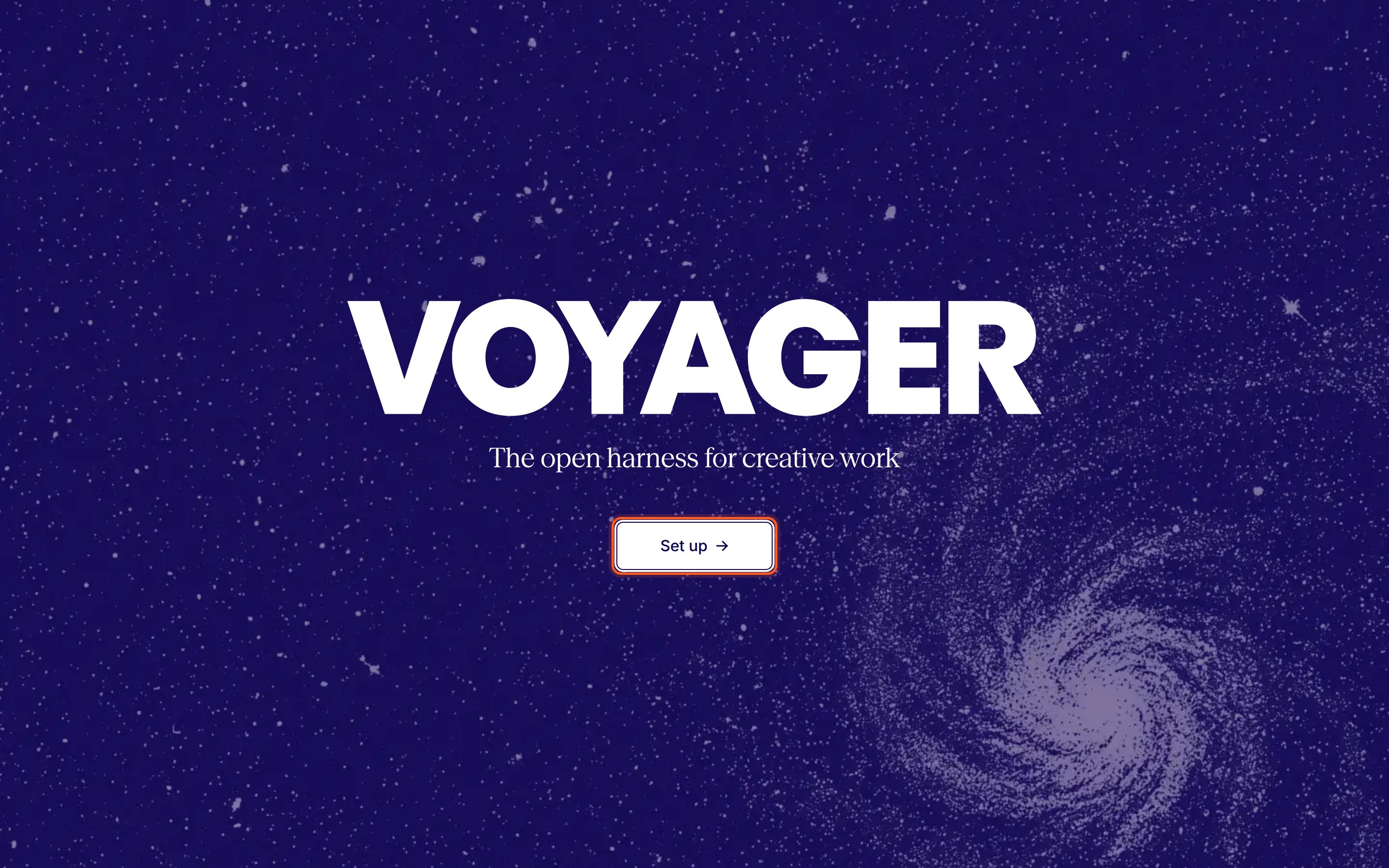
Voyager opens on its welcome screen with a **Set up** button. Clicking it starts setup, beginning with signing in to your Voyager account in your browser.
## Check it worked
Voyager opens on its welcome screen with a **Set up** button. Clicking it starts setup, beginning with signing in to your Voyager account in your browser.
 Voyager updates itself. New versions download in the background, and install when you restart Voyager or the next time you quit and reopen it. See [Updates](/help/updates).
## If something went wrong
Voyager needs macOS 15 or later. Update macOS in **System Settings → General → Software Update**, then open Voyager again.
The download was probably interrupted or changed. Move Voyager from Applications to the Trash, download the installer again, and repeat the steps. Don't turn off macOS security checks to get around this. If it happens again, [contact support](/help/get-help) with the exact message and the file name you downloaded.
Voyager saves your sign-ins in your macOS Keychain. Check that the request names Voyager, enter your Mac login password and choose **Always Allow**, so it doesn't ask again.
Click **Try Again** first. If the message says your disk is full, free up some space, then try again. If it offers **Repair and Start**, click it: Voyager sets the damaged data aside and keeps everything it can read. If none of that works, [get help](/help/get-help).
## Next
Sign in, connect your agent and finish the welcome steps.
This documentation is built and hosted on [Mintlify](https://mintlify.com), a developer documentation platform.
Voyager updates itself. New versions download in the background, and install when you restart Voyager or the next time you quit and reopen it. See [Updates](/help/updates).
## If something went wrong
Voyager needs macOS 15 or later. Update macOS in **System Settings → General → Software Update**, then open Voyager again.
The download was probably interrupted or changed. Move Voyager from Applications to the Trash, download the installer again, and repeat the steps. Don't turn off macOS security checks to get around this. If it happens again, [contact support](/help/get-help) with the exact message and the file name you downloaded.
Voyager saves your sign-ins in your macOS Keychain. Check that the request names Voyager, enter your Mac login password and choose **Always Allow**, so it doesn't ask again.
Click **Try Again** first. If the message says your disk is full, free up some space, then try again. If it offers **Repair and Start**, click it: Voyager sets the damaged data aside and keeps everything it can read. If none of that works, [get help](/help/get-help).
## Next
Sign in, connect your agent and finish the welcome steps.
This documentation is built and hosted on [Mintlify](https://mintlify.com), a developer documentation platform.