> ## Documentation Index
> Fetch the complete documentation index at: https://docs.voyager.so/llms.txt
> Use this file to discover all available pages before exploring further.
# Find your finished file
> Use Reveal, Save video and Copy full path to find and keep the finished version of your work.
The video Voyager delivers is already a file on your computer. There is no **Export** button to press after the agent has rendered it.
Have the finished video open in the chat, **Assets**, or the project's **Outputs**. If you only have a design preview, ask the agent to render a video file first.
## Get the video
Play the video in the chat to check it is the finished version.
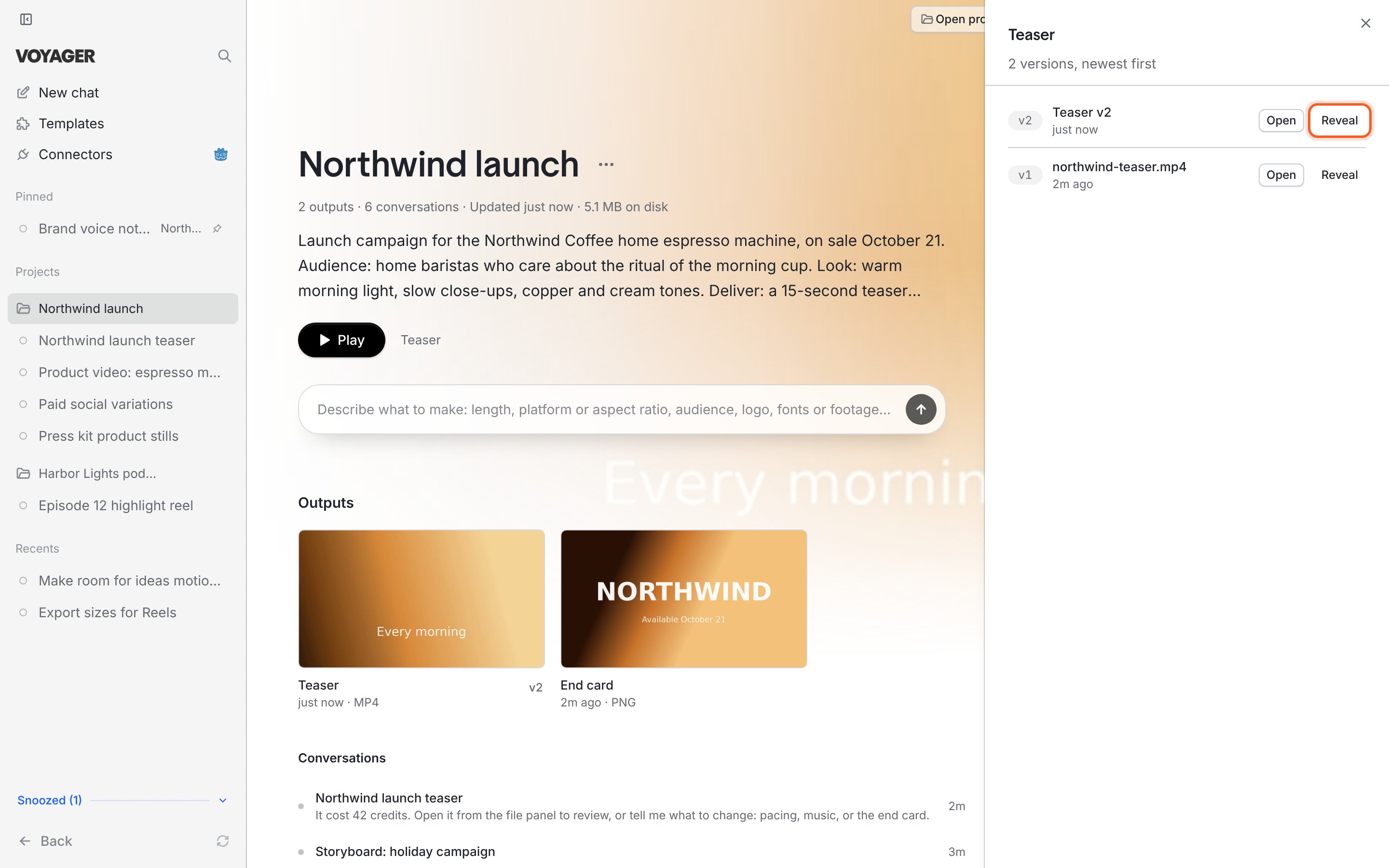
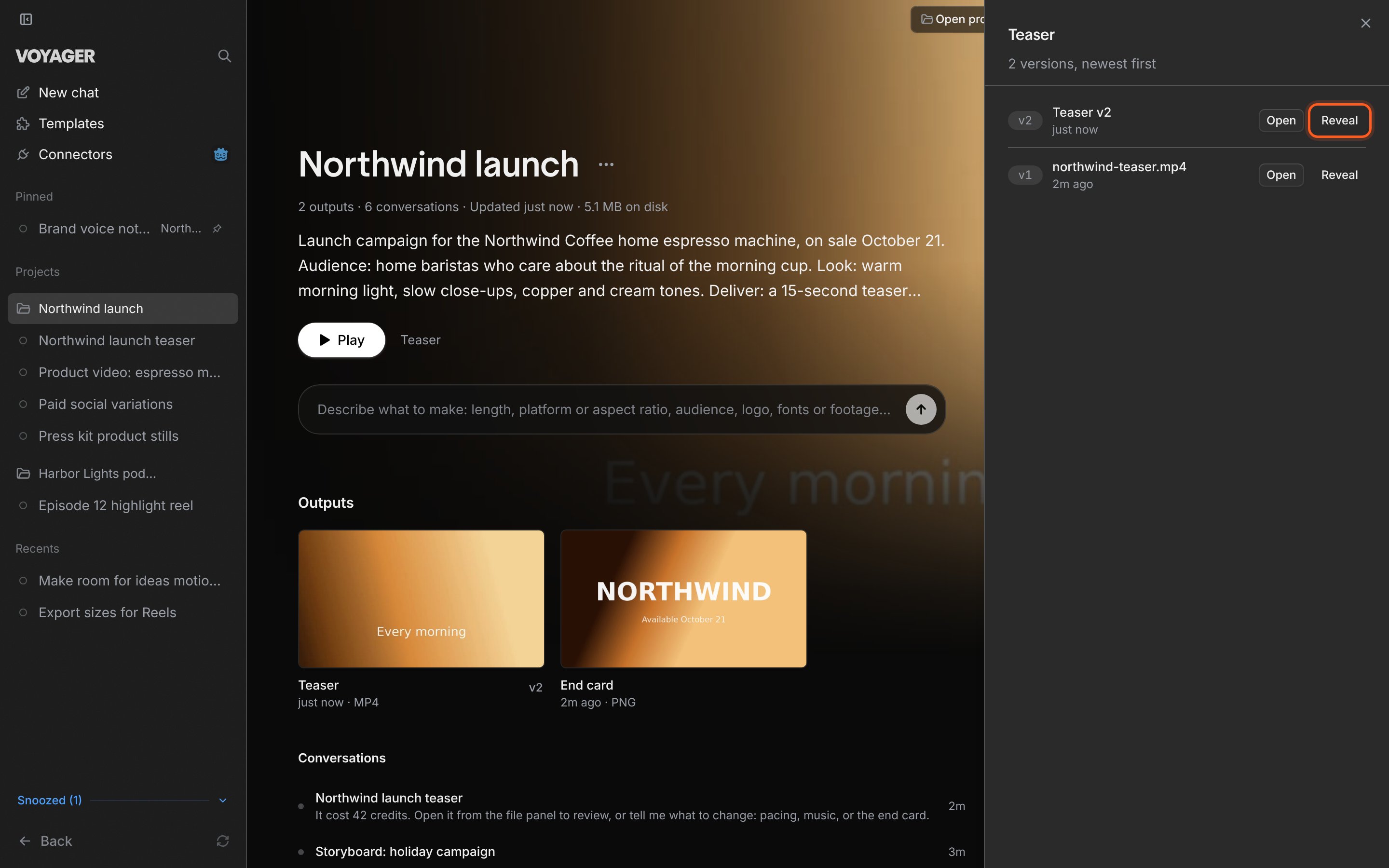
In a project, click its name in the sidebar and look under **Outputs**. Click an output to open its latest version. If it has several versions, click its **v2**, **v3** or other version badge to open the list, then choose **Open** beside the one you want.
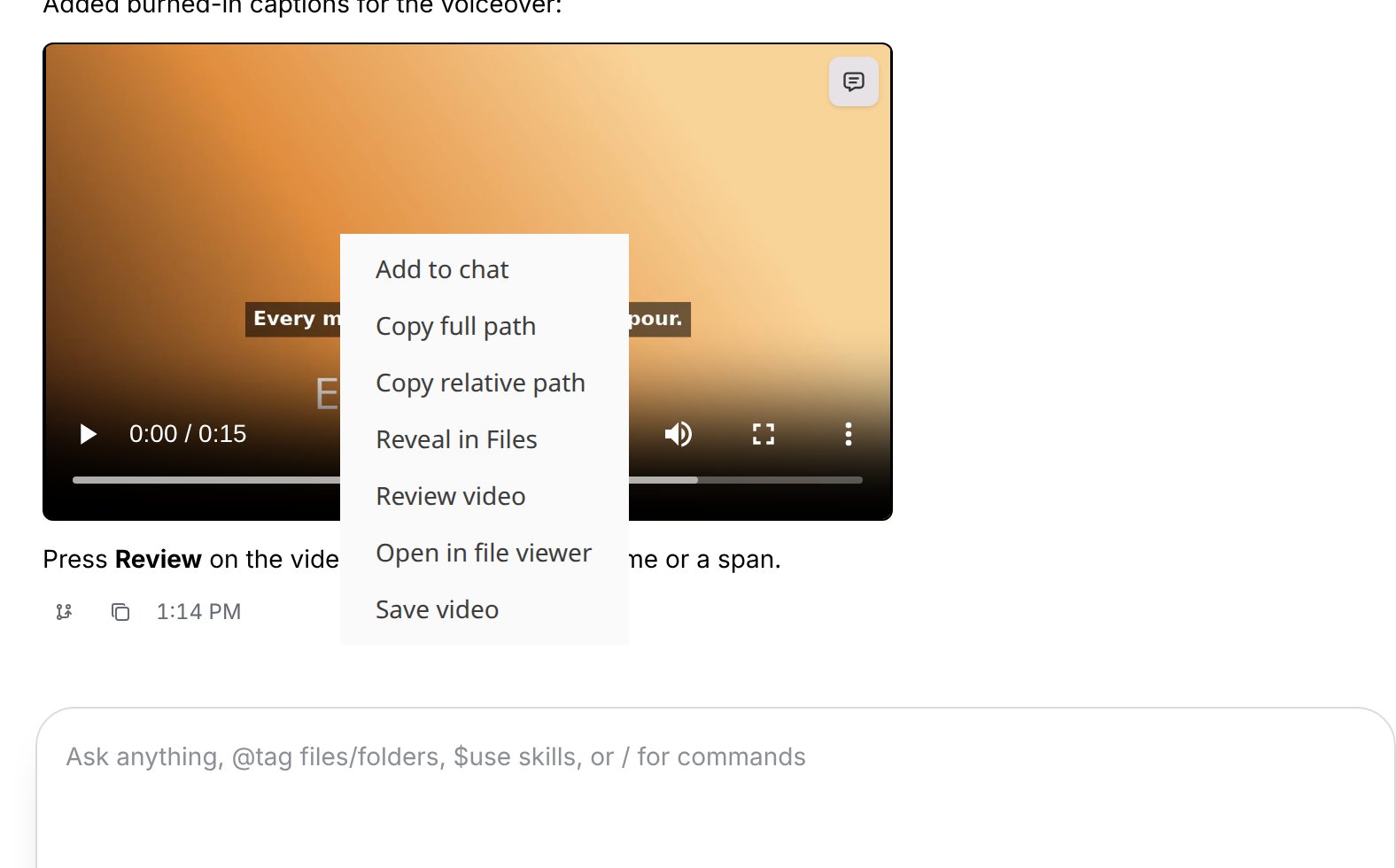
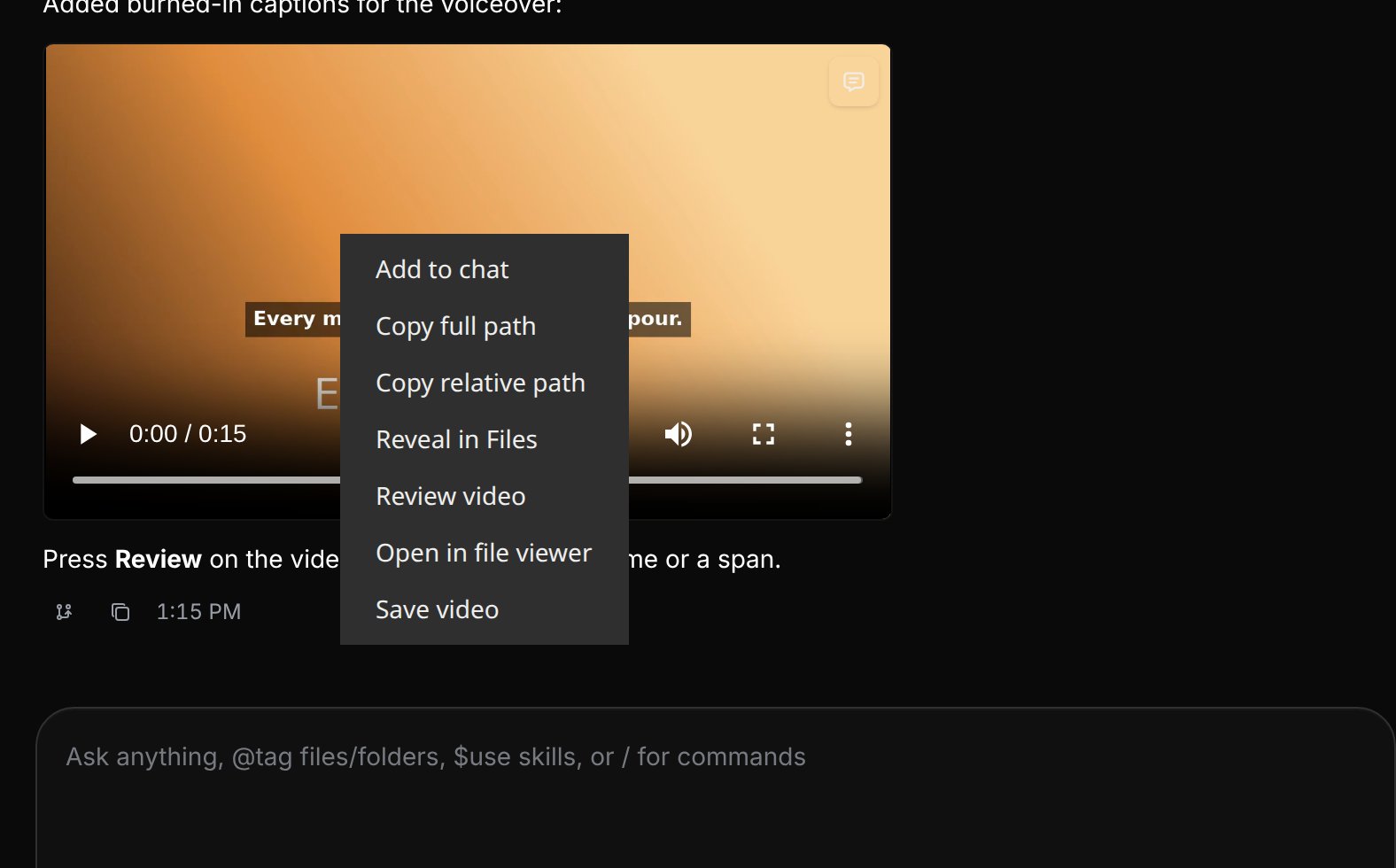
 Right-click the video to open its file actions.
| Action | What it gives you |
| - | - |
| **Save video** | A copy of the video through the save/download flow. |
| **Copy full path** | The original file's complete location, ready to paste. |
| **Reveal** in a project's versions list | The original file selected in your file manager. |
The right-click reveal label depends on your platform:
Choose **Reveal in Finder** to locate the video in Finder.
Choose **Reveal in File Explorer** to locate the video in File Explorer.
Choose **Reveal in Files** to locate the video in your file manager.
Right-click the video to open its file actions.
| Action | What it gives you |
| - | - |
| **Save video** | A copy of the video through the save/download flow. |
| **Copy full path** | The original file's complete location, ready to paste. |
| **Reveal** in a project's versions list | The original file selected in your file manager. |
The right-click reveal label depends on your platform:
Choose **Reveal in Finder** to locate the video in Finder.
Choose **Reveal in File Explorer** to locate the video in File Explorer.
Choose **Reveal in Files** to locate the video in your file manager.
 Open the saved or revealed file in your usual video player. Check the beginning, end and sound, then use that file wherever you want to share or upload the video.
## Choose a delivery folder
Open **Settings → Creative preferences → Delivery folder** to choose where the agent should save finished videos, images and exports. Working files and drafts stay in the project. Leave the field empty to keep finished work there too.
Open the saved or revealed file in your usual video player. Check the beginning, end and sound, then use that file wherever you want to share or upload the video.
## Choose a delivery folder
Open **Settings → Creative preferences → Delivery folder** to choose where the agent should save finished videos, images and exports. Working files and drafts stay in the project. Leave the field empty to keep finished work there too.

 This tells the agent where to save its next deliveries. It does not move videos you have already made. For a one-off destination, name the folder in your request.
## Where the other files live
| Work | Where to look |
| - | - |
| Work in a project | The folder chosen when you created the project. Open its **… → Copy folder path** action to copy that location. |
| A chat without a project | Its own subfolder under **Settings → General → Conversation files folder**. New installs default to the `Voyager` folder in your home folder; older installs may use `Documents/Voyager`. |
| Generated source images and clips | The `generated` folder inside the chat or project folder. These may be ingredients rather than the finished cut. |
| Editable motion or editing source | The working folder used for the piece. Ask the agent to show the editable source if it is not clear which file to open. |
Changing **Conversation files folder** affects new chats without a project. Existing folders stay where they are.
## Common problems
Use the final reply or the project's **Outputs** to open the delivered version. The **generated** folder can contain individual shots. Ask “Show me the final assembled video and its full path” if you need help identifying it.
**Outputs** lists work the agent has presented. Ask it to show the finished file in the chat and add it as a project output. You can still find existing files through **Files**.
Tell the agent where you will use the video and ask for MP4. On Linux alpha, MP4 encoding depends on what is available on the computer; Voyager may offer WebM. See [platform requirements](/get-started/requirements).
Check whether the original file or project folder was moved or deleted. Tell the agent its new location if you moved it. A saved copy can still be opened even if the original preview no longer works.
Build on your first result with footage, generated scenes or a reusable visual style.
This documentation is built and hosted on [Mintlify](https://mintlify.com), a developer documentation platform.
This tells the agent where to save its next deliveries. It does not move videos you have already made. For a one-off destination, name the folder in your request.
## Where the other files live
| Work | Where to look |
| - | - |
| Work in a project | The folder chosen when you created the project. Open its **… → Copy folder path** action to copy that location. |
| A chat without a project | Its own subfolder under **Settings → General → Conversation files folder**. New installs default to the `Voyager` folder in your home folder; older installs may use `Documents/Voyager`. |
| Generated source images and clips | The `generated` folder inside the chat or project folder. These may be ingredients rather than the finished cut. |
| Editable motion or editing source | The working folder used for the piece. Ask the agent to show the editable source if it is not clear which file to open. |
Changing **Conversation files folder** affects new chats without a project. Existing folders stay where they are.
## Common problems
Use the final reply or the project's **Outputs** to open the delivered version. The **generated** folder can contain individual shots. Ask “Show me the final assembled video and its full path” if you need help identifying it.
**Outputs** lists work the agent has presented. Ask it to show the finished file in the chat and add it as a project output. You can still find existing files through **Files**.
Tell the agent where you will use the video and ask for MP4. On Linux alpha, MP4 encoding depends on what is available on the computer; Voyager may offer WebM. See [platform requirements](/get-started/requirements).
Check whether the original file or project folder was moved or deleted. Tell the agent its new location if you moved it. A saved copy can still be opened even if the original preview no longer works.
Build on your first result with footage, generated scenes or a reusable visual style.
This documentation is built and hosted on [Mintlify](https://mintlify.com), a developer documentation platform.