> ## Documentation Index
> Fetch the complete documentation index at: https://docs.voyager.so/llms.txt
> Use this file to discover all available pages before exploring further.
# Understand plans and credits
> Learn what uses Voyager credits, how prepaid billing works, and where to manage your plan.
Voyager credits pay for agent chat and cloud generation through your Voyager workspace.
For example, making a video can use credits for reference images, video clips, voiceover, and chat with a Voyager model. If you use your own Claude subscription for the chat, that part uses your Claude account instead.
## A paid plan is optional
You can sign in or sign up, finish setup, and work with your own Claude or ChatGPT (subscription or API key) and your own media keys without a paid Voyager plan. Those services keep their own billing and usage limits.
Voyager's individual plans are **Starter**, **Creator**, **Ultra**, and **GigaMax™**. Plans include credits and determine the models and parallel generations available to you. **Team** is coming soon; **Enterprise** is available by arrangement. See [Voyager pricing](https://voyager.so/pricing) for current prices, allowances, model access, and offers.
Downloading Voyager and using local editing tools does not itself spend Voyager credits. Chat or cloud generation used alongside those tools can.
## What spends credits
| Work | How it is paid for |
| - | - |
| Agent chat using Voyager models | Uses your plan's Voyager credits at provider cost |
| Images and video generated through Voyager credits | Uses Voyager credits at provider cost |
| Voice, music, and sound effects generated through Voyager credits | Uses Voyager credits |
| Managed Voyager voices and cloud rendering | Uses Voyager credits |
| Chat using your own Claude or ChatGPT subscription | Uses that subscription; Voyager does not charge for the agent chat |
| Chat using your own provider API key | The provider bills your API account per use, separately from a chat subscription |
| Generation using your own media key or Higgsfield account | Bills that provider account directly |
The cost varies with the model and settings. Treat an estimate as an estimate: duration, resolution, inputs, and additional attempts can change the total. The [pricing page](https://voyager.so/pricing) explains credit values and model rates.
**Automatic fallback** can move a generation to another provider in your list, which may bill a different account. Review your [generation provider order](/account/generation-providers) before paid work.
## Check your balance
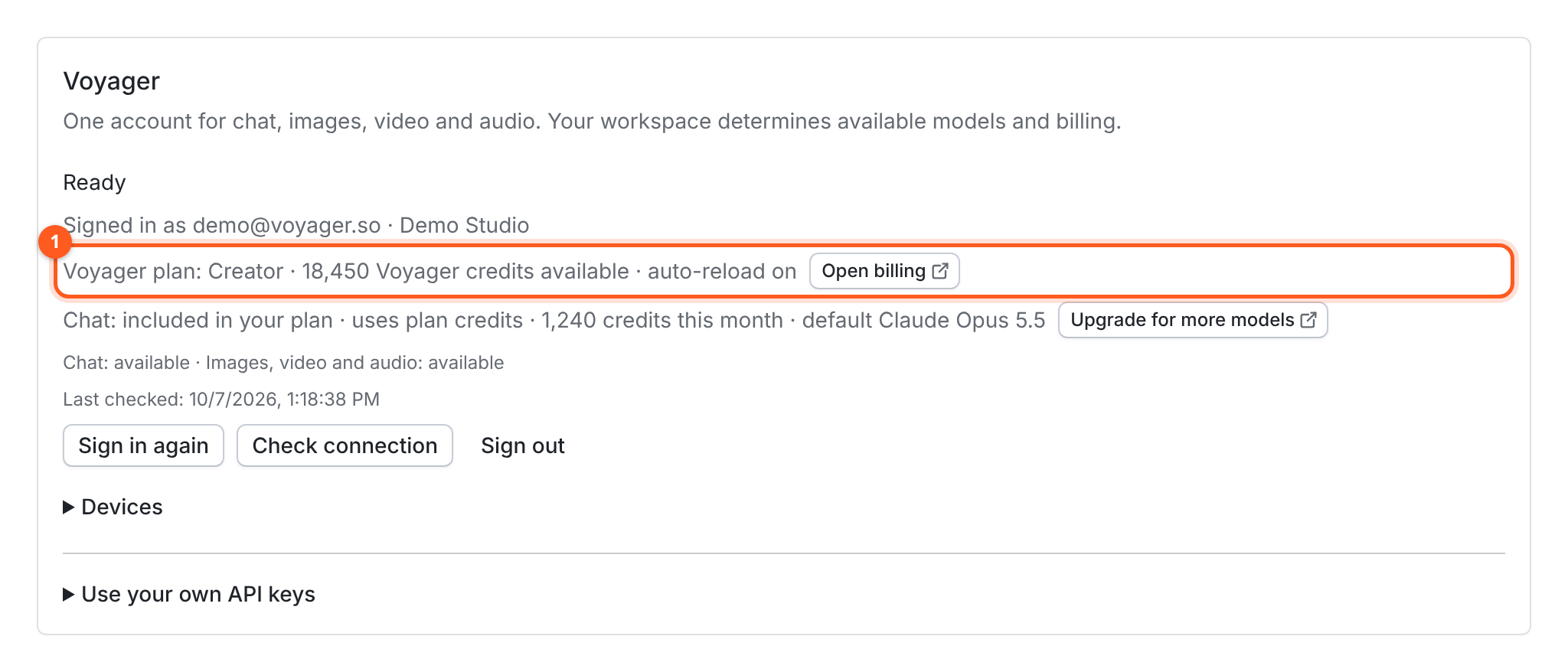
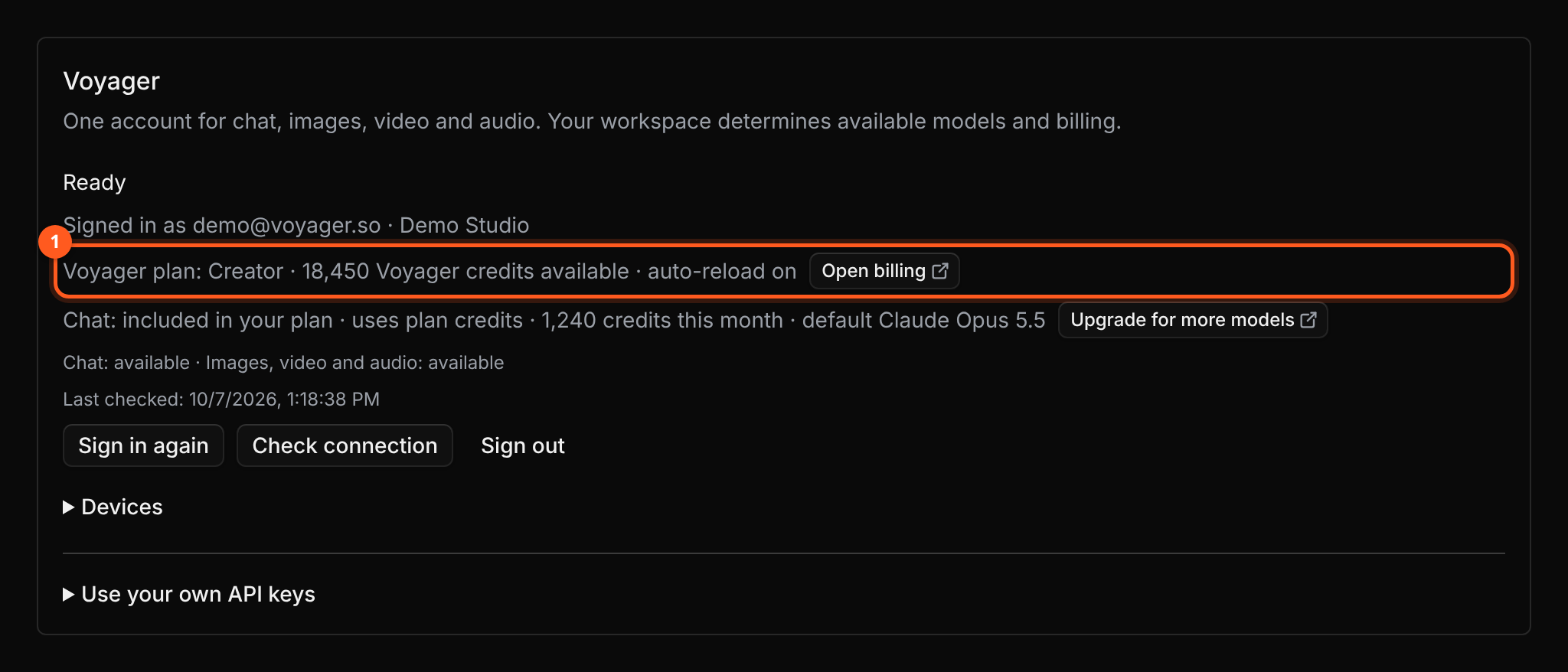
Open **Settings → Accounts** and look at the **Voyager** card. Its plan line shows your workspace's plan and available Voyager credits, and **auto-reload on** when auto-reload is enabled. The **Open billing** button beside it opens your billing dashboard.
 The **Usage** page is for Claude and Codex usage, not your Voyager credit balance. Estimates shown there are not a Voyager invoice.
## How credits renew
Included credits reset each month rather than rolling over. Annual billing still grants credits monthly. Credit packs have an expiry date; see [pricing](https://voyager.so/pricing) for the current terms and your [billing dashboard](https://voyager.so/dashboard/billing) for your balance.
Plans are per seat, with credits pooled across the workspace. If you are part of a workspace, an admin may need to assign you a Voyager seat or change its billing settings.
## If credits run out during a batch
Voyager billing is prepaid. Without a credit pack or working auto-reload, new work that needs more Voyager credits stops until credits are available again. Chat through Voyager uses the same credit pool and can stop too.
A batch contains separate generations, so some may finish before another runs out of credits. Keep the completed results. Open the chat's **Jobs** panel and check which work finished, failed, or is still running before asking the agent to continue only the missing parts.
If **Automatic fallback** is on, a generation may continue on another connected provider. Check the notification before buying credits or retrying. If it says **Waiting for auto-reload to top up credits…**, Voyager is already waiting for the purchase; do not start another copy.
You can buy a credit pack, enable or fix auto-reload, wait for the next credit reset, or use your own agent subscription and media keys. Credit packs need a paid plan and aren't sold during a trial.
## Failed and cancelled jobs
| What happened | What it means for charges |
| - | - |
| The job was refused before generation started, such as a wait for a free slot | That refused attempt was not charged |
| You cancelled while the job was still waiting and had not been sent | The generation was not charged |
| You cancelled after the provider started | It may still be charged; some generations cannot be stopped |
| The provider finished before cancellation took effect | Voyager keeps the finished result; cancellation does not make it free |
| A generation failed after it started | A failure does not prove it was uncharged or refunded; the outcome depends on the provider |
| Voyager could not confirm whether the request started | Check the existing job before submitting another paid attempt |
A new attempt is a separate generation. If the billing outcome is unclear, use [Get help…](/help/get-help) from that chat and include the job or request ID.
## Set up auto-reload
Auto-reload buys a credit pack when your balance falls below your chosen threshold. It needs a paid plan, outside a trial, and a payment method on file.
Auto-reload charges your saved payment method. Review the pack and **Monthly limit** before turning it on. Choosing no monthly limit allows repeated purchases whenever credits run low.
1. Open [Voyager billing](https://voyager.so/dashboard/billing) and find **Auto-reload**.
2. Turn on **Reload automatically**.
3. Set **Reload when credits fall below**, **Pack to buy**, and **Monthly limit**.
4. Choose **Save auto-reload**.
If it pauses, read the reason in the dashboard. You may need to update your card, complete a payment, choose **Resume auto-reload**, or raise the monthly limit. An enabled switch alone does not mean a purchase can currently go through.
## Apply a promo code or check a trial
Enter a code in **Promo code (optional)** during setup, or open **Settings → Accounts → Voyager → Promo code** and choose **Apply**. A successful result says **Code applied** or names the activated Voyager trial.
Codes can have eligibility rules. An expired code, an already redeemed offer, or an offer for a different workspace cannot be applied by retrying it. A failed promo code does not have to stop setup; you can add it later in Settings.
Check the trial's end date and what happens next in [billing](https://voyager.so/dashboard/billing). A trial can convert to a paid plan and charge the payment method on file. The dashboard shows the applicable terms.
## Control spending and manage billing
In **Settings → Creative preferences → Ask before exceeding**, set **Generation spend limit**. Voyager asks before spending more than your limit (in **Balanced** and **Always ask**). This is a preference the agent follows, not a hard billing cap.
**Balanced** otherwise counts down to the recommended answer; **Always ask** waits for every answer. **Autopilot** takes the recommended answer immediately, including approval for paid generation above your limit. See [Approvals and spending](/guides/approvals-and-spending).
Use [voyager.so/dashboard/billing](https://voyager.so/dashboard/billing) to manage your plan, credits, payment method, and auto-reload. The **Open billing** button on the **Voyager** card opens that dashboard. When chat through Voyager is refused, the button names the fix instead, such as **Add credits** when the workspace is out of credits, **Update payment** after a failed payment, or **Upgrade plan** when the plan doesn't include a model; each opens the same dashboard.
For a specific refusal or a generation that stopped, see [Generation problems](/help/generation-problems).
This documentation is built and hosted on [Mintlify](https://mintlify.com), a developer documentation platform.
The **Usage** page is for Claude and Codex usage, not your Voyager credit balance. Estimates shown there are not a Voyager invoice.
## How credits renew
Included credits reset each month rather than rolling over. Annual billing still grants credits monthly. Credit packs have an expiry date; see [pricing](https://voyager.so/pricing) for the current terms and your [billing dashboard](https://voyager.so/dashboard/billing) for your balance.
Plans are per seat, with credits pooled across the workspace. If you are part of a workspace, an admin may need to assign you a Voyager seat or change its billing settings.
## If credits run out during a batch
Voyager billing is prepaid. Without a credit pack or working auto-reload, new work that needs more Voyager credits stops until credits are available again. Chat through Voyager uses the same credit pool and can stop too.
A batch contains separate generations, so some may finish before another runs out of credits. Keep the completed results. Open the chat's **Jobs** panel and check which work finished, failed, or is still running before asking the agent to continue only the missing parts.
If **Automatic fallback** is on, a generation may continue on another connected provider. Check the notification before buying credits or retrying. If it says **Waiting for auto-reload to top up credits…**, Voyager is already waiting for the purchase; do not start another copy.
You can buy a credit pack, enable or fix auto-reload, wait for the next credit reset, or use your own agent subscription and media keys. Credit packs need a paid plan and aren't sold during a trial.
## Failed and cancelled jobs
| What happened | What it means for charges |
| - | - |
| The job was refused before generation started, such as a wait for a free slot | That refused attempt was not charged |
| You cancelled while the job was still waiting and had not been sent | The generation was not charged |
| You cancelled after the provider started | It may still be charged; some generations cannot be stopped |
| The provider finished before cancellation took effect | Voyager keeps the finished result; cancellation does not make it free |
| A generation failed after it started | A failure does not prove it was uncharged or refunded; the outcome depends on the provider |
| Voyager could not confirm whether the request started | Check the existing job before submitting another paid attempt |
A new attempt is a separate generation. If the billing outcome is unclear, use [Get help…](/help/get-help) from that chat and include the job or request ID.
## Set up auto-reload
Auto-reload buys a credit pack when your balance falls below your chosen threshold. It needs a paid plan, outside a trial, and a payment method on file.
Auto-reload charges your saved payment method. Review the pack and **Monthly limit** before turning it on. Choosing no monthly limit allows repeated purchases whenever credits run low.
1. Open [Voyager billing](https://voyager.so/dashboard/billing) and find **Auto-reload**.
2. Turn on **Reload automatically**.
3. Set **Reload when credits fall below**, **Pack to buy**, and **Monthly limit**.
4. Choose **Save auto-reload**.
If it pauses, read the reason in the dashboard. You may need to update your card, complete a payment, choose **Resume auto-reload**, or raise the monthly limit. An enabled switch alone does not mean a purchase can currently go through.
## Apply a promo code or check a trial
Enter a code in **Promo code (optional)** during setup, or open **Settings → Accounts → Voyager → Promo code** and choose **Apply**. A successful result says **Code applied** or names the activated Voyager trial.
Codes can have eligibility rules. An expired code, an already redeemed offer, or an offer for a different workspace cannot be applied by retrying it. A failed promo code does not have to stop setup; you can add it later in Settings.
Check the trial's end date and what happens next in [billing](https://voyager.so/dashboard/billing). A trial can convert to a paid plan and charge the payment method on file. The dashboard shows the applicable terms.
## Control spending and manage billing
In **Settings → Creative preferences → Ask before exceeding**, set **Generation spend limit**. Voyager asks before spending more than your limit (in **Balanced** and **Always ask**). This is a preference the agent follows, not a hard billing cap.
**Balanced** otherwise counts down to the recommended answer; **Always ask** waits for every answer. **Autopilot** takes the recommended answer immediately, including approval for paid generation above your limit. See [Approvals and spending](/guides/approvals-and-spending).
Use [voyager.so/dashboard/billing](https://voyager.so/dashboard/billing) to manage your plan, credits, payment method, and auto-reload. The **Open billing** button on the **Voyager** card opens that dashboard. When chat through Voyager is refused, the button names the fix instead, such as **Add credits** when the workspace is out of credits, **Update payment** after a failed payment, or **Upgrade plan** when the plan doesn't include a model; each opens the same dashboard.
For a specific refusal or a generation that stopped, see [Generation problems](/help/generation-problems).
This documentation is built and hosted on [Mintlify](https://mintlify.com), a developer documentation platform.